# Microsoft Entra OIDC Configuration

### Step 1. **Create a Microsoft Entra ID application**

1. Log in to the Microsoft Azure portal [https://portal.azure.com/#home](https://portal.azure.com/#home,).
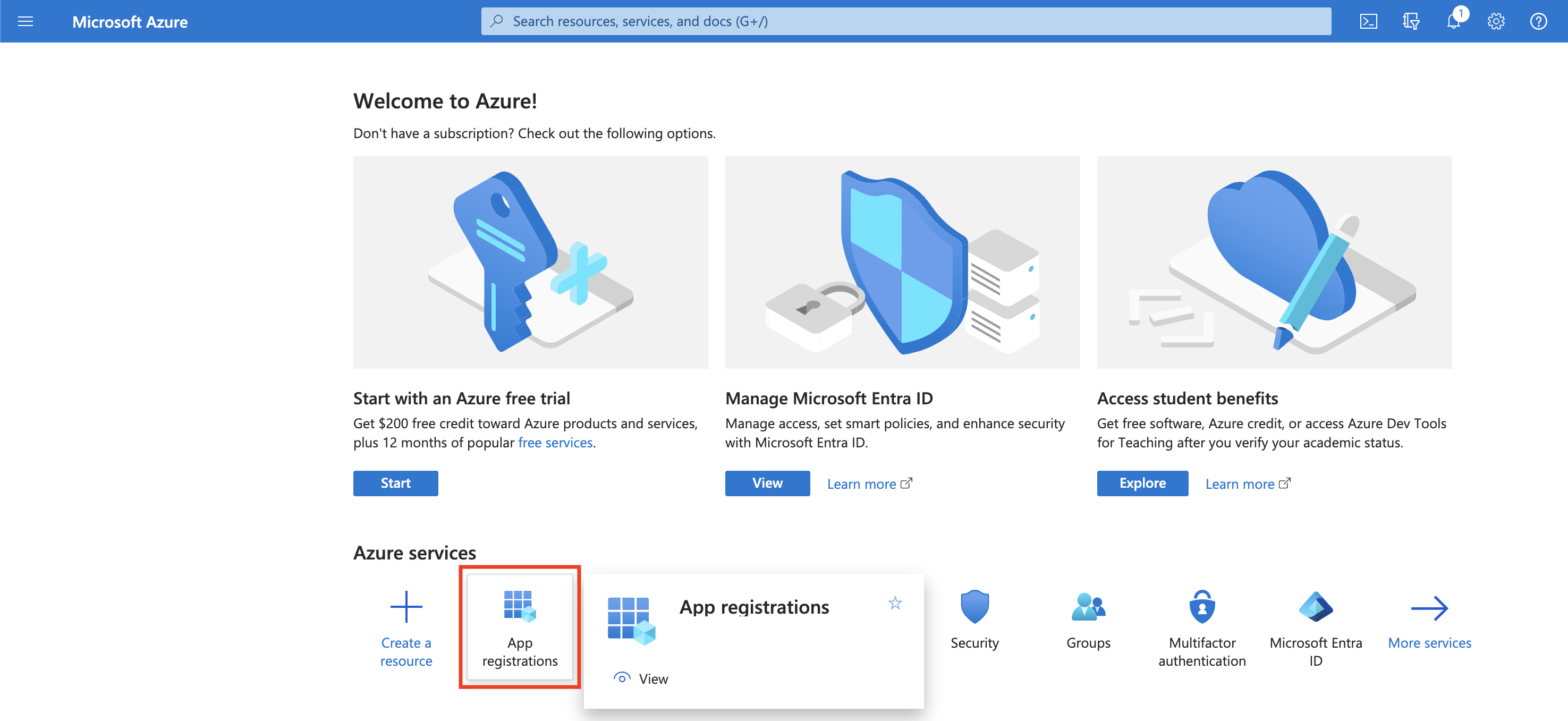
2. Open the portal menu and select **Microsoft Entra ID**.
3. On the left pane, select **App registrations**.

<figure><img src="/files/zuCbifWI6P3ThuiwWAfN" alt=""><figcaption></figcaption></figure>

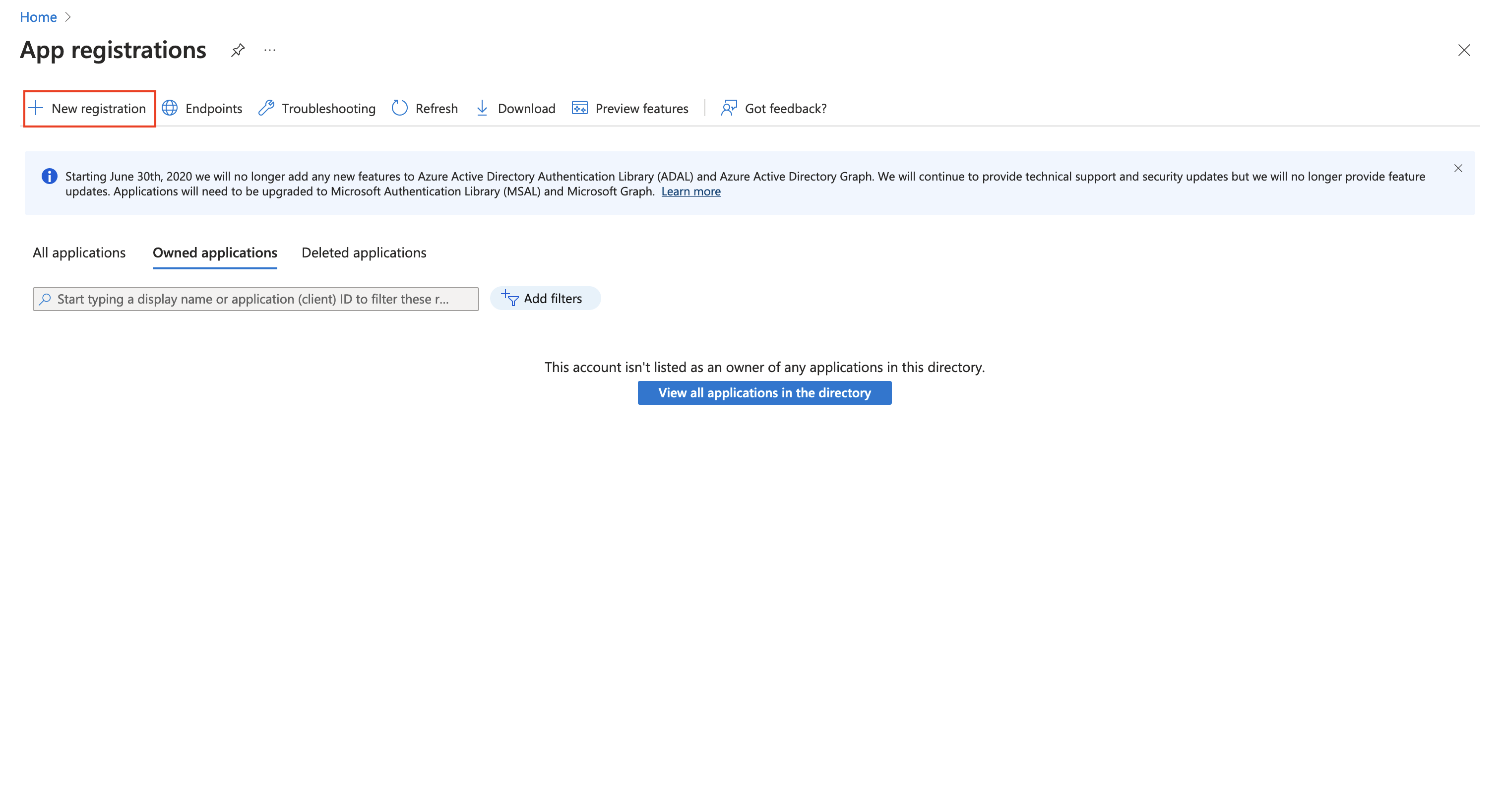
4. Click **New registration** (at the top of the right pane). The **Register an application** blade opens.

<figure><img src="/files/DHUsbxn40GO4o9kKkQFm" alt=""><figcaption></figcaption></figure>

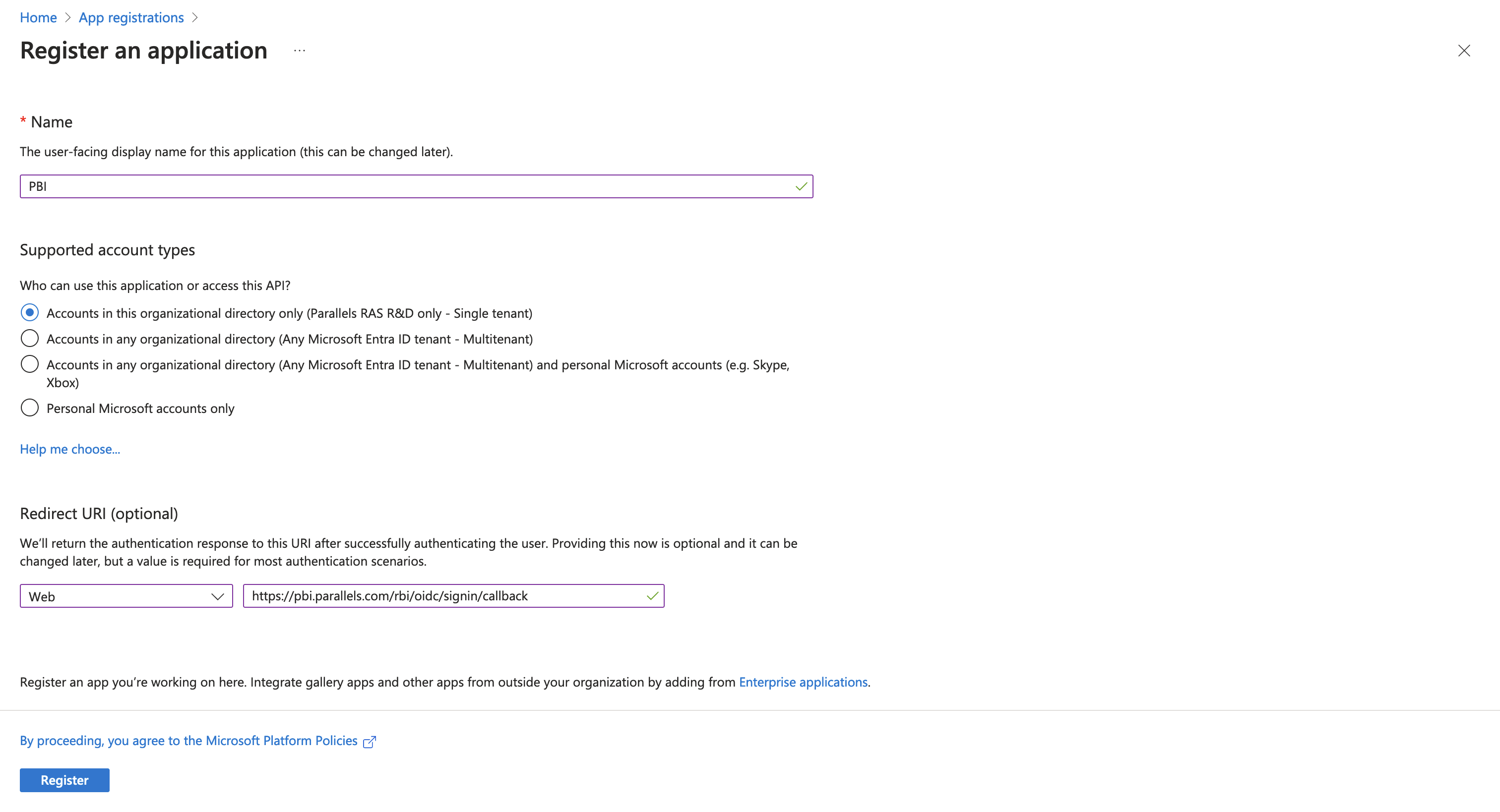
5. In the **Name** field, type the name you want to use for the application.
6. Select an appropriate account type.
7. In the **Redirect URI** section, make sure that **Web** is selected in the drop-down list and add the following URIs:

   `https://pbi.parallels.com/rbi/oidc/signin/callback` and `https://pbi.parallels.com/owner/test-idp`.

<figure><img src="/files/VVXgy0QLdfsTOQWcWGJ1" alt=""><figcaption></figcaption></figure>

8. Click **Register** (at the bottom left).

### Step 2. **Create a client secret for the Microsoft Entra ID application**

1. If you are not on the application page anymore, navigate to it from the **Home** page by selecting **Microsoft Entra ID** > **App registration** and then clicking the app in the right pane.
2. In the left pane, click **Certificates & secrets**.
3. In the right pane, click **New client secret**.
4. Type a client name and select a desired expiration option.
5. Click **Add**. The new client secret appears in the **Client secrets** list.

{% hint style="warning" %}
**Warning**: Copy and save the client secret (the **Value** column). If you leave this page without copying the secret, it will be hidden and you will not be able to retrieve it later.
{% endhint %}

### Step 3. Configure a token

1. Select your application, and in the left pane, select **Token configuration**.
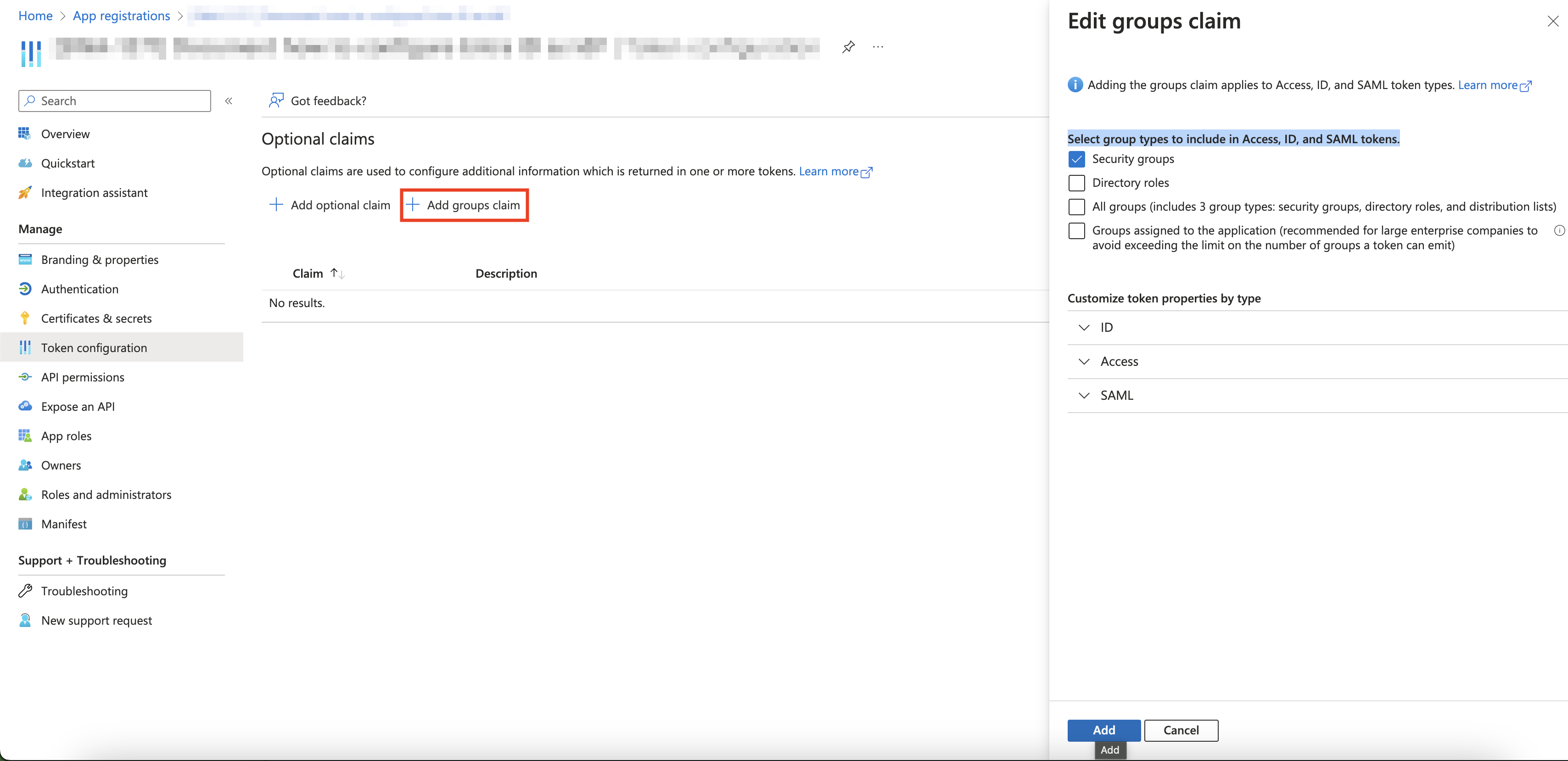
2. Click **Add groups claim.**

<figure><img src="/files/rCOjVzwi7GATbyqloWhG" alt=""><figcaption></figcaption></figure>

3. Select an appropriate group type.
4. Click **Add**.
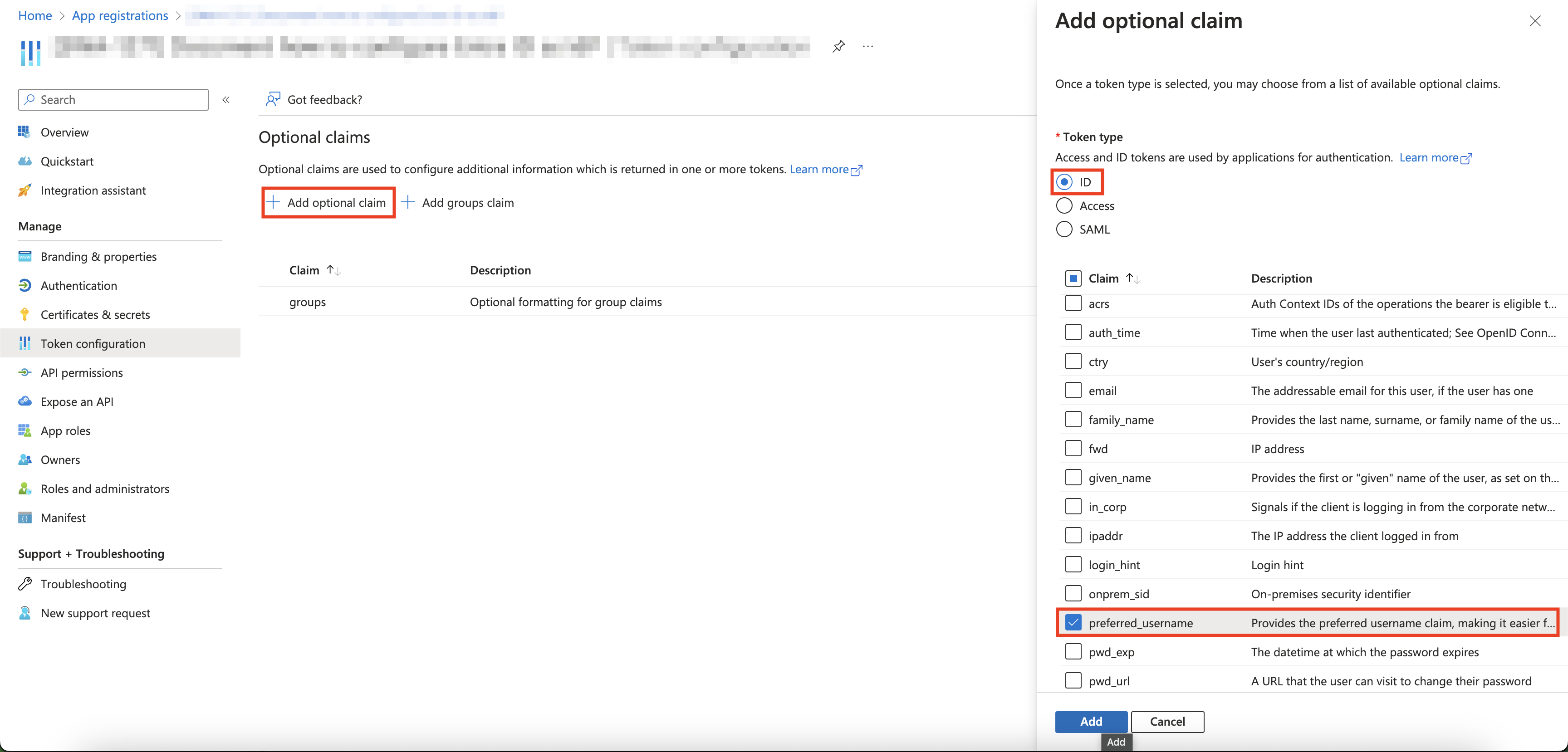
5. Click **Add optional claim**.
6. In the **Token type** section, select **ID**.
7. Select **preferred\_username**.

<figure><img src="/files/ot2HRH0gcYLfsN6itqFJ" alt=""><figcaption></figcaption></figure>

8. Click **Add**.

### Step 4. Assign Required Permissions to the **Microsoft Entra ID application**

1. Select your application and on the left pane, select **API permissions**.
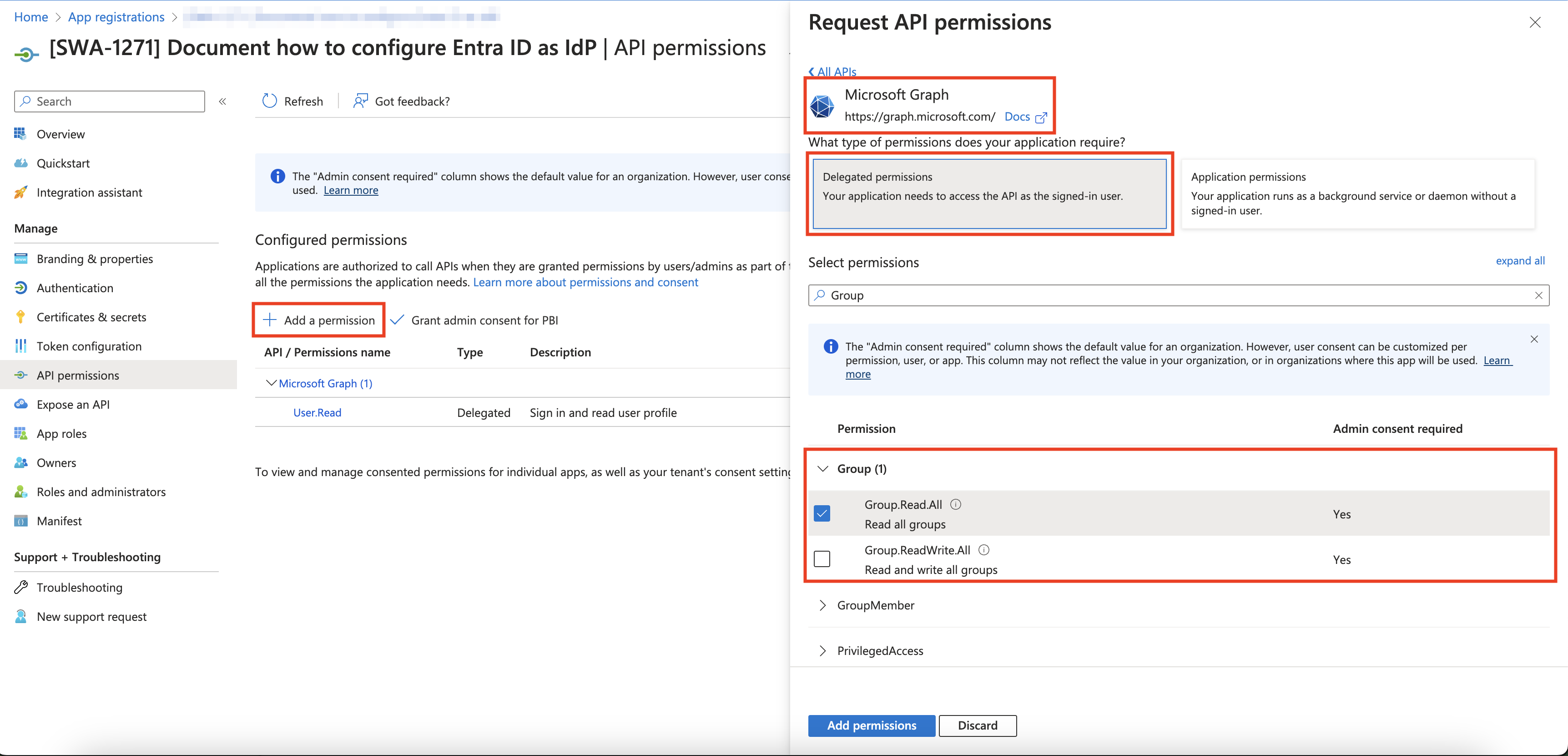
2. Click **Add a permission**.
3. Click the **Microsoft Graph** card.
4. Click the **Delegated permissions** card.
5. Open the **Group** section.
6. Select the following permissions:
   * Group.Read.All

<figure><img src="/files/84nA9p2eCRDQfOPe38nZ" alt=""><figcaption></figcaption></figure>

7. Click **Add permissions**.
8. Click **Grant admin consent for...**
9. Confirm you want to grant admin consent by clicking **Yes**.

### Step 5. Save settings for future use

1. Select your application, then in the left pane, select **Overview**.
2. Save the following information for use in the Parallels Browser Isolation Management Portal setup:&#x20;
   * Application (client) ID
3. Click the **Endpoints** button.
4. Save the value of the **OpenID Connect metadata document** field for use in the Parallels Browser Isolation Management Portal setup.

Make sure to securely store the client secret and other sensitive information.

### Step 6. Configure IdP on PBI Owner Portal

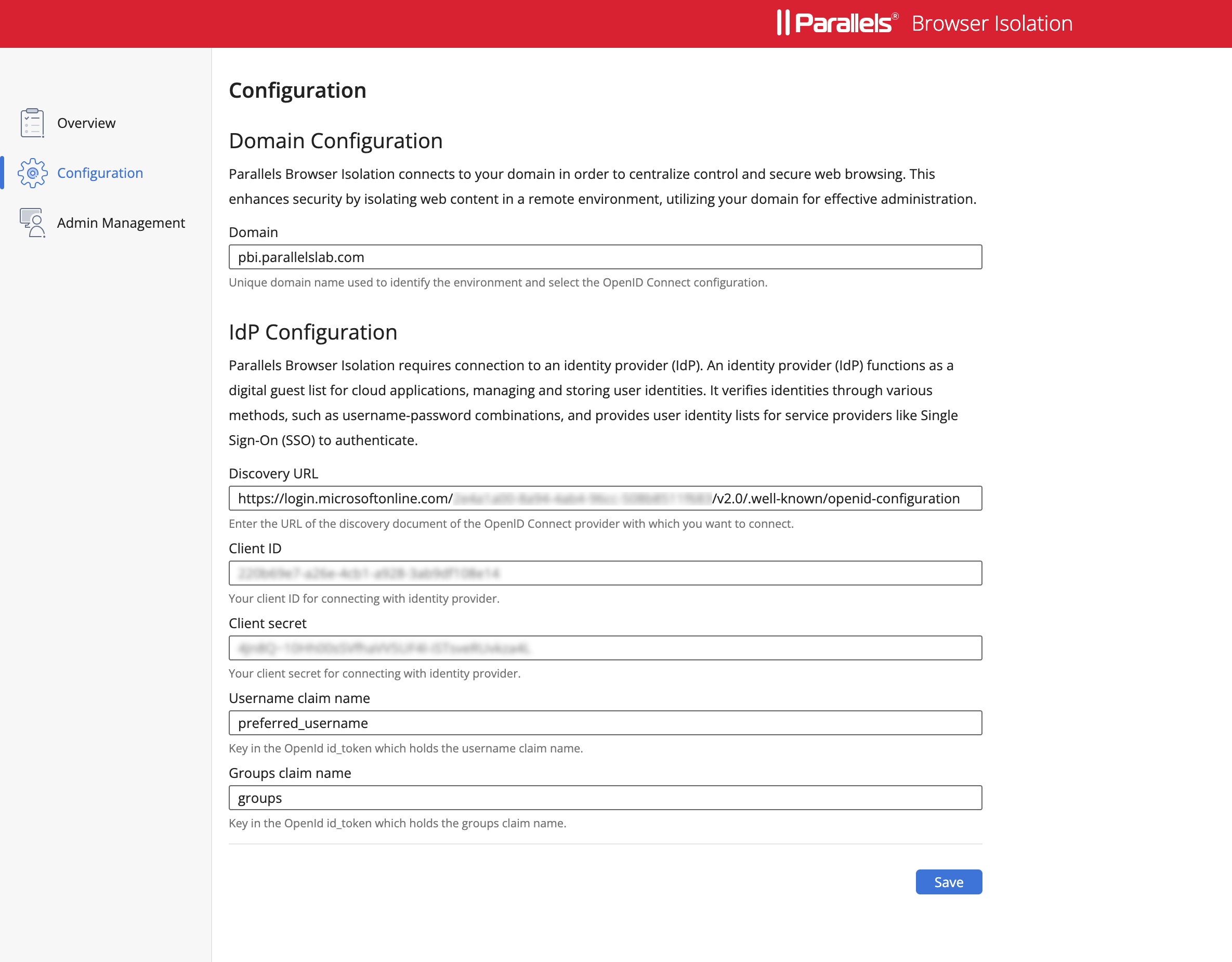
1. Once the above steps are completed, copy the values from Entra ID, which should mimic the table below, and paste them into the Parallels Browser Isolation IDP configuration section as shown below:

<table data-full-width="true"><thead><tr><th width="166">Settings</th><th width="289">Value</th><th>Details</th></tr></thead><tbody><tr><td><strong>Domain</strong></td><td>Ex: acme.com or parallels.com or &#x3C;yourorgdomain.com></td><td>The domain name should always match the value used in the email or UPN after the "@" symbol. [Ex; login using TestUser@pbi.parallels.com or TestUser@acme.com]</td></tr><tr><td><strong>Discovery URL</strong></td><td>https://login.microsoftonline.com/{tenantId}/v2.0/.well-known/openid-configuration</td><td>Copy this value from MS Entra ID, IdP Settings. It should follow the format specified in the Value Column</td></tr><tr><td><strong>Client ID</strong></td><td>******************</td><td>Copy this value from MS Entra's IdP Settings</td></tr><tr><td><strong>Client Secret</strong></td><td>******************</td><td>Copy this value from MS Entra's IdP Settings</td></tr><tr><td><strong>Username Claim Name</strong></td><td><a href="https://learn.microsoft.com/en-us/entra/identity-platform/id-token-claims-reference#:~:text=Should%20be%20ignored.-,preferred_username,-String">preferred_username</a></td><td><p>For more info visit; </p><p><a href="https://learn.microsoft.com/en-us/entra/identity-platform/id-token-claims-reference">https://learn.microsoft.com/en-us/entra/identity-platform/id-token-claims-reference</a></p></td></tr><tr><td><strong>Groups Claim Name</strong></td><td>groups</td><td>For more info visit; <br><a href="https://learn.microsoft.com/en-us/entra/identity-platform/id-token-claims-reference">https://learn.microsoft.com/en-us/entra/identity-platform/id-token-claims-reference</a></td></tr></tbody></table>

<div align="left"><figure><img src="/files/LoSiihcu8RKAgyrpjrTE" alt=""><figcaption></figcaption></figure></div>

2. Click **Save** and proceed with adding users using the Admin Management section that was configured in the OIDC.


---

# Agent Instructions: Querying This Documentation

If you need additional information that is not directly available in this page, you can query the documentation dynamically by asking a question.

Perform an HTTP GET request on the current page URL with the `ask` query parameter:

```
GET https://docs.parallels.com/landing/pbi-guides/pbi-private-access-administrators-guide/appendix/idp-configuration/microsoft-entra-oidc-configuration.md?ask=<question>
```

The question should be specific, self-contained, and written in natural language.
The response will contain a direct answer to the question and relevant excerpts and sources from the documentation.

Use this mechanism when the answer is not explicitly present in the current page, you need clarification or additional context, or you want to retrieve related documentation sections.