# OKTA OIDC Configuration

1. On your Okta admin dashboard, go to **Applications** > **Applications**.
2. Select **Create App Integration**.
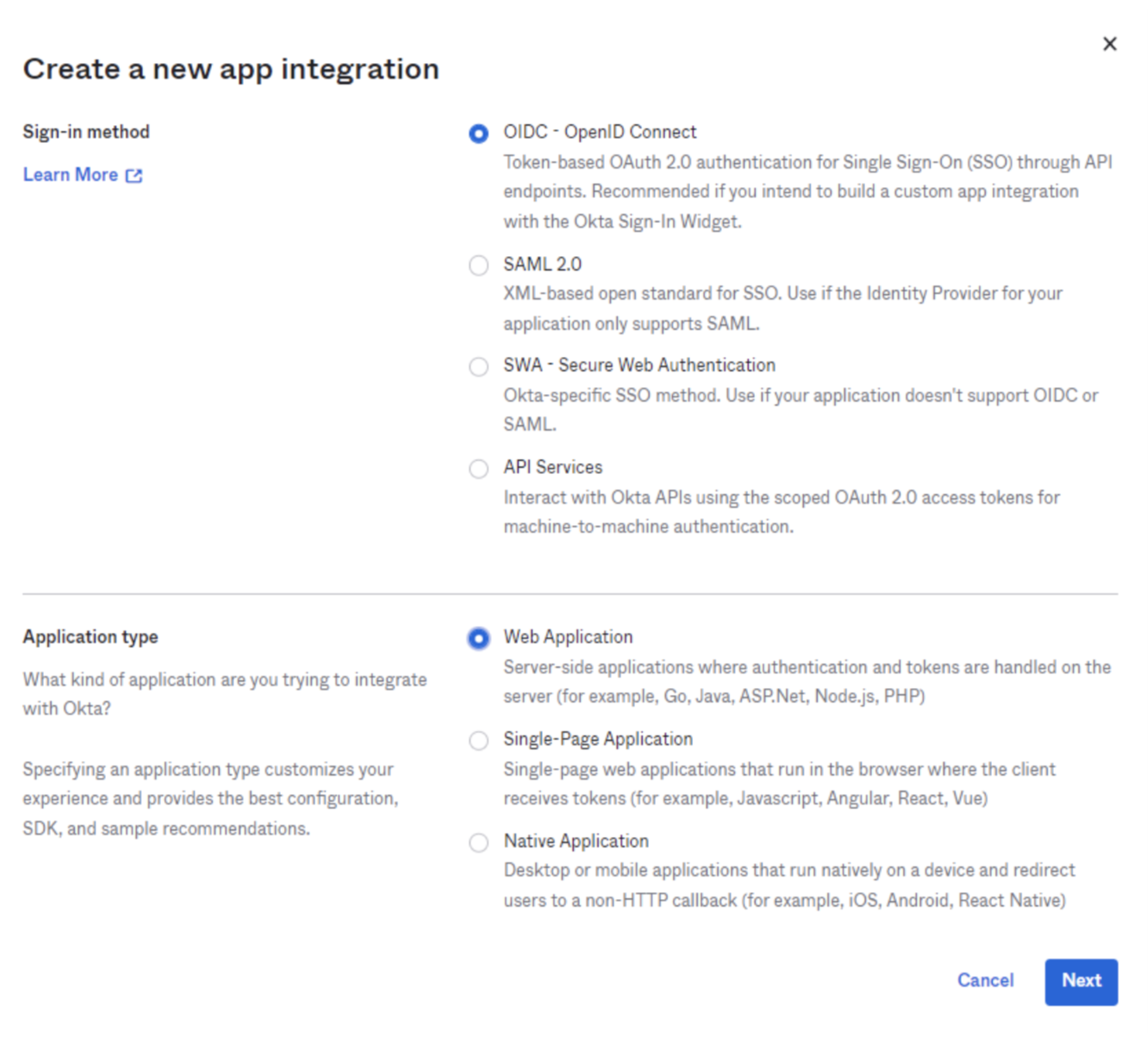
3. In the **Sign-in method** section, select **OIDC - OpenID Connect**.

<div align="left"><figure><img src="/files/mHUPpCG84RgvP4OtLWDR" alt="" width="563"><figcaption></figcaption></figure></div>

4. In the **Application type** section, select **Web Application**. Click **Next**.
5. Enter a name for the application as relevant to your organization. For example, `Acme Inc`.
6. In the **Sign-in redirect URIs** field, specify `https://pbi.parallels.com/rbi/oidc/signin/callback` and `https://pbi.parallels.com/owner/test-idp`.
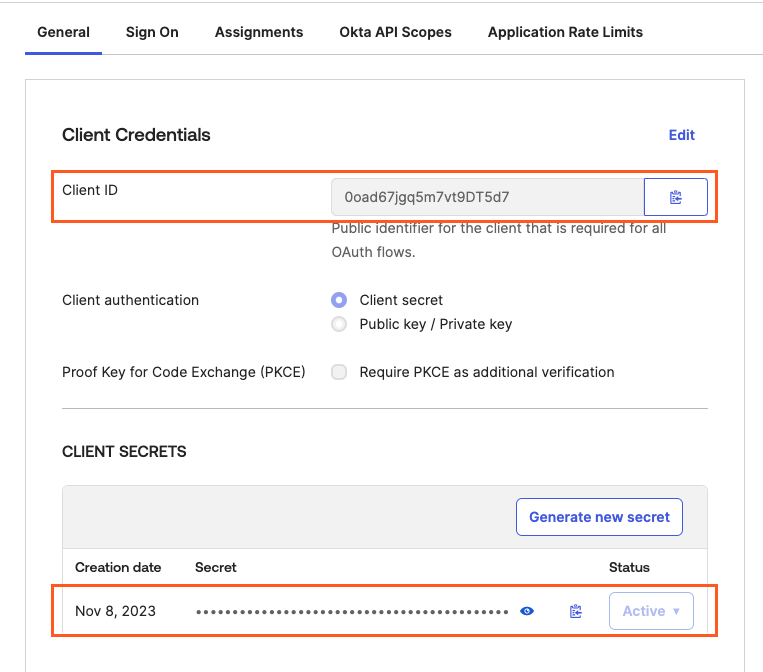
7. On the **General** tab, copy the **Client ID** and **Client secret**.

<div align="left"><figure><img src="/files/75A7LeNJ3w8ZbD59Gbh6" alt="" width="563"><figcaption></figcaption></figure></div>

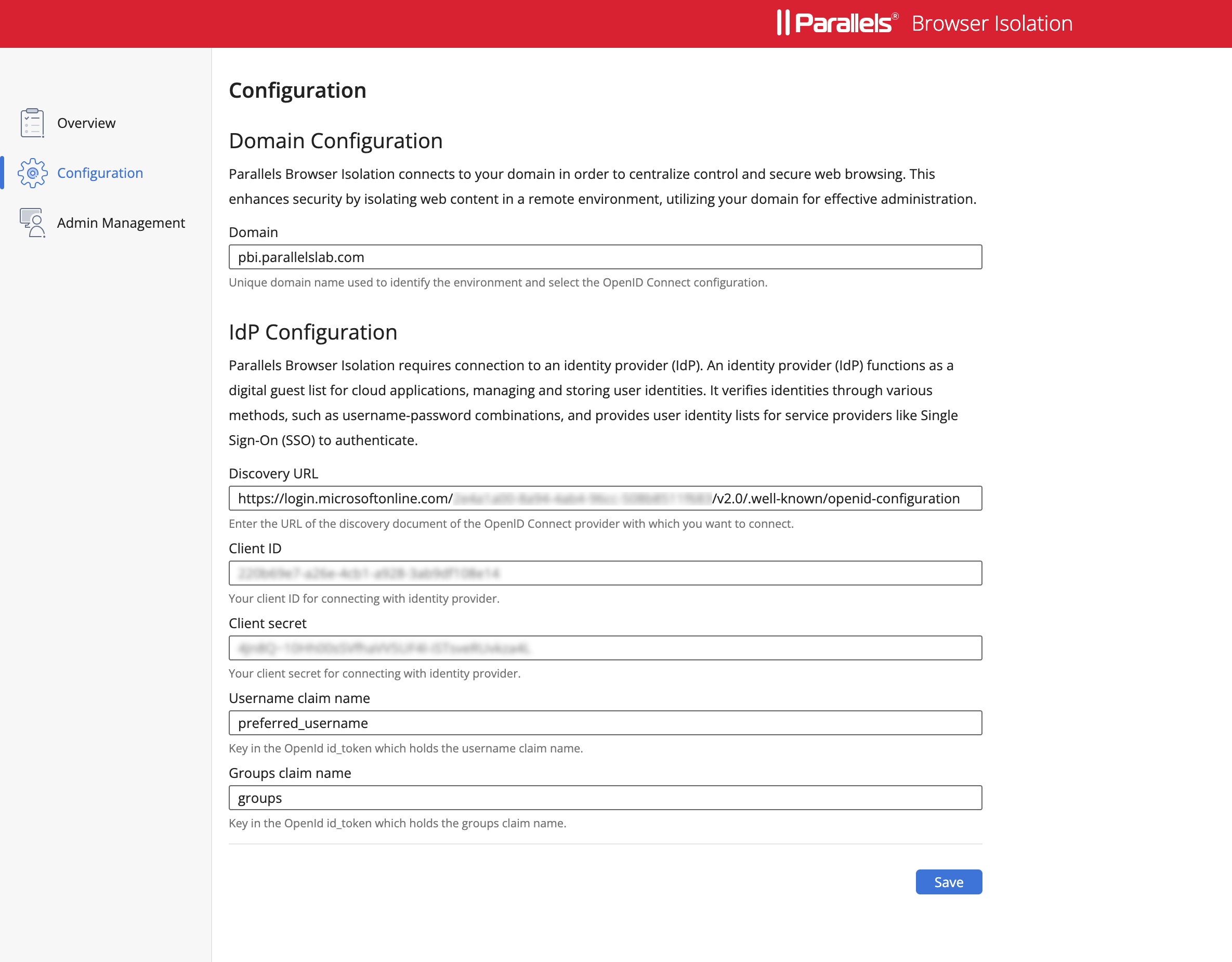
8. Once the above steps are completed, copy the values from OKTA which should mimic the table below, and paste them into the Parallels Browser Isolation IDP configuration section as shown below:

<table data-full-width="true"><thead><tr><th width="166">Settings</th><th width="289">Value</th><th>Details</th></tr></thead><tbody><tr><td><strong>Domain</strong></td><td>Ex: acme.com or parallels.com or &#x3C;yourorgdomain></td><td>The domain name should always match the value used in the email or UPN after the "@" symbol. [Ex; login using TestUser@pbi.parallels.com or TestUser@acme.com]</td></tr><tr><td><strong>Discovery URL</strong></td><td><a href="https://{oktaDomain}/.well-known/openid-configuration">https://{oktaDomain}/.well-known/openid-configuration</a></td><td>Copy this value from OKTA's IDP Settings. It should follow the format specified in the Value Column</td></tr><tr><td><strong>Client ID</strong></td><td>******************</td><td>Copy this value from OKTA's IDP Settings</td></tr><tr><td><strong>Client Secret</strong></td><td>******************</td><td>Copy this value from OKTA's IDP Settings</td></tr><tr><td><strong>Username Claim Name</strong></td><td><a href="https://developer.okta.com/docs/api/openapi/okta-oauth/guides/overview/#:~:text=%2C-,preferred_username,-%2C">preferred_username</a></td><td>For more info visit; <a href="https://developer.okta.com/docs/api/openapi/okta-oauth/guides/overview/">https://developer.okta.com/docs/api/openapi/okta-oauth/guides/overview/</a></td></tr><tr><td><strong>Groups Claim Name</strong></td><td><a href="https://developer.okta.com/docs/api/openapi/okta-oauth/guides/overview/#:~:text=425)%20555%2D1212-,groups,-groups">groups</a></td><td>For more info visit; <a href="https://developer.okta.com/docs/api/openapi/okta-oauth/guides/overview/">https://developer.okta.com/docs/api/openapi/okta-oauth/guides/overview/</a></td></tr></tbody></table>

<div align="left"><figure><img src="/files/zN6hjRWguqvisPKOzscf" alt="" width="563"><figcaption></figcaption></figure></div>

9. Click **Save** and proceed with adding users using the Admin Management section that was configured in the OIDC.


---

# Agent Instructions: Querying This Documentation

If you need additional information that is not directly available in this page, you can query the documentation dynamically by asking a question.

Perform an HTTP GET request on the current page URL with the `ask` query parameter:

```
GET https://docs.parallels.com/landing/pbi-guides/pbi-private-access-administrators-guide/appendix/idp-configuration/okta-oidc-configuration.md?ask=<question>
```

The question should be specific, self-contained, and written in natural language.
The response will contain a direct answer to the question and relevant excerpts and sources from the documentation.

Use this mechanism when the answer is not explicitly present in the current page, you need clarification or additional context, or you want to retrieve related documentation sections.