> For the complete documentation index, see [llms.txt](https://docs.parallels.com/landing/llms.txt). Markdown versions of documentation pages are available by appending `.md` to page URLs; this page is available as [Markdown](https://docs.parallels.com/landing/pd-ag/getting-started/dividing-users-into-groups/dividing-users-into-groups-with-sublicenses.md).
# Creating Secondary License Keys
To create a sublicense, follow these steps:
{% hint style="danger" %}
**Warning**: If you plan on activating your end users' copies of Parallels Desktop for Mac with license keys on a **per-device** basis, we strongly recommend against sending out your primary license key to your end-users directly. We recommend employing the **Invite Users** function, which generates unique keys for each invitation email, or creating and sharing additional sublicense keys.
{% endhint %}
1. Go to [Parallels My Account](https://my.parallels.com/login) and select **Dashboard** in the top-right corner.
2. In your Parallels Desktop Enterprise Edition card, click on the **Subscription Details** line.
3. Scroll down to the **License Keys** card and click **Create License Key** in its top-right corner.
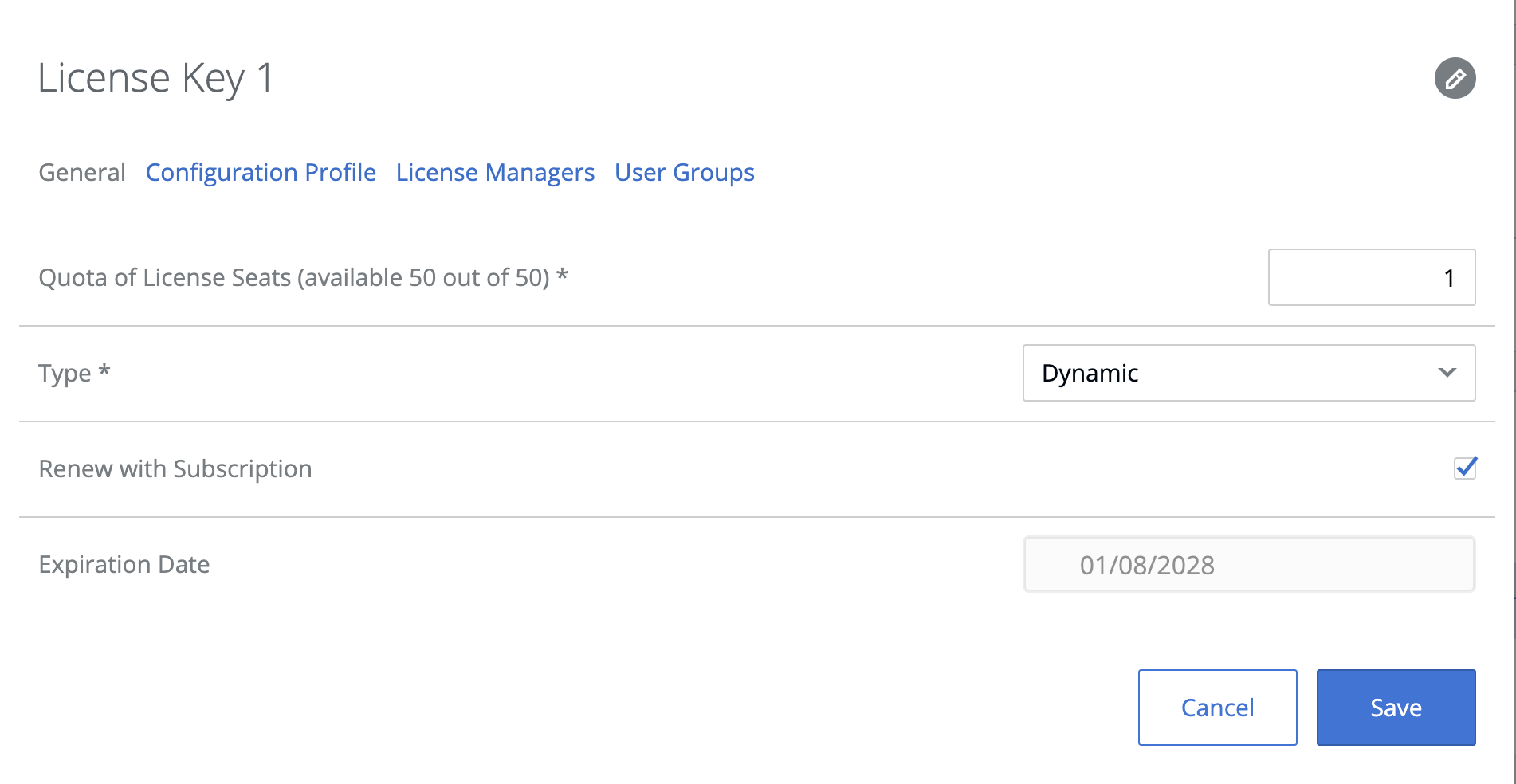
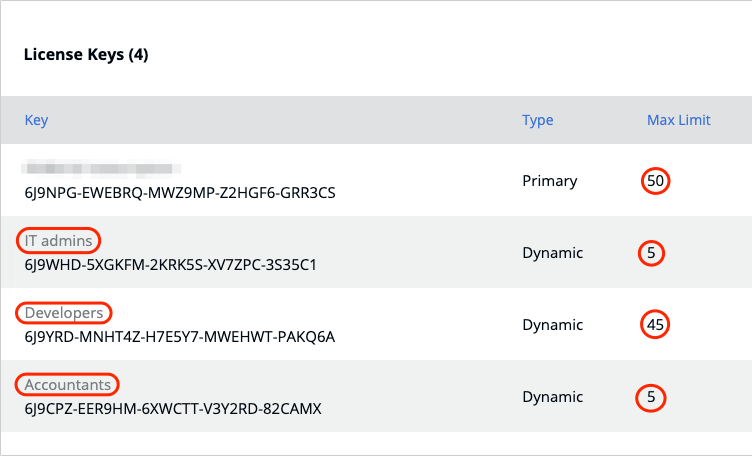
4. Click on the key name at the top and change it to reflect the name of the group.
5. Assign a certain number of Parallels Desktop installations available with this license key, select the key type, and click **Save**. To learn more about the differences between Dynamic and Reserved keys, see [this chapter](/landing/pd-ag/parallels-desktop-licensing-guide/managing-subscriptions-licences-and-seats/creating-additional-license-keys.md) in our Licensing Guide, specifically the [**Allocating Licenses**](/landing/pd-ag/parallels-desktop-licensing-guide/managing-subscriptions-licences-and-seats/creating-additional-license-keys.md#allocating-licenses) section.
* If you want your users to activate their copies of Parallels Desktop for Mac using license keys, you could send them invitations to activate, which will contain automatically generated individual activation keys (derived from the respective sublicense keys). To do that, use the **Invite Users** button on the product card in Parallels My Account.
* If your organization uses an identity provider (e.g., Microsoft Azure/Entra ID or Okta) and you want your users to activate their copies of Parallels Desktop for Mac using Single Sign-On, refer to [this section](/landing/pd-ag/getting-started/configuring-the-single-sign-on-sso-integration-with-parallels-my-account/optional-how-to-divide-users-into-groups-and-assign-them-sublicenses.md) of the guide.
{% hint style="info" %}
**Note**: With Enterprise Edition, you can maintain a mix of per-device (sublicense key) and per-user (SSO) activations across the same overall setup.\
\
Any users not included in the mapped SSO groups will be activated using the quota from the **primary license key** seats pool. Golden Images will be assigned, and policies will be applied accordingly.
{% endhint %}
Irrespective of their activation method, dividing users into groups will let you benefit from things like custom [policies](/landing/pd-ag/preparing-virtual-machines-for-deployment-and-securing-them/policies.md) and restrictions.
---
# Agent Instructions
This documentation is published with GitBook. GitBook is the documentation platform designed so that both humans and AI agents can read, navigate, and reason over technical content effectively. Learn more at gitbook.com.
## Querying This Documentation
If you need additional information that is not directly available in this page, you can query the documentation dynamically by asking a question.
Perform an HTTP GET request on the current page URL with the `ask` query parameter, and the optional `goal` query parameter:
```
GET https://docs.parallels.com/landing/pd-ag/getting-started/dividing-users-into-groups/dividing-users-into-groups-with-sublicenses.md?ask=&goal=
```
`ask` is the immediate question: it should be specific, self-contained, and written in natural language.
`goal` is optional and describes the broader end goal you are ultimately trying to accomplish on behalf of the user. GitBook uses it to tailor the answer towards what is most useful for that goal.
The response will contain a direct answer to the question and relevant excerpts and sources from the documentation.
Use this mechanism when the answer is not explicitly present in the current page, you need clarification or additional context, or you want to retrieve related documentation sections.