> For the complete documentation index, see [llms.txt](https://docs.parallels.com/landing/llms.txt). Markdown versions of documentation pages are available by appending `.md` to page URLs; this page is available as [Markdown](https://docs.parallels.com/landing/pd-ag/parallels-desktop-business-administrators-guide/deploying-parallels-desktop-for-mac-business-edition/basic-deploying-via-an-invitation-email.md).

# \[BASIC] Deploying via an Invitation Email

To invite users to install Parallels Desktop via email:

1. Log into Parallels [My Account](https://my.parallels.com/).
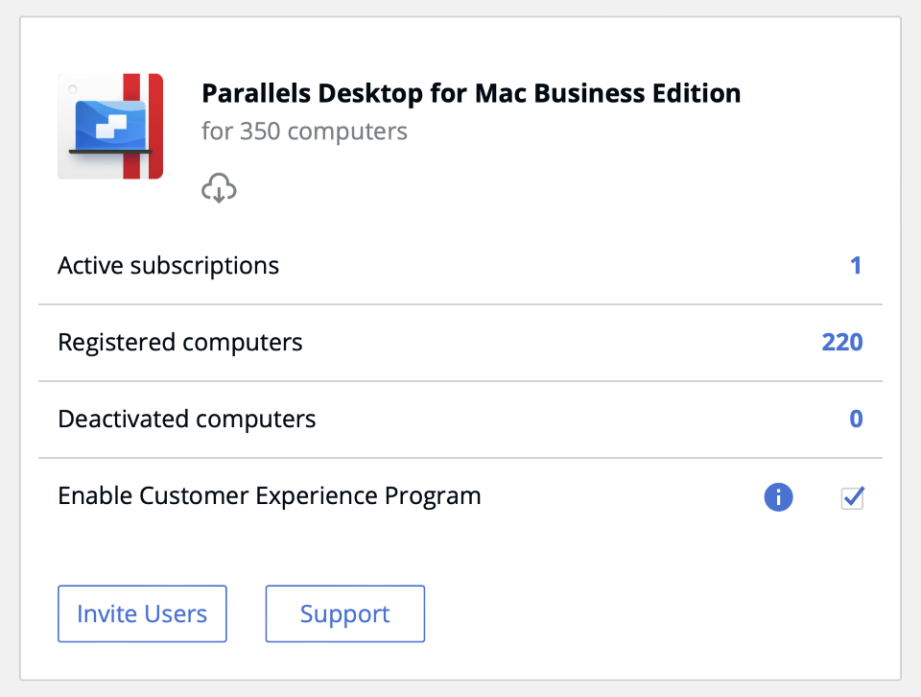
2. On the **Dashboard** page, locate the **Parallels Desktop for Mac Business Edition** product card and click the **Invite Users** button.

   <figure><img src="https://2371171723-files.gitbook.io/~/files/v0/b/gitbook-x-prod.appspot.com/o/spaces%2FcBAgIlxVfUw3qQhf1ovR%2Fuploads%2Fgit-blob-e539e2351c18723ae660150422dc7b2035aeea0b%2Fimage.png?alt=media" alt="" width="563"><figcaption></figcaption></figure>
3. In the dialog that opens, select a license key that you want to use to activate Parallels Desktop on users' computers and click **Next**.
4. In the **Invite Parallels Desktop Users** dialog, specify the following options:
   * **Language of Invitation:** Select a language for the instructions in the invitation email.

     <figure><img src="https://2371171723-files.gitbook.io/~/files/v0/b/gitbook-x-prod.appspot.com/o/spaces%2FcBAgIlxVfUw3qQhf1ovR%2Fuploads%2Fgit-blob-a8a01dd61e27195f30705be33f34ff62758c9c82%2Fimage%20(2).png?alt=media" alt="" width="563"><figcaption></figcaption></figure>
   * **Invitation Expires in:** Use the drop-down list to select when the invitation should expire. After it expires, the temporary activation code included in it will no longer work.
   * **Email address:** Type a user's email address and click **Add**. Repeat for all intended users. You can also specify a CSV file containing the email addresses of your users. The CSV file must contain a single column (a valid email address) with multiple rows (one email address on each row). Please note that if the number of users included in this list exceeds the number of available licenses for the specified key, the activation of Parallels Desktop will happen on a first-come, first-served basis.
   * The **Download Invitations** button allows you to save the invitation email information to a CSV file. The information includes the email addresses that you specified, a temporary activation code (generated individually for each user), and the Parallels Desktop download URL (also generated individually for each user). You can use the information in the downloaded file to create your own invitation email or to answer helpdesk questions, should any arise.

     <div data-gb-custom-block data-tag="hint" data-style="info" class="hint hint-info"><p><strong>Note</strong>: To see how the invitation email looks and to test it, you can send it to yourself first.</p></div>
5. Click **Send Invitations** to send the email to users.

The invitation email that the users receive contains the following information:

* Installation instructions and a link from which a user can download the Parallels Desktop installation file.
* A temporary activation code. The code will be used automatically when a user installs Parallels Desktop on their computer. If, for any reason, automatic activation fails, the user can use the license key included in the mail to manually activate Parallels Desktop.

  <div data-gb-custom-block data-tag="hint" data-style="info" class="hint hint-info"><p><strong>Note</strong>: The license keys included in the emails are not the same as the actual license key that you selected when you created the invitation email. This is only a temporary activation code with a limited scope and duration. The real license key is never shown to your Parallels Desktop users.</p></div>

{% hint style="warning" %}
**Note**: Each code can only be used once to activate Parallels Desktop on one computer and should not be shared. To activate it on another computer, send another invitation.
{% endhint %}

Once the users have installed and activated Parallels Desktop on their computers, you will be able to see the list of active installations in your Parallels account.

### Setting Up a Virtual Machine

Once Parallels Desktop is installed on a Mac computer, the user needs to set up a virtual machine to run Windows on their Mac. This can be accomplished using one of the following methods:

* A user can create and configure a virtual machine and install Windows in it manually.
* An administrator can prepare a virtual machine and put it on a corporate network storage from where users can download it to their computers.


---

# Agent Instructions
This documentation is published with GitBook. GitBook is the documentation platform designed so that both humans and AI agents can read, navigate, and reason over technical content effectively. Learn more at gitbook.com.

## Querying This Documentation
If you need additional information that is not directly available in this page, you can query the documentation dynamically by asking a question.

Perform an HTTP GET request on the current page URL with the `ask` query parameter, and the optional `goal` query parameter:

```
GET https://docs.parallels.com/landing/pd-ag/parallels-desktop-business-administrators-guide/deploying-parallels-desktop-for-mac-business-edition/basic-deploying-via-an-invitation-email.md?ask=<question>&goal=<endgoal>
```

`ask` is the immediate question: it should be specific, self-contained, and written in natural language.
`goal` is optional and describes the broader end goal you are ultimately trying to accomplish on behalf of the user. GitBook uses it to tailor the answer towards what is most useful for that goal.

The response will contain a direct answer to the question and relevant excerpts and sources from the documentation.

Use this mechanism when the answer is not explicitly present in the current page, you need clarification or additional context, or you want to retrieve related documentation sections.