> For the complete documentation index, see [llms.txt](https://docs.parallels.com/landing/llms.txt). Markdown versions of documentation pages are available by appending `.md` to page URLs; this page is available as [Markdown](https://docs.parallels.com/landing/pd-ag/parallels-desktop-business-administrators-guide/setting-up-parallels-my-account/dividing-users-into-groups-with-sublicenses.md).
# Dividing Users into Groups with Additional License Keys
When you purchase a subscription, you will receive a single license key. In many business situations, a single license key may not be flexible enough. For this reason, Parallels provides you with the ability to create additional license keys (also known as sublicenses) linked to your Primary license key. When creating a license key, you can allocate a desired number of licenses to it and specify a custom expiration date.
In general, it is not recommended to use the main license key for activating Parallels Desktop seats as it may be shared with unauthorized third parties, whereas revoking an additional sublicense key and creating a new one is much easier. So, even if you plan to have only one group of users, we recommend that you issue them an additional key instead of the primary one.
{% hint style="info" %}
**Note**: This section contains the basic information on creating additional license keys. For more information, including [transferring users from one key to another](/landing/pd-ag/parallels-desktop-licensing-guide/managing-subscriptions-licences-and-seats/switching-a-parallels-desktop-installation-to-a-different-license-key.md), or assigning division administrators to [manage specific additional license keys](/landing/pd-ag/parallels-desktop-licensing-guide/managing-accounts/adding-license-managers.md), see the respective sections of our [Licensing Guide](https://docs.parallels.com/landing/pd-ag/parallels-desktop-licensing-guide/).
{% endhint %}
### Planning for Additional License Keys
Additional license keys are useful in these typical scenarios:
* You want to protect your primary license key from being shared with unauthorized third parties, even by accident.
* You want to grant a division of your organization the ability to use a limited number of your available licenses. You can create an additional license key with the required number of licenses and give it to the division's administrator.
* You want to give a license key to a temporary team member or a consultant. To do so, you can create a license key with a single individual license and a specific expiration date. When the license key expires, it becomes invalid, and the license goes back to the Primary license key pool.
* You are an educational organization and want to activate Parallels Desktop for a group of students for the duration of a specific term. You can create a new license key at the beginning of each term. At the same time, the key that you used for the previous term expires, and the number of licensed seats contained in it goes back to the Primary license key pool.
### Allocating Licenses
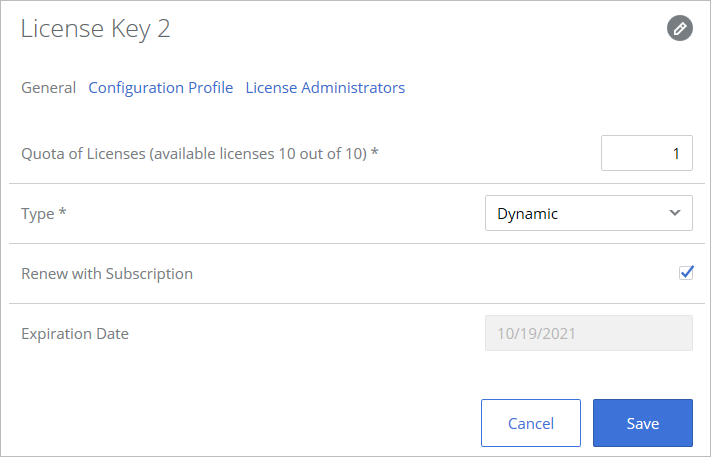
When allocating a maximum number of individual licenses to a license key, you need to decide whether they should be reserved or allocated dynamically:
* If license keys are reserved, only the given sublicense/user group can use them. This is a good option when you need to guarantee that the license key can activate a specific number of Parallels Desktop for Mac copies. \
\
[**Example**: If your initial license has 100 seats and you create a sublicense key with 5 **reserved** seats, your remaining pool will have 95 seats.](#user-content-fn-1)[^1]
* If license keys are allocated dynamically, each new user will have to compete for the remaining quota with the Primary license key and other dynamic keys (if any). You can use this option when you have to use unique license keys in different offices of your organization but don’t want to strictly limit their license usage.\
\
[**Example**: If your initial license has 100 seats and you create a sublicense key with 5 **dynamically** allocated seats, your remaining pool will still have 100 seats, and all the dynamically allocated sublicenses will have to compete for it.](#user-content-fn-1)[^1]
{% hint style="info" %}
**Note**: A sum of dynamically allocated license seats across several user groups can exceed the overall remaining quota in your primary license. In this case, the overarching principle is first come, first served.
{% endhint %}
### Creating Additional License Keys
To create a sublicense, follow these steps:
1. Go to [Parallels My Account](https://my.parallels.com/login) and select **Dashboard** in the top-right corner.
2. In your Parallels Desktop Business Edition card, click on the **Subscription Details** line.
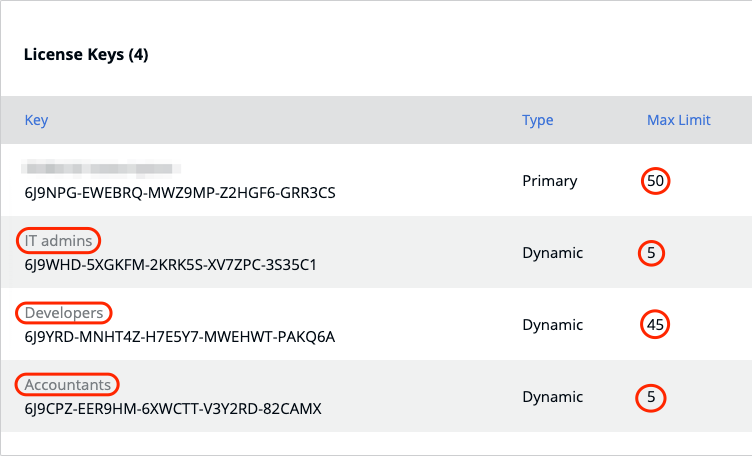
3. Scroll down to the **License Keys** card and click **Create License Key** in its top-right corner.
4. Click on the key name at the top and change it to reflect the name of the group.
5. Assign a certain number of Parallels Desktop installations available with this license key, select the key type, and click **Save**.
### Modifying or Deleting Additional License Keys
To modify or delete a license key that you created earlier, open the **Subscription Details** page and click the  icon (the last column in the list). Use the dialog that opens to modify the license key properties. To delete a license key, click **Delete Key**.
[^1]:
---
# Agent Instructions
This documentation is published with GitBook. GitBook is the documentation platform designed so that both humans and AI agents can read, navigate, and reason over technical content effectively. Learn more at gitbook.com.
## Querying This Documentation
If you need additional information that is not directly available in this page, you can query the documentation dynamically by asking a question.
Perform an HTTP GET request on the following URL with the `ask` and `goal` query parameters:
```
GET https://docs.parallels.com/landing/pd-ag/parallels-desktop-business-administrators-guide/setting-up-parallels-my-account/dividing-users-into-groups-with-sublicenses.md?ask=&goal=
```
`ask` is the immediate question: it should be specific, self-contained, and written in natural language.
`goal` is what the user is ultimately trying to achieve, the reason they need the answer. Sharing it helps GitBook give you a better, more relevant answer. A goal is most helpful when it describes the outcome the user wants rather than restating the question. For example, with `ask=how do I create an API token`, a goal like `build a script that syncs our docs to a CMS` lets GitBook tailor the answer to that use case.
The response will contain a direct answer to the question and relevant excerpts and sources from the documentation.
Use this mechanism when the answer is not explicitly present in the current page, you need clarification or additional context, or you want to retrieve related documentation sections.