> For the complete documentation index, see [llms.txt](https://docs.parallels.com/landing/llms.txt). Markdown versions of documentation pages are available by appending `.md` to page URLs; this page is available as [Markdown](https://docs.parallels.com/landing/pd-ag/preparing-virtual-machines-for-deployment-and-securing-them/policies.md).
# Policies
On this page, you can assign policies for pre-existing user groups that you can set up in Parallels My Account. Each user group is a sublicense of your main Parallels Desktop Enterprise Edition license with a unique key. Read [this chapter](/landing/pd-ag/getting-started/dividing-users-into-groups/dividing-users-into-groups-with-sublicenses.md) to learn more.
{% hint style="warning" %}
**Attention**: If you want, you may assign a new policy to the users activated with the primary license key. However, for security reasons, we strongly advise against using your primary key directly. Any compromised secondary (sublicense) keys can be deleted and replaced with new ones.
{% endhint %}
To create user groups and populate them with users, please refer to [this page](/landing/pd-ag/getting-started/dividing-users-into-groups/dividing-users-into-groups-with-sublicenses.md). If you plan on using Single Sign-On for license activation, refer additionally to [this page](/landing/pd-ag/getting-started/configuring-the-single-sign-on-sso-integration-with-parallels-my-account/optional-how-to-divide-users-into-groups-and-assign-them-sublicenses.md).
### Creating a New Policy
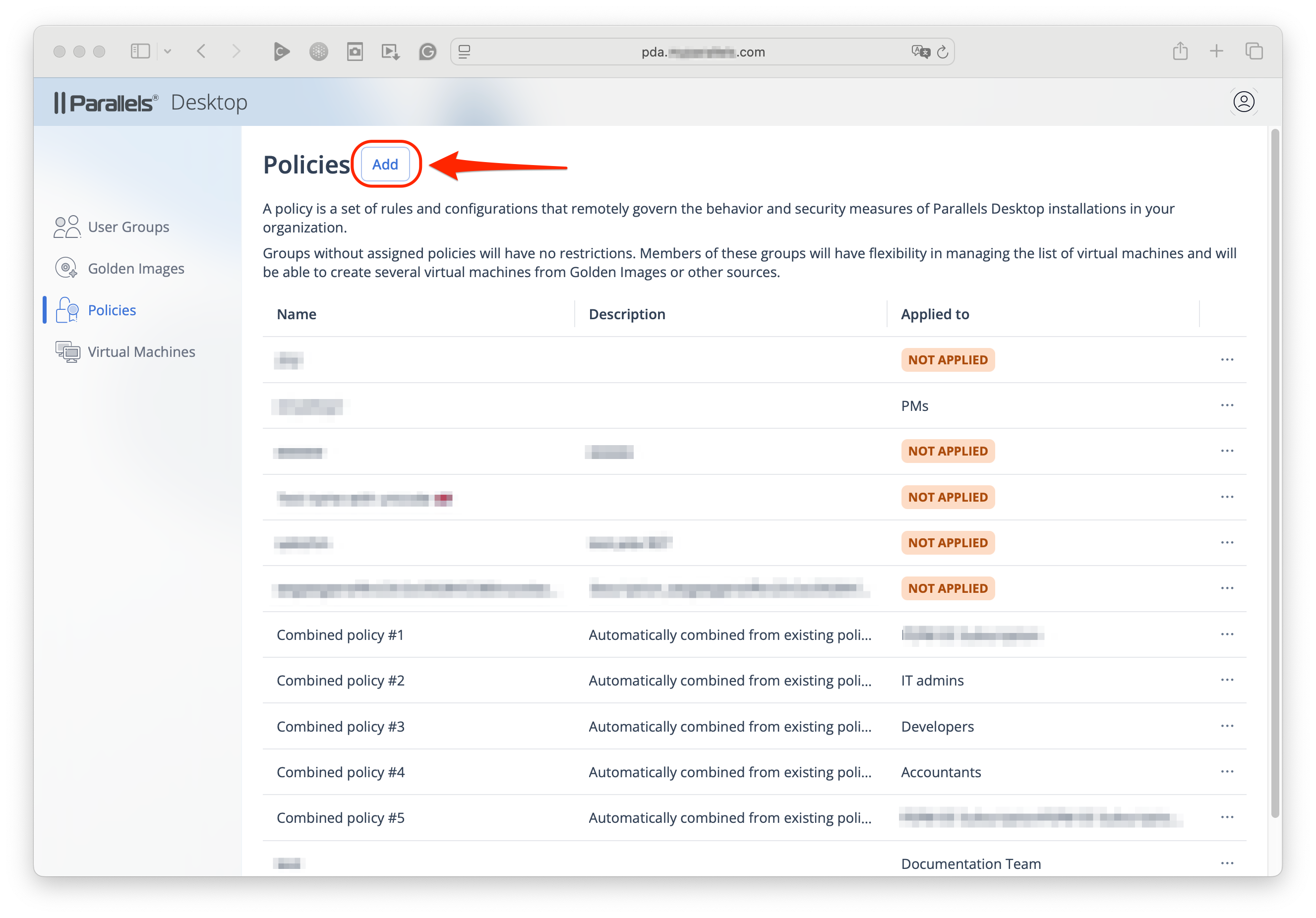
To create a new policy, click on the **Add** button in the top left corner of the page. This will launch the multi-page policy creation process where you will have to provide the following information:
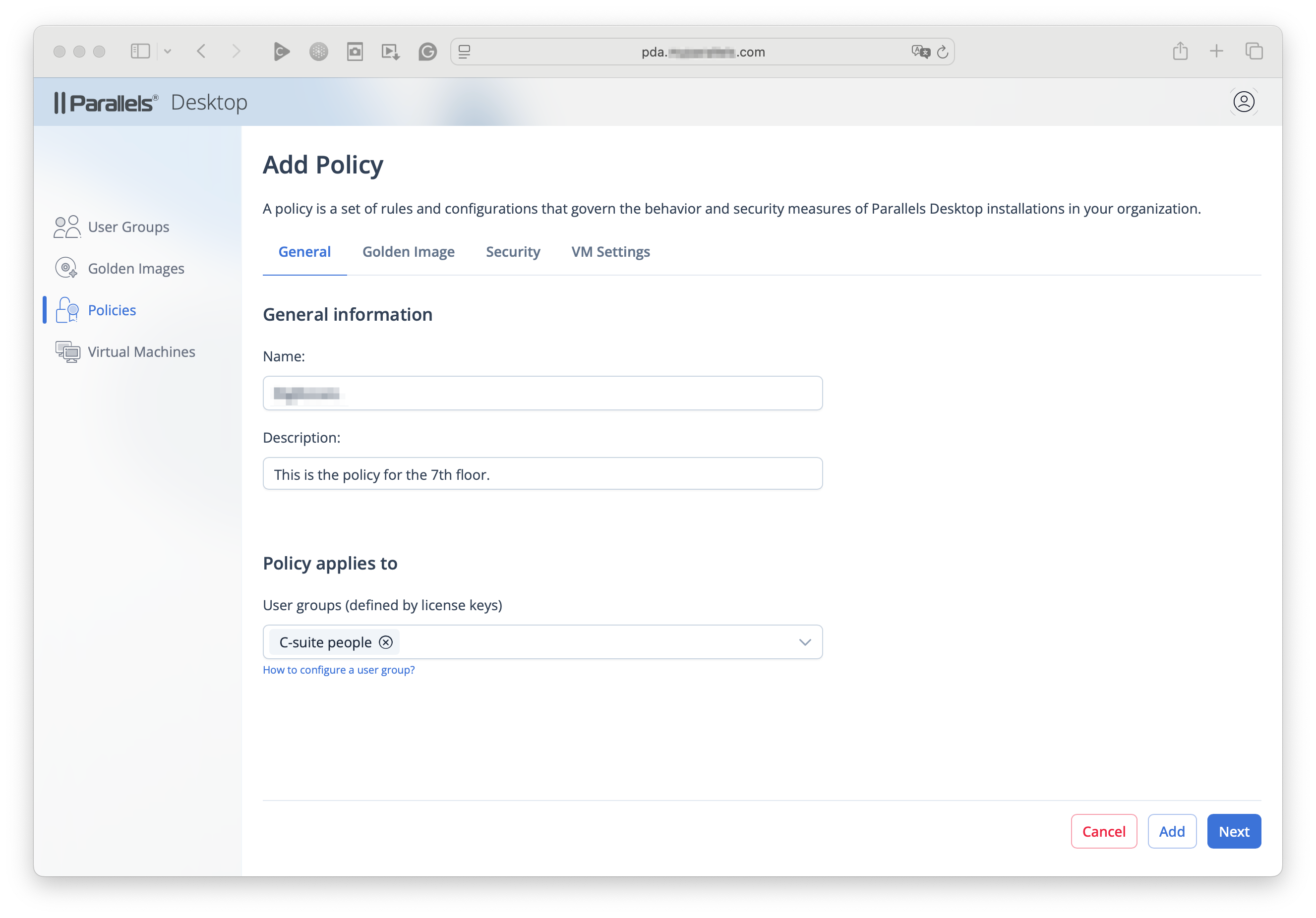
#### General Information
1. **Name**. Use a unique descriptive name in case the number of policies increases in the future.
2. **Description.**
3. **Policy applies to**. This setting allows you to add and remove the groups (as defined by [secondary license keys](/landing/pd-ag/getting-started/dividing-users-into-groups/dividing-users-into-groups-with-sublicenses.md)) that the policy applies to.\
\
**Note**: At any given time, each group may only have ONE policy applied to it, so you won't be able to add groups that already have other policies that apply to them.\
\
If you don't divide your Parallels users into groups, or have users assigned to the primary license key, you may assign a policy to the primary license key. To add a group, use the drop-down menu as indicated in the image above. To remove one already added, click on the *(X) symbol* next to the one already listed.\
\
**Note**: You may choose to apply a specific policy to the users whose copies of Parallels Desktop are activated with the [primary license key](/landing/pd-ag/getting-started/dividing-users-into-groups/dividing-users-into-groups-with-sublicenses.md). These settings will not affect any users who are on secondary license keys or have been included in one of the [SSO user groups](/landing/pd-ag/getting-started/configuring-the-single-sign-on-sso-integration-with-parallels-my-account/optional-how-to-divide-users-into-groups-and-assign-them-sublicenses.md).
4. Click **Next**.
Throughout the policy creation process, you may use the **Next** and **Previous** buttons to move between the various steps and check settings.
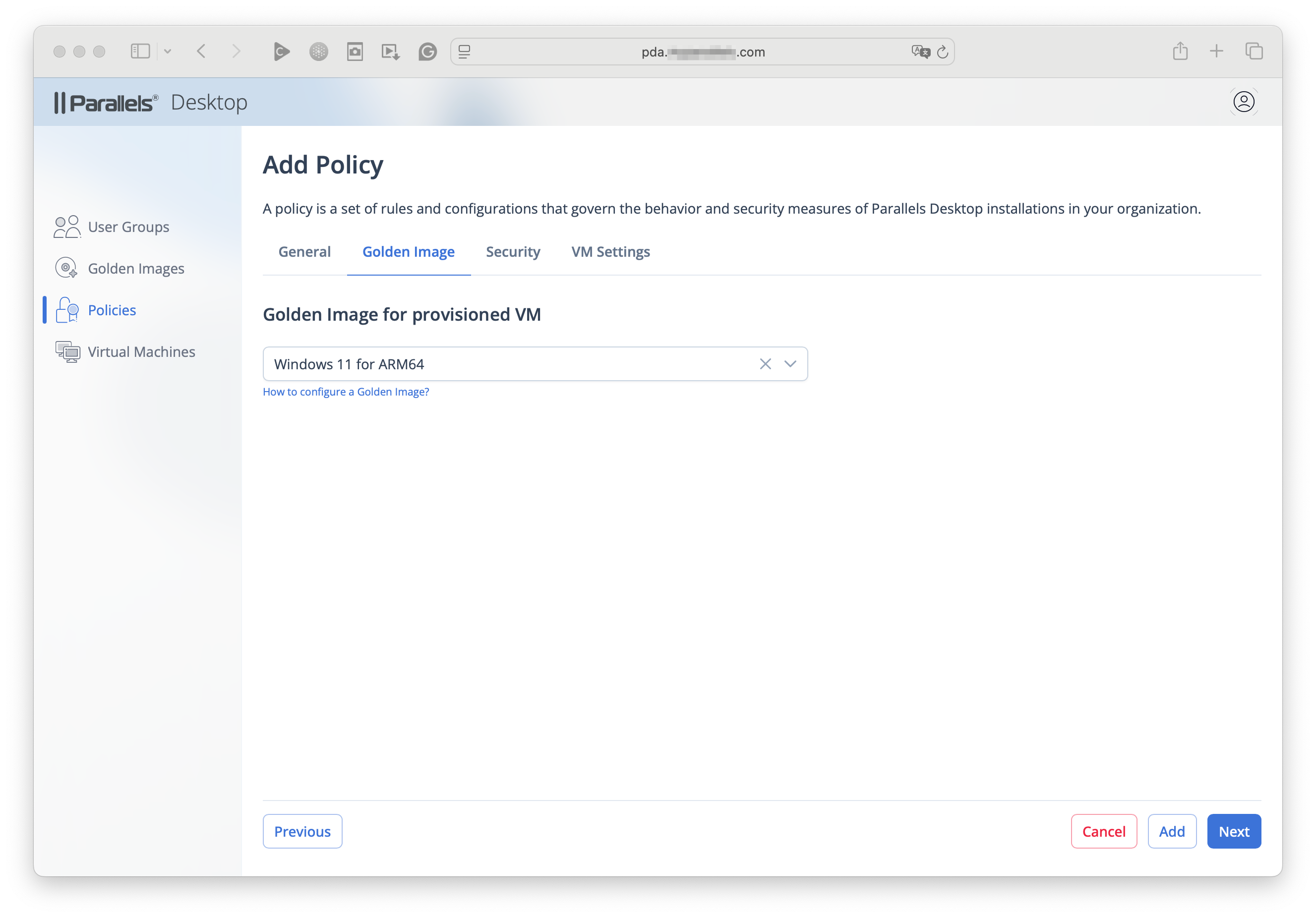
#### Golden Image
Each policy includes a dedicated Golden Image that you may want to tailor to that group's specific needs.
{% hint style="warning" %}
**Attention**: Starting from version 20250909 of the Parallels Management Portal, the **Policies** page is the sole place for assigning Golden Images to specific groups, while the [**Golden Images**](/landing/pd-ag/preparing-virtual-machines-for-deployment-and-securing-them/golden-images.md) page remains the place where you create and/or customize them. Previous Golden Image assignments will be automatically combined with existing policies or turned into new ones.
{% endhint %}
{% hint style="info" %}
**Note**: If you use the Single Sign-On (SSO) activation method without dividing users into groups and want to assign a single Golden Image to all your users, apply the policy with that Golden Image to the primary license key.
If you want different Golden Images for different user groups, follow the steps in [this chapter](/landing/pd-ag/getting-started/configuring-the-single-sign-on-sso-integration-with-parallels-my-account/optional-how-to-divide-users-into-groups-and-assign-them-sublicenses.md) to link the SSO user groups to the license keys and force the product activation quota from a specific license key pool.
{% endhint %}
Use the drop-down menu to select the preferred Golden Image and click **Next**.
#### Security Controls
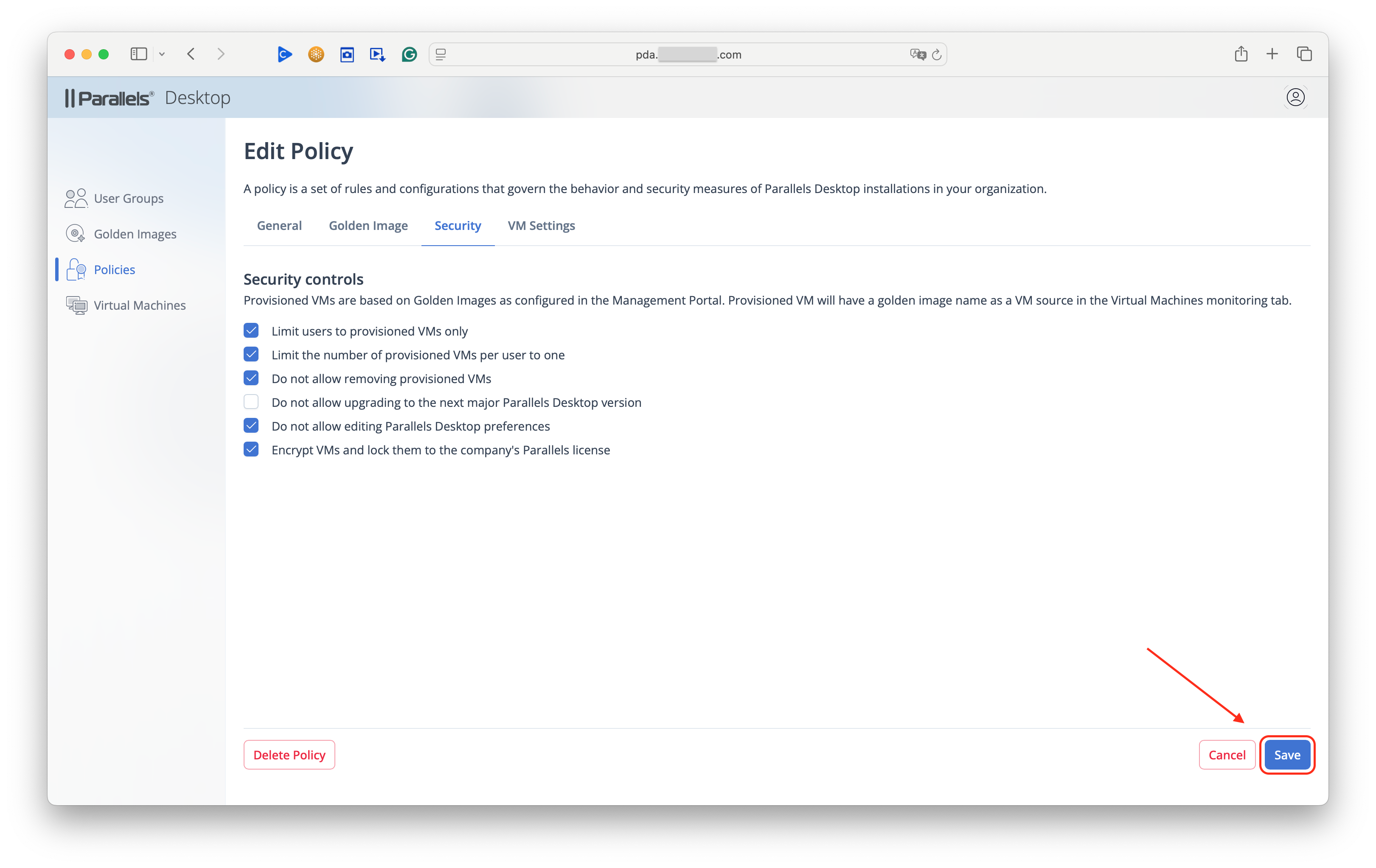
At this step, you need to select specific limitations that will apply to this group of users. Presently, policies only define what users from your organization can do with their Parallels Desktop setups and not their virtual machines. The available controls are:
{% hint style="info" %}
**Note**: As Parallels Desktop Enterprise Edition develops, we will be adding more policies to this menu.
{% endhint %}
* **Limit users to provisioned VMs only**. This policy prevents users from setting up new virtual machines from sources other than your organization’s [Golden Images](/landing/pd-ag/preparing-virtual-machines-for-deployment-and-securing-them/golden-images.md), as well as importing or cloning pre-existing ones. You may want to enact this policy to prevent members of your organization from setting up virtual machines for their own extracurricular activities.
* **Limit the number of provisioned VMs per user to one**. This setting prevents users from installing any more virtual machines from the approved sources (i.e., your organization’s [Golden Images](/landing/pd-ag/preparing-virtual-machines-for-deployment-and-securing-them/golden-images.md)).\
\
**Note**: If you select this option alone, without the previous option, users will still be able to add new virtual machines using third-party sources, such as the default images available through Parallels Desktop.
* **Do not allow removing provisioned VMs**.
* **Do not allow upgrading to the next major Parallels Desktop version**. This setting will still allow users to update their Parallels Desktop installations to a minor version (e.g., 26.0.1 to 26.1) but will prevent them from upgrading to a major version (e.g., from 20.x to 26.x) when it becomes available. Enabling this setting will allow you to first ensure that a major new version suits your needs before proceeding with a fleet-wide upgrade.\
\
**Note**: This setting will have no effect if your organization is running a local update server or your update policies are managed via an MDM solution.
* **Do not allow editing Parallels Desktop preferences**. This setting prevents users from changing the preferences for their Parallels Desktop setups. With this policy applied, users attempting to open Parallels Desktop preferences by clicking **Parallels Desktop** > **Preferences** in the Mac menu bar will encounter a message telling them the action is blocked and referring them to the IT department.\
\
To learn more about the settings that can be changed in the Parallels Desktop Preferences panel, read [this section](/landing/pdfm-ug/v20-en-us/parallels-desktop-for-mac-20-users-guide/parallels-desktop-preferences-and-virtual-machine-settings/parallels-desktop-preferences.md) of the Parallels Desktop's user guide.
* **Encrypt VMs and lock them to the company's Parallels license**. This setting encrypts your organization's virtual machines and prevents users from transferring and launching them (as well as Golden Images) to Parallels Desktop installations that don't have your organization's Enterprise license. Read more on virtual machine encryption [here](/landing/pd-ag/parallels-desktop-for-mac-enterprise-edition-features/encrypting-a-virtual-machine-using-the-command-line.md).\
\
**Note**: The initial application of this setting to existing Parallels Desktop installations already running provisioned virtual machines will trigger a re-encryption procedure that will temporarily render those virtual machines unavailable for use. The users will receive a clear message when attempting to launch such virtual machines. Encrypting virtual machines using a command-line interface will become unavailable.
Select the required settings and click **Next**.
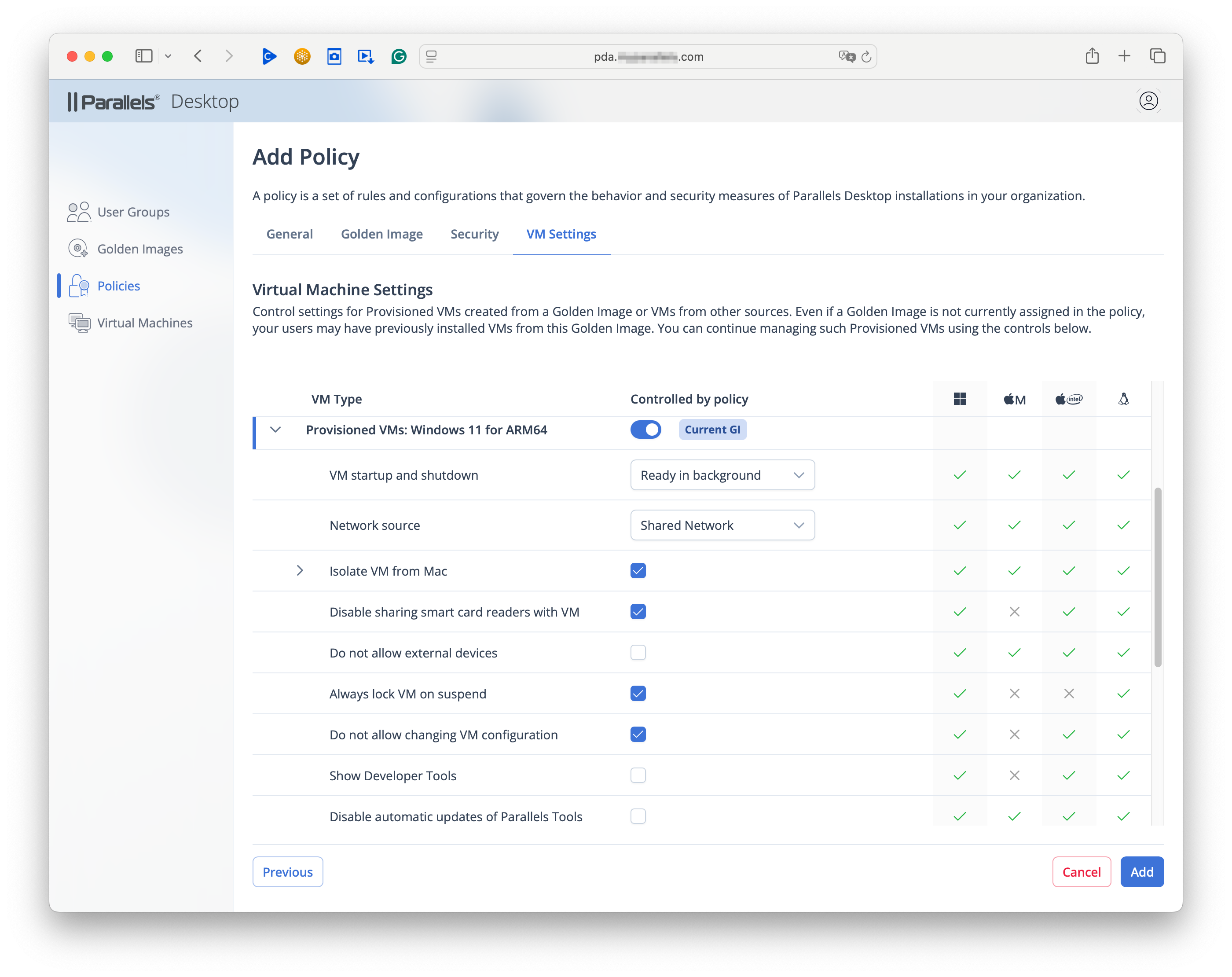
#### VM Settings
This step allows you to control virtual machine settings remotely as part of the policy. Enable it by toggling the switch for the provisioned virtual machine image that [you have selected previously](#golden-image) (it will be marked as `Current GI`), and introduce the required settings.
If your policy [allows](#security-controls) users to create/add virtual machines from sources other than the provisioned Golden Image, you may also want to toggle the switch for `VMs from other sources` and introduce different or similar settings for those.
{% hint style="info" %}
**Note**: Controlling virtual machine settings from the Management Portal requires the client Parallels Desktop for Mac installations to be updated to version 26.1 or newer.
{% endhint %}
{% @arcade/embed url="" flowId="zWWBtTsiVi0MyvYONYPt" %}
For the detailed description of available settings, refer to this [sub-chapter](/landing/pd-ag/preparing-virtual-machines-for-deployment-and-securing-them/policies/controlling-virtual-machine-settings-from-the-management-portal.md).
{% hint style="info" %}
**Note**: If the policy that includes virtual machine settings is deleted, the settings for the virtual machines to which it was assigned will remain the same, but the users will be able to change them.\
\
When the admin decides to remove certain previously introduced restrictions (e.g., **Do not allow external devices**), those capabilities do not reactivate automatically on users' virtual machines. Therefore, the admin will need to make sure to disable the **Do not allow changing VM configuration** restriction; otherwise, users won't be able to reactivate the required capabilities in the virtual machine settings.
{% endhint %}
Once you have filled out all the settings, click **Add** to enable the policy. You won't be able to create it unless all mandatory fields are filled.
### When New Policy Applies
The newly created/amended policy will apply to the target installations when the local Parallels Desktop for Mac installation checks for them. It is designed to happen on the following triggers:
* The launch of the app.
* Activation or reactivation.
* Creating a new virtual machine.
* A change of state of a virtual machine, including:
* Start.
* Suspend.
* Resume.
* Shutdown.
* Change of virtual machine parameters (see more [here](/landing/pd-ag/managing-and-monitoring-virtual-machines/virtual-machines.md)).
* Change of the Mac's network status, e.g., getting online.
* If none of the above occurred, once a day per schedule.
### Changing or Deleting an Existing Policy
The default view of the main Policies screen shows you the list of all the policies under your management, citing their names as provided during the setup process, their descriptions, and the list of groups they apply to. Right-clicking on a policy from the list allows you to edit or delete it.
If a policy is marked as "`not applied`", it either means that no groups were selected during the creation, or the group(s) it initially applied to was (were) deleted.
{% hint style="danger" %}
**Warning**: Deleting a policy is non-reversible. Please make sure you are deleting the right one.
{% endhint %}
---
# Agent Instructions
This documentation is published with GitBook. GitBook is the documentation platform designed so that both humans and AI agents can read, navigate, and reason over technical content effectively. Learn more at gitbook.com.
## Querying This Documentation
If you need additional information that is not directly available in this page, you can query the documentation dynamically by asking a question.
Perform an HTTP GET request on the current page URL with the `ask` query parameter, and the optional `goal` query parameter:
```
GET https://docs.parallels.com/landing/pd-ag/preparing-virtual-machines-for-deployment-and-securing-them/policies.md?ask=&goal=
```
`ask` is the immediate question: it should be specific, self-contained, and written in natural language.
`goal` is optional and describes the broader end goal you are ultimately trying to accomplish on behalf of the user. GitBook uses it to tailor the answer towards what is most useful for that goal.
The response will contain a direct answer to the question and relevant excerpts and sources from the documentation.
Use this mechanism when the answer is not explicitly present in the current page, you need clarification or additional context, or you want to retrieve related documentation sections.