> For the complete documentation index, see [llms.txt](https://docs.parallels.com/landing/llms.txt). Markdown versions of documentation pages are available by appending `.md` to page URLs; this page is available as [Markdown](https://docs.parallels.com/landing/pd-ag/provisioning-and-activation-of-parallels-desktop/alternative-deployment-methods/alternative-mass-deployment-via-deployment-package/preparing-the-autodeploy-package/optional-adding-a-virtual-machine/optional-adding-a-virtual-machine.md).
# Choosing the Deployment Method
Consider the following possible scenarios:
* If you are deploying Parallels Desktop on either Apple Silicon or Intel-based Mac computers (but not both at the same time), you can include a virtual machine in the autodeploy package, so it will be installed on a Mac as part of the deployment process.
* The *recommended approach* is to deploy without any virtual machines in the autodeploy package and instead include a [download link](#recommended-including-a-virtual-machine-as-a-downloadable-link) to a virtual machine image.
{% hint style="warning" %}
**Attention**: Architectural differences between Intel-based and Apple silicon Macs require different virtual machines for each of them, even if the operating system type and version are the same.\
\
If you have both kinds of Macs in your organization and would like to deploy Parallels Desktop with a virtual machine on all of them, you need to create two autodeploy packages (one for Apple silicon and another for Intel-based Macs) and deploy them separately.
{% endhint %}
There are two ways to include a virtual machine in the autodeploy package: as a downloadable link or as a local file manually added to the package. Regardless of which one you choose, take the following steps first:
1. Configure the virtual machine as described in the subsections of this chapter.
2. FULLY STOP the virtual machine by opening **Actions** in the macOS menu bar and choosing **Shut Down**. Suspending or pausing it will not suffice.
3. Reduce the size of the selected virtual machine by doing one of the following:
* Open the Parallels Desktop Control Center, right-click on the virtual machine, and select **Prepare for Transfer**. This will result in a `.pvmp` file.
* Alternatively, open the Parallels Desktop Control Center, right-click on the virtual machine, and select Show in Finder. Right-click on the virtual machine `.pvm` file and select **Compress {vm\_name}**. This will result in a `.zip` file.
#### \[RECOMMENDED] Including a Virtual Machine as a Downloadable Link
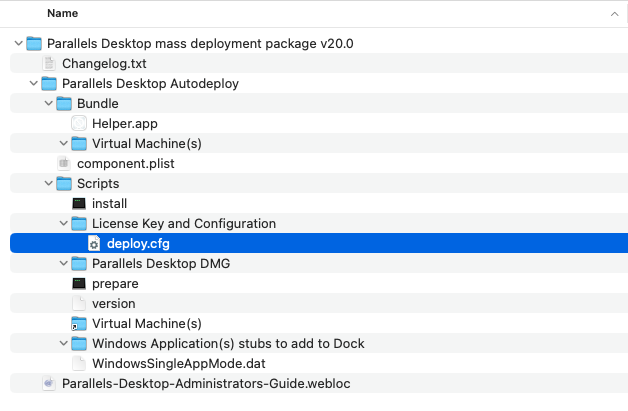
Several popular MDM solutions have been known to experience issues with deploying large packages. As a way to mitigate this, you can amend the `deploy.cfg` file to include a link to a file share location with the virtual machine file instead of including it in the package. Take the following steps:
1. Upload the compressed file to a permitted cloud storage that would be accessible to all target Macs (e.g., OneDrive or Google Share). Make sure the resulting link is **direct** and **open** to all the users affected by the deployment. The best way is to choose **Share with anyone**.\
\
**Note**: A direct https link is a link that explicitly leads to a file, and not a file download page.
2. Open the `deploy.cfg` file in a text editor, same as when [specifying a license key](/landing/pd-ag/provisioning-and-activation-of-parallels-desktop/alternative-deployment-methods/alternative-mass-deployment-via-deployment-package/preparing-the-autodeploy-package/specifying-a-license-key.md), scroll to the **Virtual Machines** section and add the download link there exactly as described, following the instructions carefully.
{% hint style="info" %}
**Note**: You can find out about other configuration options in the `deploy.cfg` file from [this chapter](/landing/pd-ag/provisioning-and-activation-of-parallels-desktop/alternative-deployment-methods/alternative-mass-deployment-via-deployment-package/preparing-the-autodeploy-package/configuring-deployment-options.md).
{% endhint %}
#### \[ALTERNATIVE] Adding a Virtual Machine File to the Autodeploy Package
To add a virtual machine to the autodeploy package directly, simply copy the virtual machine file to the **Virtual Machine(s)** sub-folder that can be found under **Bundle** > **Virtual machine(s)** . More than one virtual machine can be added to the autodeploy package if needed.
Read on to learn about modifications that you can make to the virtual machine configuration before adding it to the autodeploy package.
---
# Agent Instructions
This documentation is published with GitBook. GitBook is the documentation platform designed so that both humans and AI agents can read, navigate, and reason over technical content effectively. Learn more at gitbook.com.
## Querying This Documentation
If you need additional information that is not directly available in this page, you can query the documentation dynamically by asking a question.
Perform an HTTP GET request on the current page URL with the `ask` query parameter, and the optional `goal` query parameter:
```
GET https://docs.parallels.com/landing/pd-ag/provisioning-and-activation-of-parallels-desktop/alternative-deployment-methods/alternative-mass-deployment-via-deployment-package/preparing-the-autodeploy-package/optional-adding-a-virtual-machine/optional-adding-a-virtual-machine.md?ask=&goal=
```
`ask` is the immediate question: it should be specific, self-contained, and written in natural language.
`goal` is optional and describes the broader end goal you are ultimately trying to accomplish on behalf of the user. GitBook uses it to tailor the answer towards what is most useful for that goal.
The response will contain a direct answer to the question and relevant excerpts and sources from the documentation.
Use this mechanism when the answer is not explicitly present in the current page, you need clarification or additional context, or you want to retrieve related documentation sections.