> For the complete documentation index, see [llms.txt](https://docs.parallels.com/landing/llms.txt). Markdown versions of documentation pages are available by appending `.md` to page URLs; this page is available as [Markdown](https://docs.parallels.com/landing/pd-ag/provisioning-and-activation-of-parallels-desktop/alternative-deployment-methods/alternative-mass-deployment-via-deployment-package/preparing-the-autodeploy-package/specifying-a-license-key.md).
# Specifying a License Key
A Parallels Desktop for Mac license key is required to activate Parallels Desktop on target Macs. The key must be specified in the autodeploy package.
{% hint style="info" %}
**Note**: In Parallels Desktop for Mac, the activation method defined by a pre-installed configuration profile always takes priority over the one specified in the deployment package. Therefore, if you deploy a package to a machine that already has a configuration profile installed, the activation will happen as defined in the configuration profile.
{% endhint %}
You can find the primary key in your Business Account customer area as described in [this chapter](/landing/pd-ag/getting-started/creating-a-business-account-and-registering-your-license.md). There, you can also issue secondary keys that we recommend using for activation.
{% hint style="warning" %}
**Attention**: For security reasons, we strongly advise against using your primary key directly. Any compromised secondary keys can be deleted and replaced with new ones.
{% endhint %}
To specify the license key:
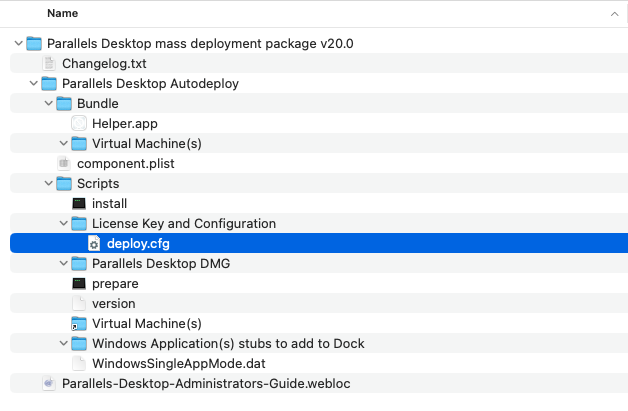
1. In the autodeploy package, expand the **Parallels Desktop Autodeploy** > **Scripts** > **License Key and Configuration** folder.
2. Open the `deploy.cfg` file in a text editor.
3. Find the `License` section (second from the top) and enter your Parallels Desktop Business Edition license key as a value of the `license_key` variable. The key must be supplied in the following format: "XXXXXX-XXXXXX-XXXXXX-XXXXXX-XXXXXX" (including quotes and dashes).
4. Save the `deploy.cfg` file.
Starting from Parallels Desktop 18, '[Activation using corporate account (SSO)](/landing/pd-ag/parallels-desktop-for-mac-enterprise-edition-features/activating-using-a-corporate-account.md)' option became available. This option works only if you have purchased a special license type and set up integration with your identity provider in [Parallels My Account](https://my.parallels.com/login). Please check your license certificate for details. To enable 'Activation using corporate account' experience, comment the line with the license\_key variable.
{% hint style="warning" %}
**Note:** Parallels Desktop activation requires Internet access. You need to make sure that **port 443** is opened on target Mac computers so they can communicate with the Parallels License Server. You can also verify that the Mac computers can reach the Parallels License Server at [https://desktop.parallels.com](https://desktop.parallels.com/).
{% endhint %}
---
# Agent Instructions
This documentation is published with GitBook. GitBook is the documentation platform designed so that both humans and AI agents can read, navigate, and reason over technical content effectively. Learn more at gitbook.com.
## Querying This Documentation
If you need additional information that is not directly available in this page, you can query the documentation dynamically by asking a question.
Perform an HTTP GET request on the current page URL with the `ask` query parameter, and the optional `goal` query parameter:
```
GET https://docs.parallels.com/landing/pd-ag/provisioning-and-activation-of-parallels-desktop/alternative-deployment-methods/alternative-mass-deployment-via-deployment-package/preparing-the-autodeploy-package/specifying-a-license-key.md?ask=&goal=
```
`ask` is the immediate question: it should be specific, self-contained, and written in natural language.
`goal` is optional and describes the broader end goal you are ultimately trying to accomplish on behalf of the user. GitBook uses it to tailor the answer towards what is most useful for that goal.
The response will contain a direct answer to the question and relevant excerpts and sources from the documentation.
Use this mechanism when the answer is not explicitly present in the current page, you need clarification or additional context, or you want to retrieve related documentation sections.