> For the complete documentation index, see [llms.txt](https://docs.parallels.com/landing/llms.txt). Markdown versions of documentation pages are available by appending `.md` to page URLs; this page is available as [Markdown](https://docs.parallels.com/landing/pd-ag/provisioning-and-activation-of-parallels-desktop/mass-deployment-using-mac-management-tools/creating-and-editing-a-configuration-profile-in-imazing.md).

# Creating and Editing a Configuration Profile in iMazing

In macOS, you may control various aspects of the operating system and particular apps' behavior by installing or remotely deploying the so-called configuration profiles: files that contain specific instructions written in specified syntax. Such files have a `.mobileconfig` extension. They can be created or edited manually or in special software and distributed along with the app using your preferred device management solution.

Some of the MDM solutions like [Jamf Pro](/landing/pd-ag/provisioning-and-activation-of-parallels-desktop/mass-deployment-using-mac-management-tools/recommended-deploying-parallels-desktop-via-mdm-app-catalogs-using-configuration-profiles/deploying-parallels-desktop-via-mdm-app-catalog-as-seen-in-jamf-pro.md) already have preconfigured profiles for Parallels Desktop for Mac. In case your preferred MDM solution does not, this chapter describes how to create one in [iMazing Profile Editor](https://imazing.com/profile-editor).

{% hint style="info" %}
**Note**: If you have never used iMazing Profile Editor before, consider studying its [quick start guide](https://imazing.com/guides/getting-started-with-imazing-profile-editor) first.
{% endhint %}

Follow these steps to create a profile that will control the Parallels Desktop activation method and (optionally) set the privacy preferences for it in advance so that your users won't have to click **Allow** on multiple system access requests when they first launch the app:

1. Download and install iMazing Profile Editor from their website or Mac App Store.
2. Launch the app.
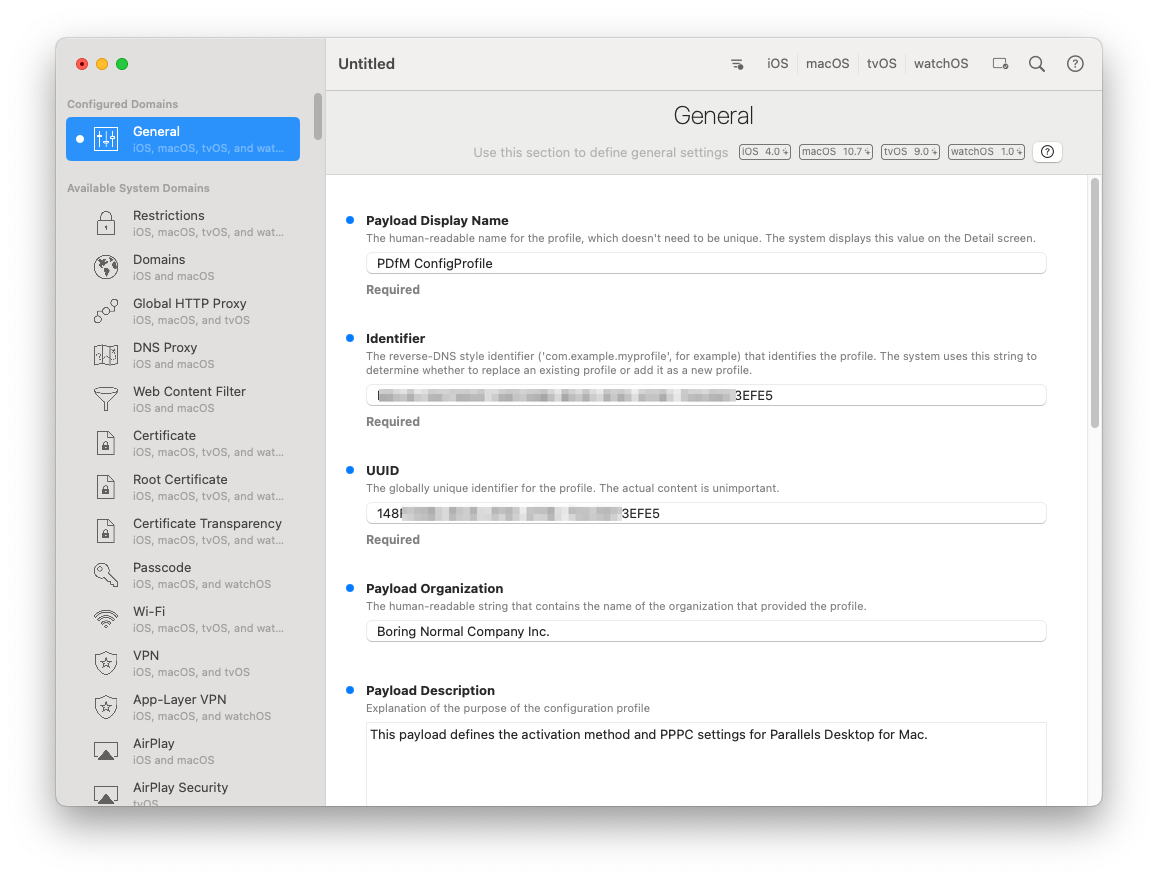
3. While in the General domain, set the following values at your discretion:

   1. **Payload Display Name**: what your profile will be named.
   2. **Payload Organization**: put your company's name here.
   3. **Payload Description**: what your profile controls.
   4. **Prevent users from removing this profile**: we recommend that you activate this option.
   5. **Payload Scope**: whether the profile should apply to the whole Mac, no matter what user signs in, or just the particular user.
   6. **Target Device Type**: Mac.

   <figure><img src="https://content.gitbook.com/content/KtRUprxh035S97pZeygw/blobs/6OPSxcphokk6XMQhZo9u/iMazing_PE_General.png" alt=""><figcaption></figcaption></figure>
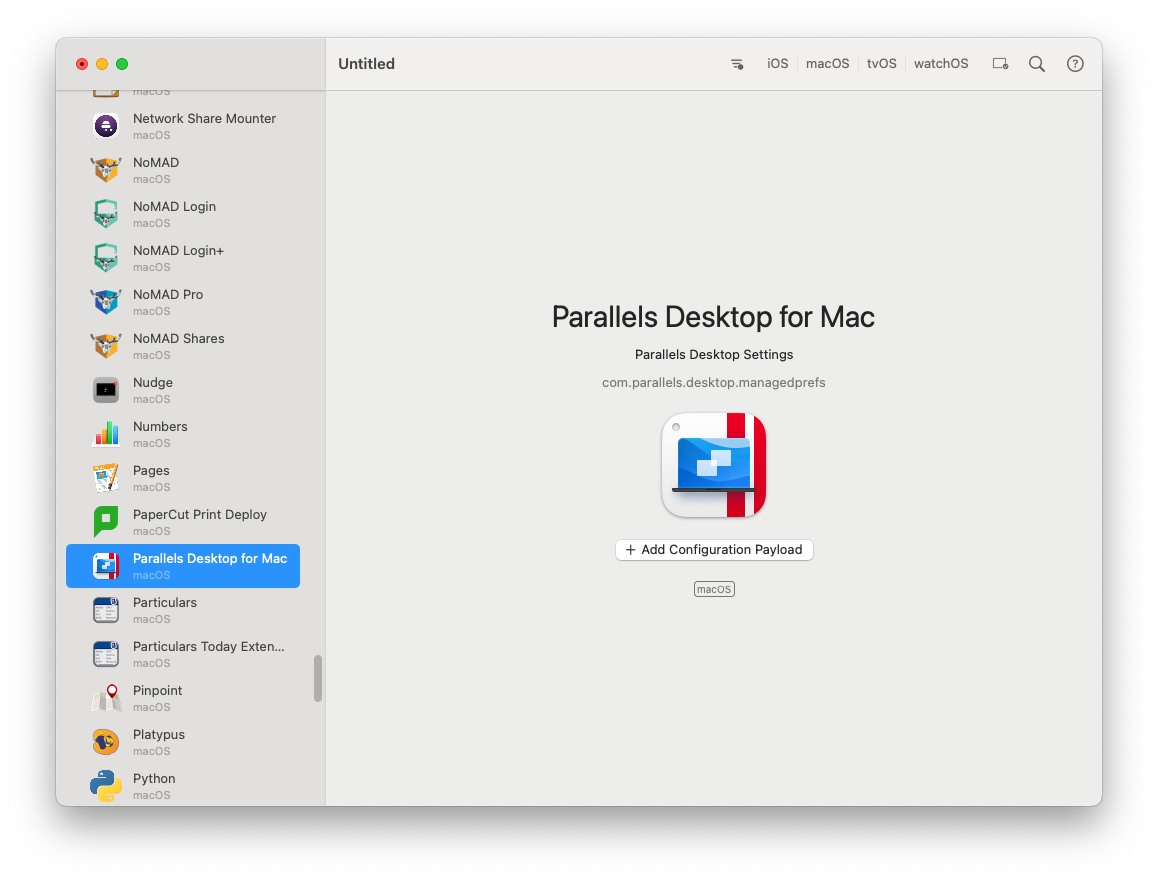
4. Scroll down the left-side bar until you find the item called **Parallels Desktop for Mac**. Select it and click the **+ Add Configuration Payload** button. This will add the Parallels Desktop activation method payload to your profile.<br>

   <figure><img src="https://content.gitbook.com/content/KtRUprxh035S97pZeygw/blobs/1mupK0JhhxXSWlLemdf1/iMazing_PE_Add_PDfM.png" alt=""><figcaption></figcaption></figure>
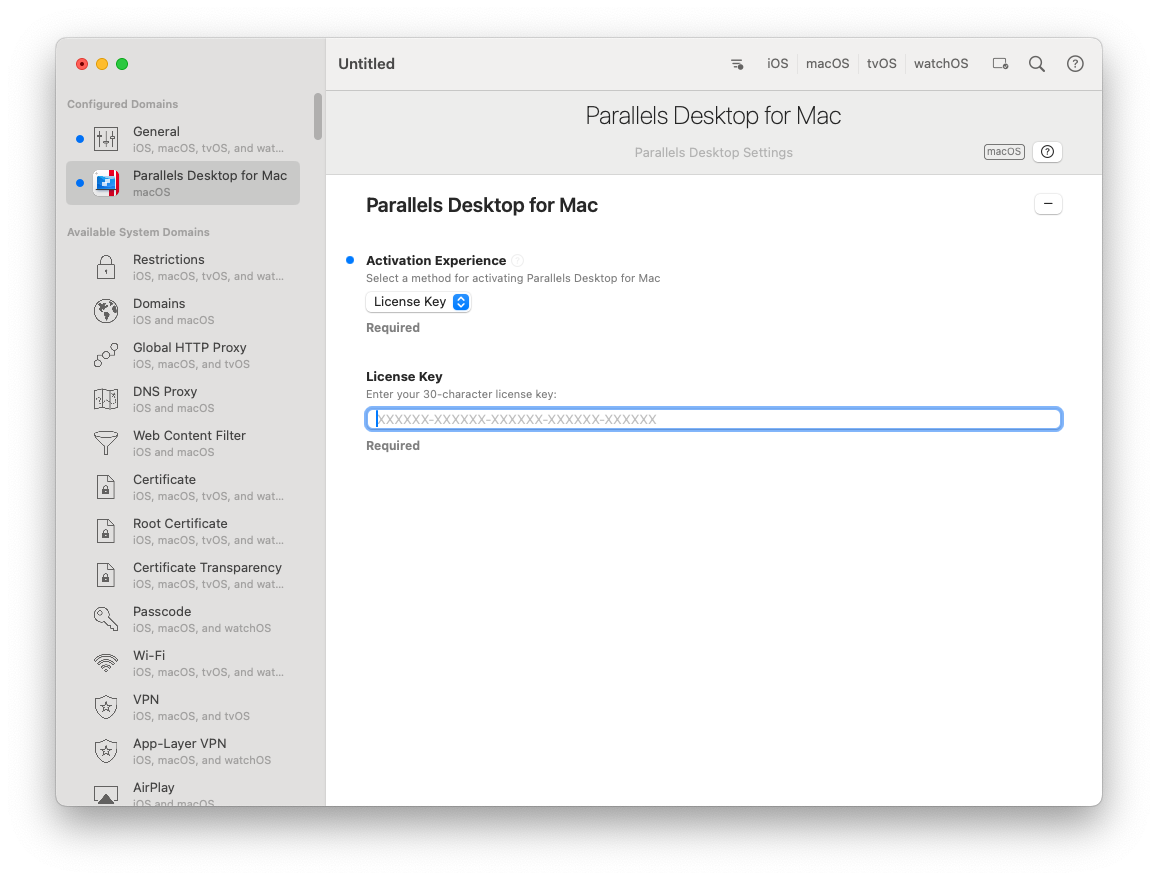
5. Under **Activation Experience**, select one of the following options:
   1. **License Key** for per-device licensing. In this case, providing the license key to activate Parallels Desktop is mandatory.

      <figure><img src="https://content.gitbook.com/content/KtRUprxh035S97pZeygw/blobs/6MyPLNQzAyLwf48LNoxc/iMazing_PE_PDfM_LK_activation.png" alt=""><figcaption></figcaption></figure>
   2. **SSO** for the sign-in experience of per-user licensing. In this case, you can optionally draft a custom message for your users by filling out the **SSO Dialogue Header Text**, **SSO Dialogue Description Text**, and **SSO Dialogue Label Text** fields.

      <figure><img src="https://3321480841-files.gitbook.io/~/files/v0/b/gitbook-x-prod.appspot.com/o/spaces%2FKtRUprxh035S97pZeygw%2Fuploads%2FBxi1HggzdGY75gFRtqub%2FPDFM-126324_iMazing-SSO-custom-dialogue.png?alt=media&amp;token=bc06915f-add4-491f-bf9f-219d708179a6" alt=""><figcaption></figcaption></figure>
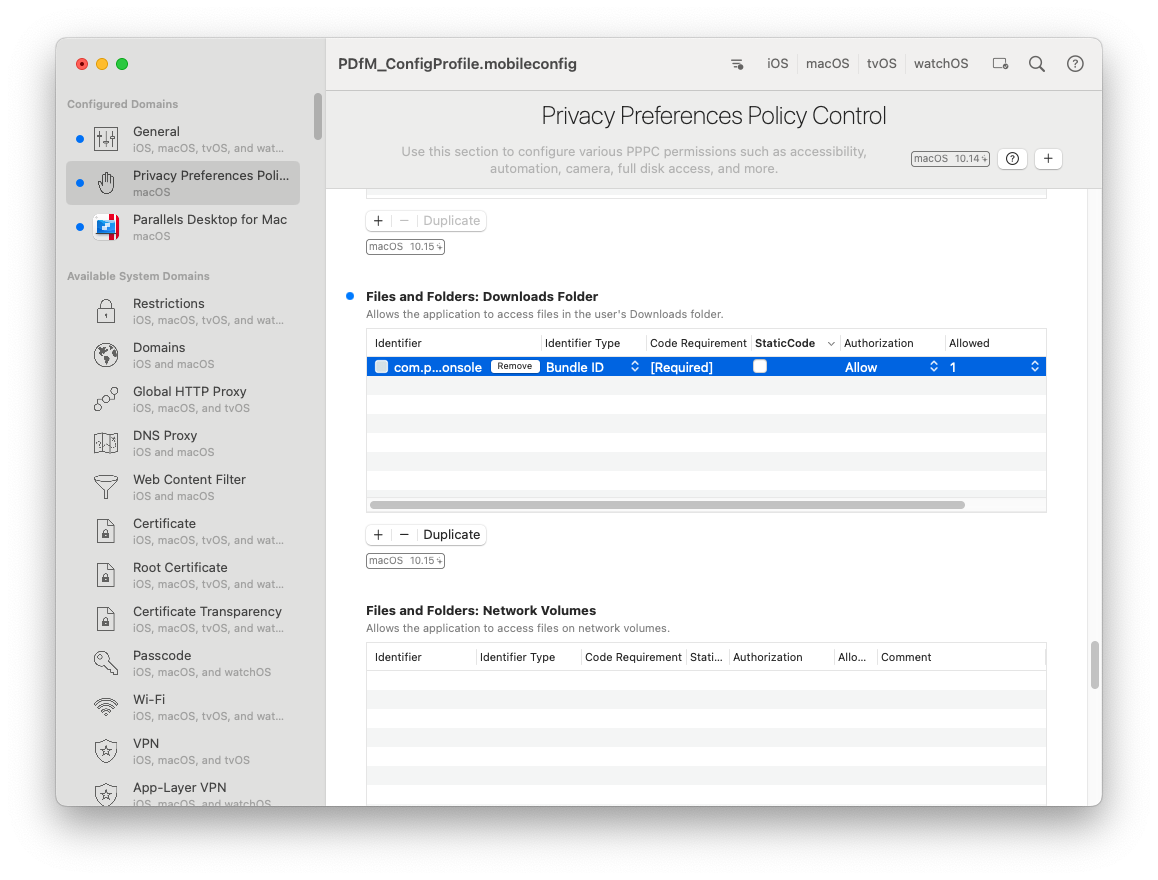
6. Optionally, scroll down the left-side bar to find the payload called **Privacy Preferences Policy Control**, add it to the configuration profile, and set it up as you see fit, following [these guidelines](https://support.apple.com/en-gb/guide/deployment/dep38df53c2a/web) from Apple.\
   \
   At the very minimum, we recommend that you enable Parallels Desktop's access to **Desktop**, **Documents**, and **Downloads** folders.

   <figure><img src="https://content.gitbook.com/content/KtRUprxh035S97pZeygw/blobs/LfYh9vtc9BEBjBfZu0uu/iMazing_PE_PPPC_setup.png" alt=""><figcaption></figcaption></figure>

   <div data-gb-custom-block data-tag="hint" data-style="info" class="hint hint-info"><p><strong>Note</strong>: For the purposes of PPPC settings, Parallels Desktop for Mac and any of its virtual machines share the same bundle ID, which is <code>com.parallels.desktop.console</code>. The <strong>Identifier Type</strong> should be set to <code>Bundle ID</code>, <strong>Authorization</strong> to <code>Allow</code>, and <strong>Allowed</strong> to <code>1</code>.</p></div>
7. Use **File** -> **Save As** to save the newly created profile for further distribution. You may choose to sign the profile; if so, make sure the certificate with which you sign is also present on all target Macs.


---

# Agent Instructions
This documentation is published with GitBook. GitBook is the documentation platform designed so that both humans and AI agents can read, navigate, and reason over technical content effectively. Learn more at gitbook.com.

## Querying This Documentation
If you need additional information that is not directly available in this page, you can query the documentation dynamically by asking a question.

Perform an HTTP GET request on the current page URL with the `ask` query parameter, and the optional `goal` query parameter:

```
GET https://docs.parallels.com/landing/pd-ag/provisioning-and-activation-of-parallels-desktop/mass-deployment-using-mac-management-tools/creating-and-editing-a-configuration-profile-in-imazing.md?ask=<question>&goal=<endgoal>
```

`ask` is the immediate question: it should be specific, self-contained, and written in natural language.
`goal` is optional and describes the broader end goal you are ultimately trying to accomplish on behalf of the user. GitBook uses it to tailor the answer towards what is most useful for that goal.

The response will contain a direct answer to the question and relevant excerpts and sources from the documentation.

Use this mechanism when the answer is not explicitly present in the current page, you need clarification or additional context, or you want to retrieve related documentation sections.