> For the complete documentation index, see [llms.txt](https://docs.parallels.com/landing/llms.txt). Markdown versions of documentation pages are available by appending `.md` to page URLs; this page is available as [Markdown](https://docs.parallels.com/landing/pd-ag/provisioning-and-activation-of-parallels-desktop/mass-deployment-using-mac-management-tools/recommended-deploying-parallels-desktop-via-mdm-app-catalogs-using-configuration-profiles/deploying-parallels-desktop-via-mdm-app-catalog-as-seen-in-jamf-pro.md).
# Example: Jamf Pro
As mentioned before, we recommend you to deploy the licensing/PPPC profile first, and follow it up with the Parallels Desktop for Mac app from your MDM's app catalog.
This chapter uses Jamf Pro for demonstration purposes. If you use a different device management solution, check their respective guide on distributing profiles and using built-in app catalogs.
{% hint style="info" %}
**Note**: If you cannot find Parallels Desktop for Mac in your MDM solution's app catalog (or it does not have a built-in app catalog), and you would like to use a script to create the deployment package, use the following permanent links to get a Parallels Desktop for Mac DMG:
* [Latest Apple silicon version](https://link.parallels.com/link/K7m2Qd8xLp4B/).
* [Latest Intel Mac version](https://link.parallels.com/link/66a0eecfbfZ6/).
{% endhint %}
### Deploying configuration profiles in Jamf Pro
For the purposes of activating Parallels Desktop for Mac, Jamf Pro offers a pre-configured profile for Mac computers where you can the preferred activation method to a license key or SSO, and add your preferred PPPC settings. Follow these steps:
1. From the main **Dashboard**, go to **Computers** > **Content Management** > **Configuration Profiles** and click the **+ New** button.
2. On the **Options** tab, fill out the required parameters on the **General** page, such as **Name**, **Description**, **Level**, and **Distribution Method**.
3. Use the left-side scroll menu or its dedicated search bar to get to the **Applications & Custom Settings** section, expand it, and click on the **External Applications** option.
4. Click the **+ Add** button, choose `Jamf Repository` under **Source**, and `com.parallels.desktop.managedprefs` under **Application Domain**. Use the other drop-down menus to choose the version and variant. Under most circumstances, choose the latest version.
5. Use the **Activation Experience** drop-down menu to choose one of the following:
1. `SSO`, where you can optionally draft a custom message for your users by filling out the **SSO Dialog Header Text** and **SSO Dialog Description Text** fields.
2. `License Key`, in which case, insert the license key into the respective field.
6. Use the left-side scroll menu or its search bar to locate the **Privacy Preferences Policy Control** section, and click **Configure**.
7. Under **App Access**, set the **Identifier** to `com.parallels.desktop.console`, **Identifyer Type** to `Bundle ID`, and leave the **Validate the Static Code Requirement** box unchecked. In the **Code Requirement** field, paste the following value, making sure to copy it carefully:\
\
`identifier "com.parallels.desktop.console" and anchor apple generic and certificate 1[field.1.2.840.113635.100.6.2.6] /* exists */ and certificate leaf[field.1.2.840.113635.100.6.1.13] /* exists */ and certificate leaf[subject.OU] = "4C6364ACXT"`\
\
If you want to verify the value of this parameter [independently](https://learn.jamf.com/en-US/bundle/jamf-school-documentation/page/Privacy_Preferences_Policy_Control.html#ariaid-title2), launch macOS Terminal on a Mac with a copy of Parallels Desktop installed and execute the following command:\
\
`codesign -display -r - /Applications/Parallels\ Desktop.app`
8. Under **App or Service**, use the **+ Add** button to, at the very minimum, allow the app to access the Desktop (`SystemPolicyDesktopFolder`), Documents (`SystemPolicyDocumentsFolder`), and Downloads (`SystemPolicyDownloadsFolder`) folders. You may also want to enable `Accessibility` and `ScreenCapture` for other Parallels Desktop functionality, such as error reporting.
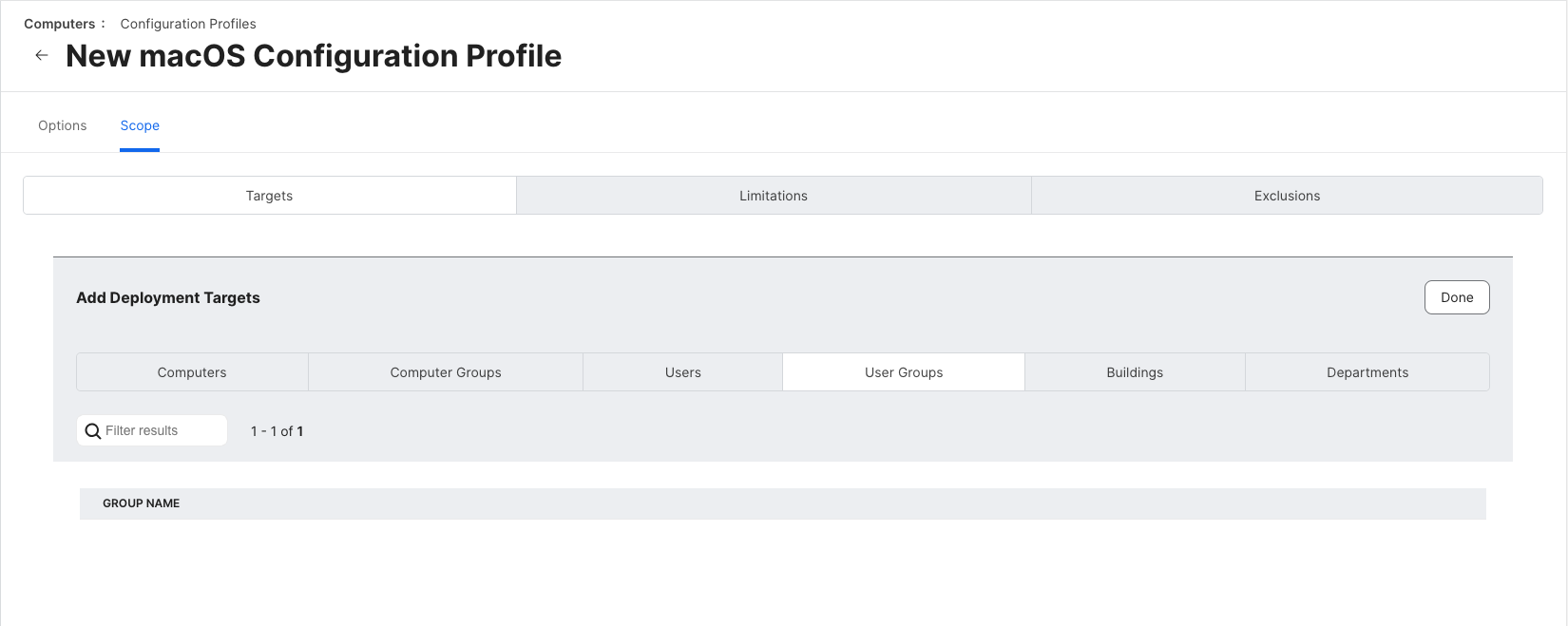
9. At the very top of the Configuration Profiles page, switch to the Scope tab and select the target computers or user groups.
10. In the bottom-right corner, click **Save**.
#### Deploying a pre-made configuration profile
If you prefer to distribute your pre-made configuration profile using Jamf Pro, from the main **Dashboard**, go to **Computers** > **Content Management** > **Configuration Profiles** and click the **Upload** button in the top-right corner, selecting the `.mobileconfig` file with the configuration profile made in the [previous chapter](/landing/pd-ag/provisioning-and-activation-of-parallels-desktop/mass-deployment-using-mac-management-tools/creating-and-editing-a-configuration-profile-in-imazing.md).
This will open the profile for editing, where you will be able to switch to the **Scope** tab and select the target machines or specific user groups.
{% hint style="info" %}
**Note**: One of the benefits of Parallels Desktop for Mac Enterprise Edition is that you can mix per-device (license key) and per-user (SSO) activation methods within the same corporate setup. Therefore, you may need to provision some machines with a license key profiles, and some with SSO profiles. Make sure you distinguish user groups and don't end up deploying two different profiles to the same machine.
{% endhint %}
Refer to your MDM solution's guide for syncing user groups with your identity profider.
### Deploying Parallels Desktop for Mac from Jamf Pro app catalog
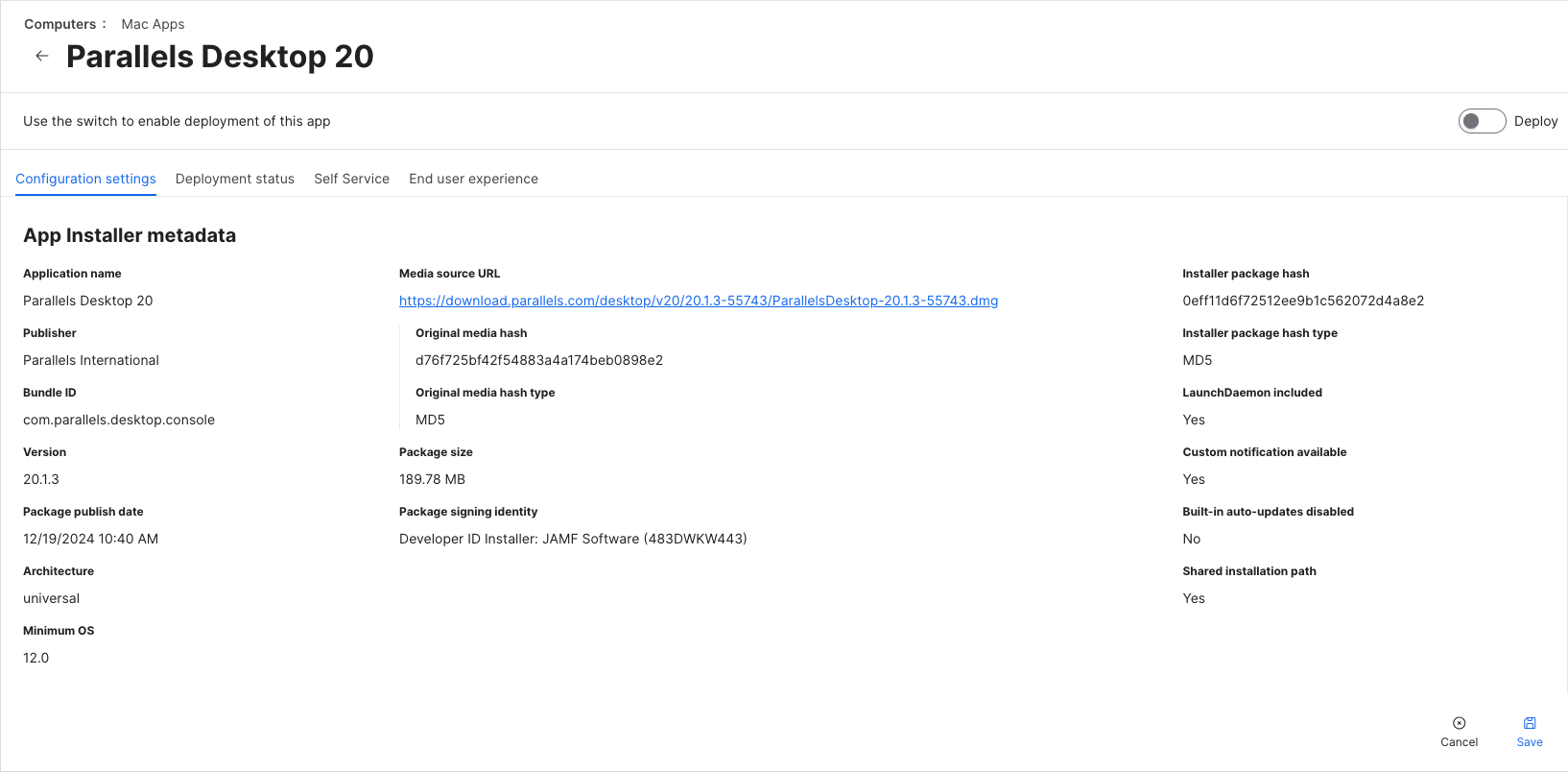
To deploy Parallels Desktop for Mac using Jamf Pro's built-in app catalog, from the main **Dashboard**, go to **Computers** > **Content Management** > **Mac Apps** and click the **+ New** button in the top-right corner. Select **Jamf App Catalog** as source and choose Parallels Desktop 20.1 or newer for deployment.
{% hint style="warning" %}
**Attention**: [Parallels Management Portal](/landing/pd-ag/getting-started/configuring-golden-images-and-policies-in-the-management-portal.md) requires the local installations of Parallels Desktop to be version 20.1 or newer to establish and maintain connection.
{% endhint %}
During the setup, you can choose a group of computers that the app will be deployed to. You can set up groups under **Computers** > **Groups**.
---
# Agent Instructions
This documentation is published with GitBook. GitBook is the documentation platform designed so that both humans and AI agents can read, navigate, and reason over technical content effectively. Learn more at gitbook.com.
## Querying This Documentation
If you need additional information that is not directly available in this page, you can query the documentation dynamically by asking a question.
Perform an HTTP GET request on the current page URL with the `ask` query parameter, and the optional `goal` query parameter:
```
GET https://docs.parallels.com/landing/pd-ag/provisioning-and-activation-of-parallels-desktop/mass-deployment-using-mac-management-tools/recommended-deploying-parallels-desktop-via-mdm-app-catalogs-using-configuration-profiles/deploying-parallels-desktop-via-mdm-app-catalog-as-seen-in-jamf-pro.md?ask=&goal=
```
`ask` is the immediate question: it should be specific, self-contained, and written in natural language.
`goal` is optional and describes the broader end goal you are ultimately trying to accomplish on behalf of the user. GitBook uses it to tailor the answer towards what is most useful for that goal.
The response will contain a direct answer to the question and relevant excerpts and sources from the documentation.
Use this mechanism when the answer is not explicitly present in the current page, you need clarification or additional context, or you want to retrieve related documentation sections.