# Getting Windows from IT
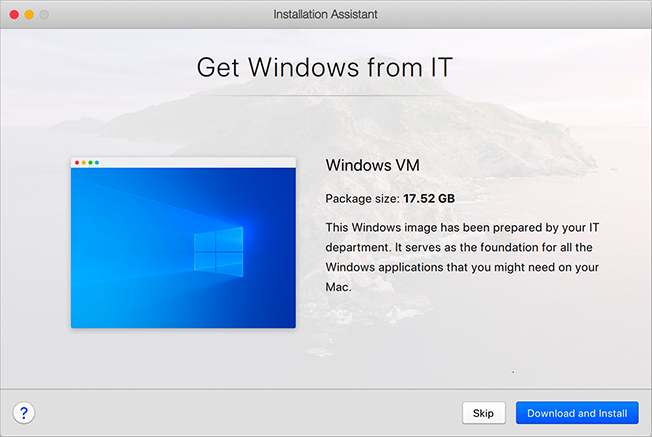
For Parallels Desktop to function, you need a virtual machine with some operating system (in most cases, it's Windows) and applications. If you're using Parallels Desktop for Mac Business/Enterprise Edition, you may see the following or a similar screen when you first start Parallels Desktop.
It means your system administrator has prepared a pre-configured virtual machine with all the necessary apps already installed. You just need to download it. Click **Download and Install** and follow the onscreen instructions. Once ready, the virtual machine will start automatically, and you'll be able to work with its applications.
---
# Agent Instructions: Querying This Documentation
If you need additional information that is not directly available in this page, you can query the documentation dynamically by asking a question.
Perform an HTTP GET request on the current page URL with the `ask` query parameter:
```
GET https://docs.parallels.com/landing/pdfm-ug/parallels-desktop-for-mac-26-users-guide/install-or-import-windows/getting-windows-from-it.md?ask=
```
The question should be specific, self-contained, and written in natural language.
The response will contain a direct answer to the question and relevant excerpts and sources from the documentation.
Use this mechanism when the answer is not explicitly present in the current page, you need clarification or additional context, or you want to retrieve related documentation sections.