> For the complete documentation index, see [llms.txt](https://docs.parallels.com/landing/llms.txt). Markdown versions of documentation pages are available by appending `.md` to page URLs; this page is available as [Markdown](https://docs.parallels.com/landing/pdfm-ug/parallels-desktop-for-mac-27-users-guide/advanced-topics/using-other-operating-systems-on-your-mac/running-macos-virtual-machines.md).
# Running macOS Virtual Machines
You can install a copy of macOS in a virtual machine and use it as a guest operating system. This can be useful, for example, if you want to test software in another version of macOS or without having to log in and out of your main account.
{% hint style="warning" %}
**Note**: Creating and running macOS virtual machines on the App Store edition of Parallels Desktop requires updating to version 1.26.1 or newer. For more information on the App Store Edition, follow this [link](https://kb.parallels.com/123796).
{% endhint %}
To install macOS in a virtual machine:
1. Open Parallels Desktop and choose **File** > **New** or use the **+** button in the top right corner of the **Control Center**.
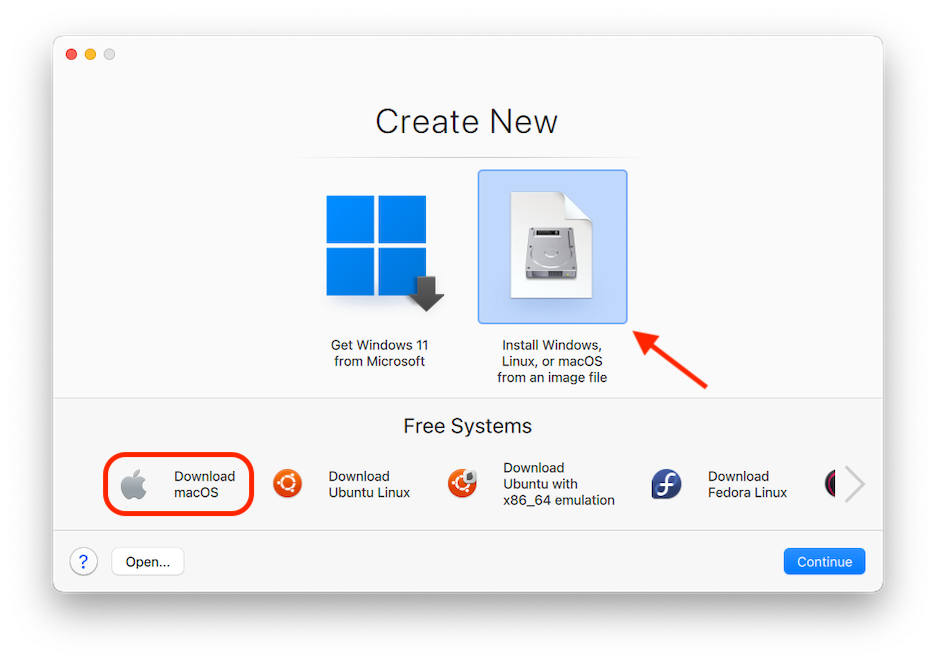
2. Under **Free Systems**, select **Download macOS**, click **Continue**, and follow the onscreen instructions. This process installs the version of macOS in line with your Mac's version of macOS.
3. If you wish to install another version of macOS using an `.ipsw` file, use the **Install Windows, Linux, or macOS from an Image File** option and follow the onscreen instructions. This method also supports drag'n'drop.
{% hint style="info" %}
**Note**: This option may be useful when you want to install a version of macOS that is different from the one your Mac is running, e.g., a macOS Sonoma 14 virtual machine on a Mac running macOS Sequoia 15.
However, to install a NEWER version of macOS in a virtual machine on a Mac running an older version of macOS, you will first need to update Xcode libraries on your Mac to the version corresponsing to the NEWER version of macOS that you wish to run as a virtual machine. E.g., to attempt to create a macOS Tahoe 26 virtual machine on a Mac running macOS Sequoia 15, you will first have to update Xcode to version 26.
{% endhint %}
Several limitations remain for macOS virtual machines, some of which are specific to CPU architecture. For example, [Coherence mode](/landing/pdfm-ug/parallels-desktop-for-mac-27-users-guide/use-windows-on-your-mac/setting-how-windows-works-with-macos/merging-windows-and-macos.md) is not supported for any macOS virtual machines.
{% hint style="danger" %}
**Warning**: Due to the limitations of Apple's own virtualization framework, signing in with an Apple Account or connecting your macOS virtual machines to iCloud for backup, sync, or remote management (**System Settings** -> **Apple ID** in macOS Sonoma 14 or earlier, or **System Settings** -> **Apple Account** in macOS Sequoia 15 or later) is not supported on Apple silicon Macs running macOS Sonoma or earlier.
{% endhint %}
For the latest limitations of macOS virtual machines running on Apple silicon Macs, check this [KB article](https://kb.parallels.com/en/128867).
You can [set whether function keys and other system shortcuts trigger actions in the host or guest version of macOS](/landing/pdfm-ug/parallels-desktop-for-mac-27-users-guide/use-windows-on-your-mac/mouse-trackpad-and-keyboard/customizing-keyboard-shortcuts.md).
---
# Agent Instructions
This documentation is published with GitBook. GitBook is the documentation platform designed so that both humans and AI agents can read, navigate, and reason over technical content effectively. Learn more at gitbook.com.
## Querying This Documentation
If you need additional information that is not directly available in this page, you can query the documentation dynamically by asking a question.
Perform an HTTP GET request on the current page URL with the `ask` query parameter, and the optional `goal` query parameter:
```
GET https://docs.parallels.com/landing/pdfm-ug/parallels-desktop-for-mac-27-users-guide/advanced-topics/using-other-operating-systems-on-your-mac/running-macos-virtual-machines.md?ask=&goal=
```
`ask` is the immediate question: it should be specific, self-contained, and written in natural language.
`goal` is optional and describes the broader end goal you are ultimately trying to accomplish on behalf of the user. GitBook uses it to tailor the answer towards what is most useful for that goal.
The response will contain a direct answer to the question and relevant excerpts and sources from the documentation.
Use this mechanism when the answer is not explicitly present in the current page, you need clarification or additional context, or you want to retrieve related documentation sections.