> For the complete documentation index, see [llms.txt](https://docs.parallels.com/landing/llms.txt). Markdown versions of documentation pages are available by appending `.md` to page URLs; this page is available as [Markdown](https://docs.parallels.com/landing/pdfm-ug/parallels-desktop-for-mac-27-users-guide/advanced-topics/using-other-operating-systems-on-your-mac/running-macos-virtual-machines/connecting-usb-devices-directly-to-your-macos-virtual-machine.md).
# Connecting USB Devices Directly to Your macOS Virtual Machine
Starting from version 20.3.0, Parallels Desktop for Mac allows you to connect USB devices directly to a virtual machine running macOS. For example, this may enable you to connect a USB security device to the macOS virtual machine instead of your Mac, similar to the way it works for [Windows virtual machines](/landing/pdfm-ug/parallels-desktop-for-mac-27-users-guide/use-windows-on-your-mac/connecting-external-devices.md).
{% hint style="warning" %}
**Warning**:
1. This functionality is only available on Macs running macOS Sequoia 15 and newer.
2. It MAY NOT WORK for your particular device. For the latest known issues, refer to [this Knowledge Base article](https://kb.parallels.com/en/128867).
3. The current implementation of this feature does not support permanently assigning them to a specific virtual machine running macOS.
{% endhint %}
### How to connect a USB device to your macOS virtual machine
Due to the current limitations, you will have to manually assign a USB device to the specific virtual machine running macOS. For that:
1. Ensure that your Parallels Desktop [**Devices Preferences**](/landing/pdfm-ug/parallels-desktop-for-mac-27-users-guide/parallels-desktop-preferences-and-virtual-machine-settings/parallels-desktop-preferences/devices-preferences.md) are set to **Ask me what to do**.
2. Launch your macOS virtual machine if it isn't active yet.
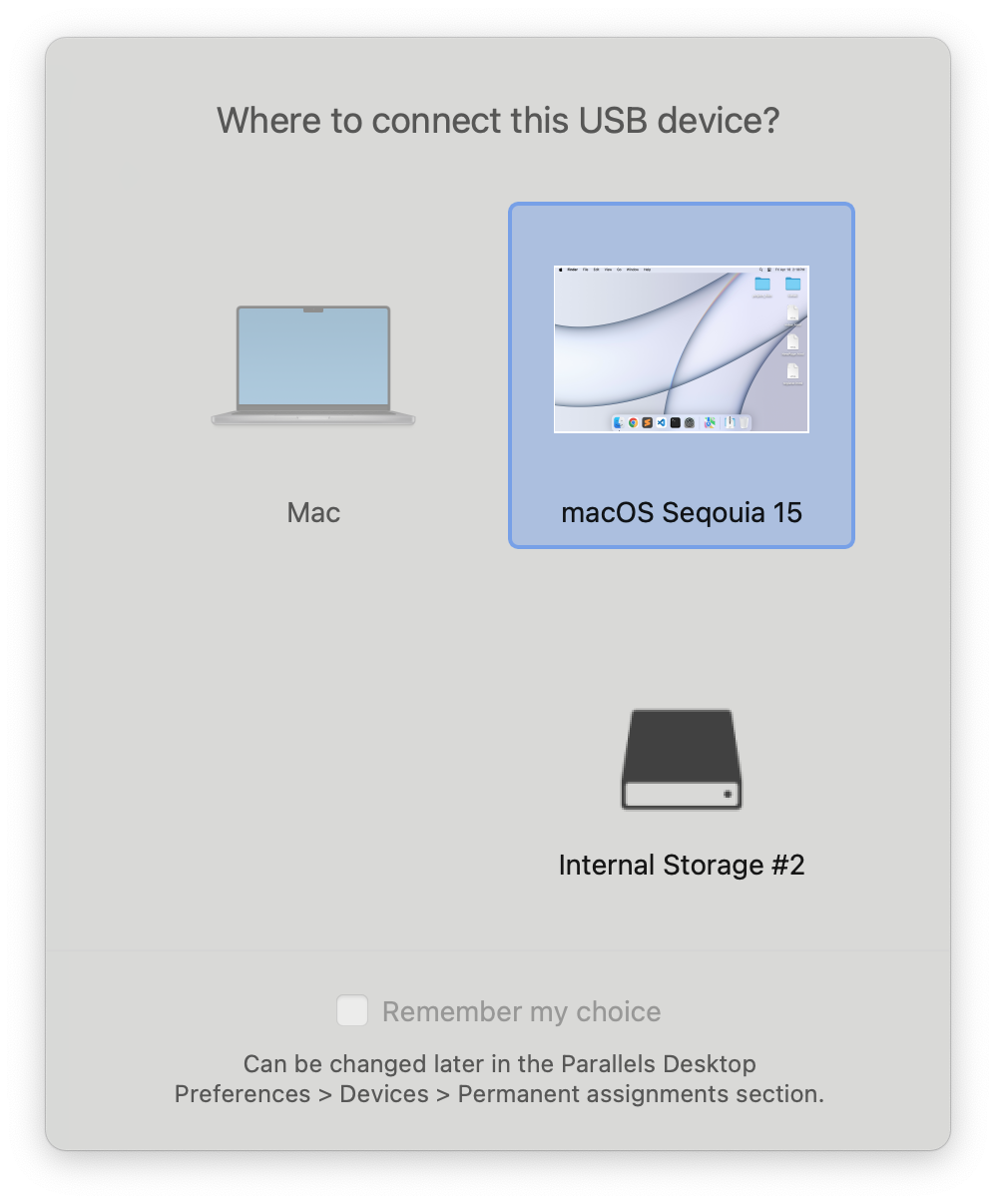
3. Connect your USB device and wait for the Parallels Desktop connection dialog to appear.
The **Remember my choice** option is inactive due to the aforementioned limitations.
4. Choose the macOS virtual machine.
### How to disable connecting USB devices to a virtual machine
For security reasons, you may want to prohibit connecting USB devices to your virtual machines. Here is how you can do it using the command line interface:
```
prlctl set --device-del usb
```
This command will disable the USB device controller for the virtual machine. For more CLI capabilities, please review the [respective section](/landing/parallels-desktop-developers-guide/command-line-interface-utility.md) of our Developer's Guide.
{% hint style="info" %}
**Note**: Parallels Desktop Command Line Interface is only available on Pro, Business, and Enterprise licenses.
{% endhint %}
---
# Agent Instructions
This documentation is published with GitBook. GitBook is the documentation platform designed so that both humans and AI agents can read, navigate, and reason over technical content effectively. Learn more at gitbook.com.
## Querying This Documentation
If you need additional information that is not directly available in this page, you can query the documentation dynamically by asking a question.
Perform an HTTP GET request on the current page URL with the `ask` query parameter, and the optional `goal` query parameter:
```
GET https://docs.parallels.com/landing/pdfm-ug/parallels-desktop-for-mac-27-users-guide/advanced-topics/using-other-operating-systems-on-your-mac/running-macos-virtual-machines/connecting-usb-devices-directly-to-your-macos-virtual-machine.md?ask=&goal=
```
`ask` is the immediate question: it should be specific, self-contained, and written in natural language.
`goal` is optional and describes the broader end goal you are ultimately trying to accomplish on behalf of the user. GitBook uses it to tailor the answer towards what is most useful for that goal.
The response will contain a direct answer to the question and relevant excerpts and sources from the documentation.
Use this mechanism when the answer is not explicitly present in the current page, you need clarification or additional context, or you want to retrieve related documentation sections.