> For the complete documentation index, see [llms.txt](https://docs.parallels.com/landing/llms.txt). Markdown versions of documentation pages are available by appending `.md` to page URLs; this page is available as [Markdown](https://docs.parallels.com/landing/pdfm-ug/parallels-desktop-for-mac-27-users-guide/advanced-topics/working-with-virtual-machines/importing-and-running-x86_64-intel-virtual-machines-on-apple-silicon-macs/launching-and-running-an-x86_64-virtual-machine-on-an-apple-silicon-mac.md).
# Launching and Running an x86\_64 Virtual Machine on an Apple Silicon Mac
To import and launch an x86\_64 virtual machine on an Apple Silicon Mac, follow these steps:
{% hint style="danger" %}
**Warning**: Before using the newly imported x86\_64 machine on your Apple Silicon Mac, check [this list](/landing/pdfm-ug/parallels-desktop-for-mac-27-users-guide/advanced-topics/working-with-virtual-machines/importing-and-running-x86_64-intel-virtual-machines-on-apple-silicon-macs.md#what-to-expect-when-running-an-x86_64-virtual-machine-on-an-apple-silicon-mac) of what to expect.
{% endhint %}
1. On your Intel Mac, choose a virtual machine that runs an operating system compatible with our emulator, as specified in [this list](/landing/pdfm-ug/parallels-desktop-for-mac-27-users-guide/advanced-topics/working-with-virtual-machines/importing-and-running-x86_64-intel-virtual-machines-on-apple-silicon-macs.md#what-x86_64-operating-systems-you-can-expect-to-launch-on-apple-silicon-macs).
2. Properly shut down the selected virtual machine. Transferring a virtual machine that's not been properly shut down may result in data loss.
3. Most Linux virtual machines created on Intel Macs will have a virtual bootloader that emulates legacy BIOS, which is not compatible with our emulation functionality. If you would like to transfer a Linux x86\_64 machine, you will have to create a new one on your Intel Mac first, following these steps:
1. Download an x86\_64 ISO file for the required Linux distro.
2. Start Parallels Desktop on your Intel Mac and select **File** > **New\...**
3. Click on **Install Windows, Linux, or macOS from an image file**, select the downloaded ISO file, and click **Continue**. Alternatively, choose one of the suggested options from the **Free Systems** section.
4. Click **Customize settings before the installation** and select **Continue**.
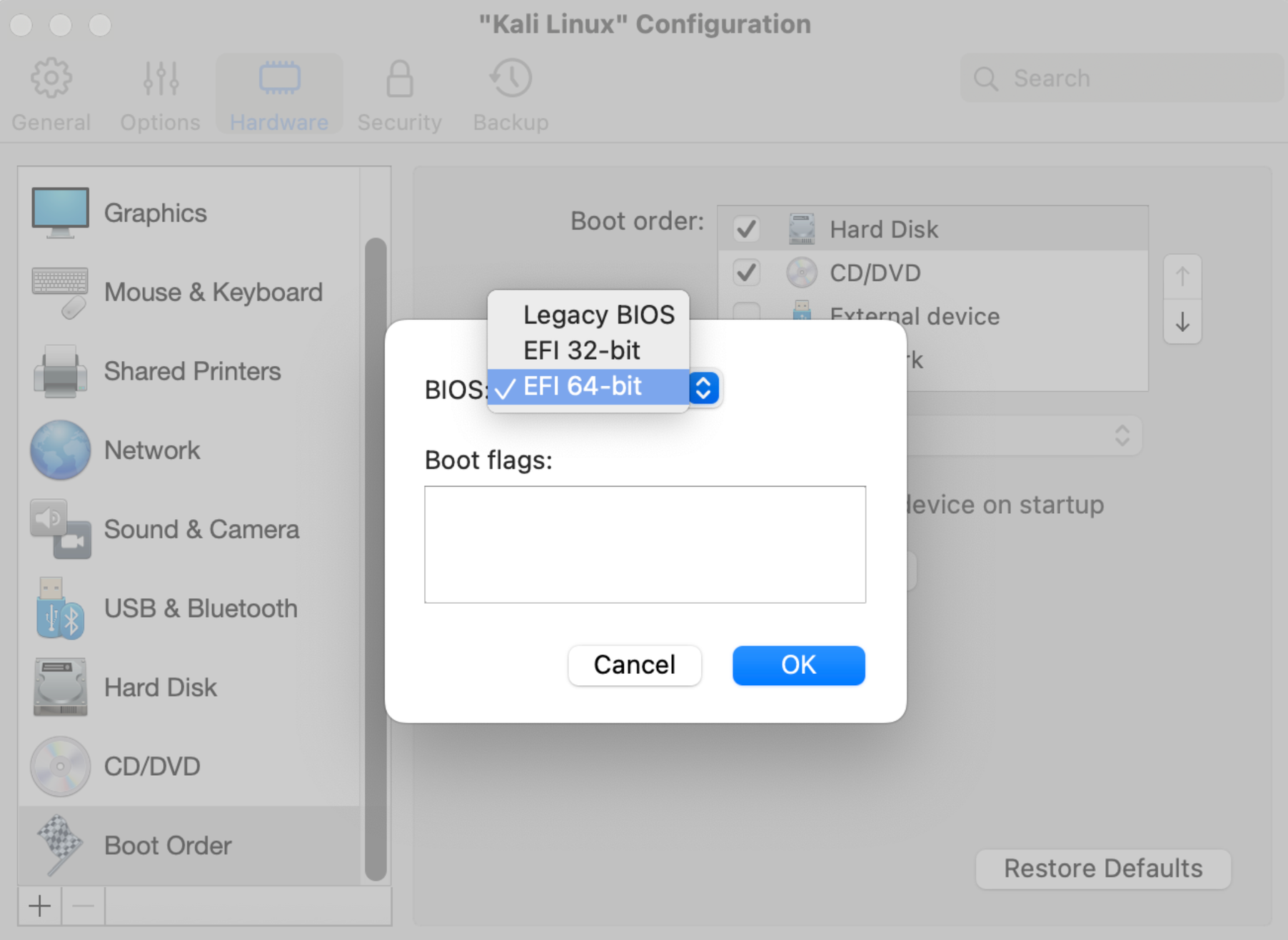
5. Once the configuration window opens, switch to the **Hardware** tab, and choose the **Boot Order** item from the left-side panel. Click on **Advanced** and select the `64-bit EFI` option.
Click **OK**.
6. Close the window and proceed with the installation.
4. On your Intel Mac, open the Parallels Desktop Control Center, select the required virtual machine, right-click on it, and click **Show in Finder**. This will show you the `.pvm` file of your x86\_64 virtual machine.
5. Transfer the `.pvm` file to your target Apple Silicon Mac, e.g., using an external USB drive.
6. Copy the required `.pvm` file to your Apple Silicon Mac's [folder with Parallels Desktop virtual machines](/landing/pdfm-ug/parallels-desktop-for-mac-27-users-guide/advanced-topics/working-with-virtual-machines/about-virtual-machines/set-where-virtual-machines-are-stored.md), right-click on it, and choose **Open With** > **Parallels Desktop**.
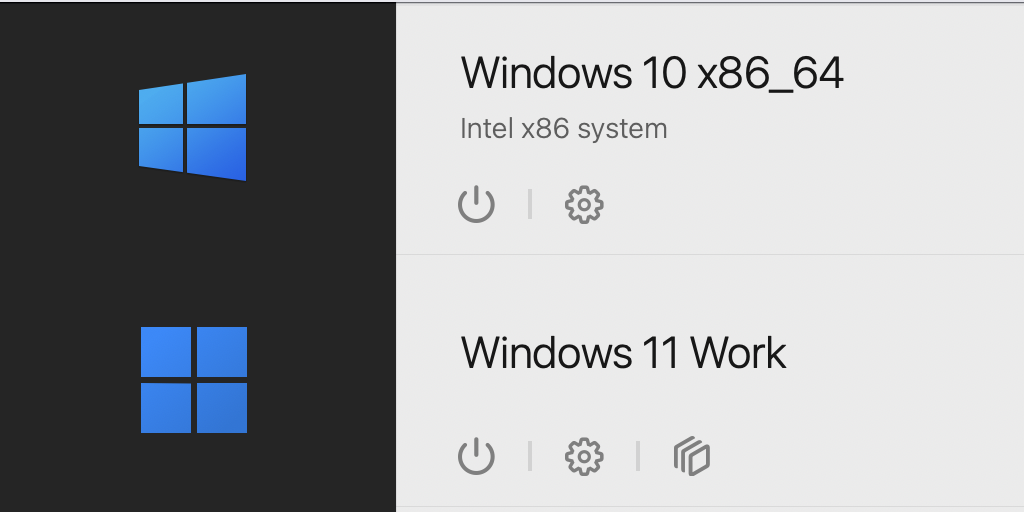
7. The imported virtual machine will initially be designated in the Control Center as **Not Compatible**. Right-click on it and choose the **Start using Emulator** option.
After that, the virtual machine will be designated as an **Intel x86 system**.
8. Before using the newly imported x86\_64 machine on your Apple Silicon Mac, check [this list](/landing/pdfm-ug/parallels-desktop-for-mac-27-users-guide/advanced-topics/working-with-virtual-machines/importing-and-running-x86_64-intel-virtual-machines-on-apple-silicon-macs.md#what-to-expect-when-running-an-x86_64-virtual-machine-on-an-apple-silicon-mac) of what to expect.
For the latest compatibility updates and troubleshooting information, refer to [this KB article](https://kb.parallels.com/130217).
Even if you don't have an Intel Mac on hand, you can still create and run an x86\_64 virtual machine on an Apple Silicon Mac, albeit with some limitations. Read [this subchapter](/landing/pdfm-ug/parallels-desktop-for-mac-27-users-guide/advanced-topics/working-with-virtual-machines/importing-and-running-x86_64-intel-virtual-machines-on-apple-silicon-macs/creating-a-new-x86_64-intel-virtual-machine-on-an-apple-silicon-mac.md) for more details.
---
# Agent Instructions
This documentation is published with GitBook. GitBook is the documentation platform designed so that both humans and AI agents can read, navigate, and reason over technical content effectively. Learn more at gitbook.com.
## Querying This Documentation
If you need additional information that is not directly available in this page, you can query the documentation by asking a question.
Perform an HTTP GET request on the following URL with the `ask` and `goal` query parameters:
```
GET https://docs.parallels.com/landing/pdfm-ug/parallels-desktop-for-mac-27-users-guide/advanced-topics/working-with-virtual-machines/importing-and-running-x86_64-intel-virtual-machines-on-apple-silicon-macs/launching-and-running-an-x86_64-virtual-machine-on-an-apple-silicon-mac.md?ask=&goal=
```
`ask` is the immediate question: it should be specific, self-contained, and written in natural language.
`goal` is what the user is ultimately trying to achieve, the reason they need the answer. Sharing it helps GitBook give you a better, more relevant answer. A goal is most helpful when it describes the outcome the user wants rather than restating the question. For example, with `ask=how do I create an API token`, a goal like `automate deployments from our CI pipeline` lets GitBook tailor the answer to that use case.
The response will contain a direct answer to the question and relevant excerpts and sources from the documentation.
Use this mechanism when the answer is not explicitly present in the current page, you need clarification or additional context, or you want to retrieve related documentation sections.