Note: The Add button is disabled when the virtual machine is running. You need to stop the virtual machine before you can use this button.
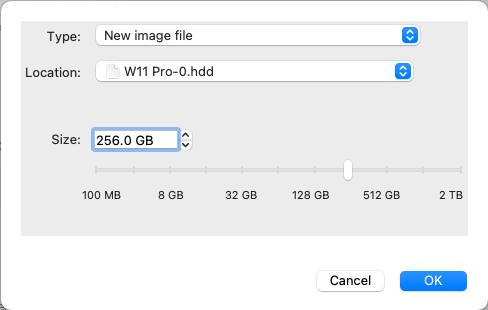 \
Click **OK** to add the hard disk. After you add a new virtual hard disk to the virtual machine configuration, it will be invisible to the operating system installed inside the virtual machine until the moment you initialize it. For detailed information on how to initialize the newly added hard disk, please refer to the documentation and help resources of the operating system installed in your virtual machine.
After the new device is added, you can manage its properties as usual and start using it.
### Removing Devices from the Virtual Machine Configuration
1. Choose **Configure** from the **Actions** menu to open Virtual Machine Configuration.
2. Click the **Hardware** button at the top of the **Virtual Machine Configuration** dialog to open the pane for editing hardware devices.
3. Select the device you want to remove and click the **Remove** button (-) in the bottom part of the **Virtual Machine Configuration** dialog.
---
# Agent Instructions
This documentation is published with GitBook. GitBook is the documentation platform designed so that both humans and AI agents can read, navigate, and reason over technical content effectively. Learn more at gitbook.com.
## Querying This Documentation
If you need additional information that is not directly available in this page, you can query the documentation dynamically by asking a question.
Perform an HTTP GET request on the current page URL with the `ask` query parameter, and the optional `goal` query parameter:
```
GET https://docs.parallels.com/landing/pdfm-ug/parallels-desktop-for-mac-27-users-guide/parallels-desktop-preferences-and-virtual-machine-settings/adding-and-removing-devices.md?ask=
\
Click **OK** to add the hard disk. After you add a new virtual hard disk to the virtual machine configuration, it will be invisible to the operating system installed inside the virtual machine until the moment you initialize it. For detailed information on how to initialize the newly added hard disk, please refer to the documentation and help resources of the operating system installed in your virtual machine.
After the new device is added, you can manage its properties as usual and start using it.
### Removing Devices from the Virtual Machine Configuration
1. Choose **Configure** from the **Actions** menu to open Virtual Machine Configuration.
2. Click the **Hardware** button at the top of the **Virtual Machine Configuration** dialog to open the pane for editing hardware devices.
3. Select the device you want to remove and click the **Remove** button (-) in the bottom part of the **Virtual Machine Configuration** dialog.
---
# Agent Instructions
This documentation is published with GitBook. GitBook is the documentation platform designed so that both humans and AI agents can read, navigate, and reason over technical content effectively. Learn more at gitbook.com.
## Querying This Documentation
If you need additional information that is not directly available in this page, you can query the documentation dynamically by asking a question.
Perform an HTTP GET request on the current page URL with the `ask` query parameter, and the optional `goal` query parameter:
```
GET https://docs.parallels.com/landing/pdfm-ug/parallels-desktop-for-mac-27-users-guide/parallels-desktop-preferences-and-virtual-machine-settings/adding-and-removing-devices.md?ask=