> For the complete documentation index, see [llms.txt](https://docs.parallels.com/landing/llms.txt). Markdown versions of documentation pages are available by appending `.md` to page URLs; this page is available as [Markdown](https://docs.parallels.com/landing/pdfm-ug/parallels-desktop-for-mac-27-users-guide/parallels-desktop-preferences-and-virtual-machine-settings/virtual-machine-settings/hardware-settings/mouse-and-keyboard-settings.md).
# Mouse & Keyboard Settings
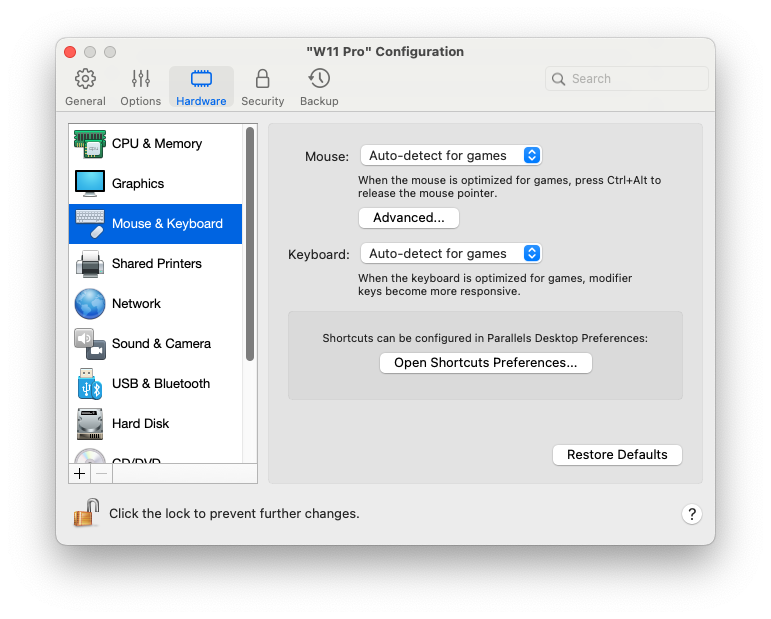
In the **Mouse & Keyboard** pane, you can view and configure the mouse- and keyboard-related settings.
To open these settings, choose **Actions** > **Configure** > **Hardware**, then click **Mouse & Keyboard**.
| Option | Description |
| ---------------------------------------- | ---------------------------------------------------------------------------------------------------------------------------------------------------------------------------------------------------------------------------------------------------------------------------------------------------------------------------------------------------------------------------------------------------------------------------------------------------------------------------------------------------------------------------------------------------------------------------------------------------------------------------------------------------------------------------------------------------------------------------------------------------------------------------------------------------------------------------------------------------------------------------------------------------------------------------------------------------------------------------------------------------------------------------------------------------------------------------------------- |
| **Mouse** |
If you play games in a virtual machine, the Mouse menu allows you to set how to use a mouse:
Auto-detect for games. This is a recommended default setting. If you're working with a guest OS application, the mouse moves freely between the guest operating system and macOS. However, when you start a game, the mouse input is automatically captured in the virtual machine so that you couldn't move the mouse to macOS by mistake and automatically released when you quit the game.
Optimize for games. If your mouse accidentally moves to macOS when you're playing a game, select this option to make the mouse work in the virtual machine only. To release the mouse input and switch to macOS, press Ctrl + Alt.
Don't optimize for games. In some rare cases, Parallels Desktop may detect an application as a game and the mouse starts working incorrectly with the application. If you have this problem, choose Don't optimize for games.
|
| **Mouse pointer sticks at window edges** |
When working with a virtual machine in Window view mode, you may often need to move the mouse pointer to the edges of the virtual machine window to display various guest OS items: for example, to display the Start menu in Windows 8, hidden taskbar in Windows XP, or macOS menu bar when any of the guest macOS applications is running in full screen.
The Mouse pointer sticks at window edges option makes the mouse pointer pause for a while at the edges of the virtual machine window and you won't move the mouse outside of the virtual machine window by mistake. To move past the edge, just move the mouse quickly.
|
| **Keyboard** |
Choose Optimize for games from the Keyboard menu if you actively use the modifier keys Option (Alt), Ctrl, and Shift in action games. When this option is selected, signals from these keys are processed immediately.
Note: It is not recommended that you optimize the keyboard for games when not playing games. Some key combinations with the Ctrl, Alt, Shift, or Option keys may not work.
|
### Adjusting Scrolling Sensitivity in Linux
Linux virtual machines on both Intel and Apple Silicon Macs have been known to have occasional issues with mice or trackpads set to excessive scrolling sensitivity. If you encounter such an issue, you may adjust the scrolling sensitivity to your liking by executing the following command in macOS Terminal:
`$ defaults write "com.parallels.Parallels Desktop" "HID Host Hook.Scroll Sensitivity" X`
where X is the inverse scrolling sensitivity value. The default one is 20, and the maximum is 120. Make note that 120 means the **lowest** possible sensitivity. With the value set to 120, you would need to work the trackpad very energetically to scroll in the Linux VM.
{% hint style="info" %}
**Note**: This command only works in Parallels Desktop for Mac 19.3 or newer and affects the scrolling sensitivity only in virtual machines, not your main macOS system.
{% endhint %}
---
# Agent Instructions
This documentation is published with GitBook. GitBook is the documentation platform designed so that both humans and AI agents can read, navigate, and reason over technical content effectively. Learn more at gitbook.com.
## Querying This Documentation
If you need additional information that is not directly available in this page, you can query the documentation dynamically by asking a question.
Perform an HTTP GET request on the current page URL with the `ask` query parameter, and the optional `goal` query parameter:
```
GET https://docs.parallels.com/landing/pdfm-ug/parallels-desktop-for-mac-27-users-guide/parallels-desktop-preferences-and-virtual-machine-settings/virtual-machine-settings/hardware-settings/mouse-and-keyboard-settings.md?ask=&goal=
```
`ask` is the immediate question: it should be specific, self-contained, and written in natural language.
`goal` is optional and describes the broader end goal you are ultimately trying to accomplish on behalf of the user. GitBook uses it to tailor the answer towards what is most useful for that goal.
The response will contain a direct answer to the question and relevant excerpts and sources from the documentation.
Use this mechanism when the answer is not explicitly present in the current page, you need clarification or additional context, or you want to retrieve related documentation sections.