> For the complete documentation index, see [llms.txt](https://docs.parallels.com/landing/llms.txt). Markdown versions of documentation pages are available by appending `.md` to page URLs; this page is available as [Markdown](https://docs.parallels.com/landing/pdfm-ug/parallels-desktop-for-mac-27-users-guide/parallels-desktop-preferences-and-virtual-machine-settings/virtual-machine-settings/hardware-settings/sound-and-camera-settings.md).

# Sound & Camera Settings

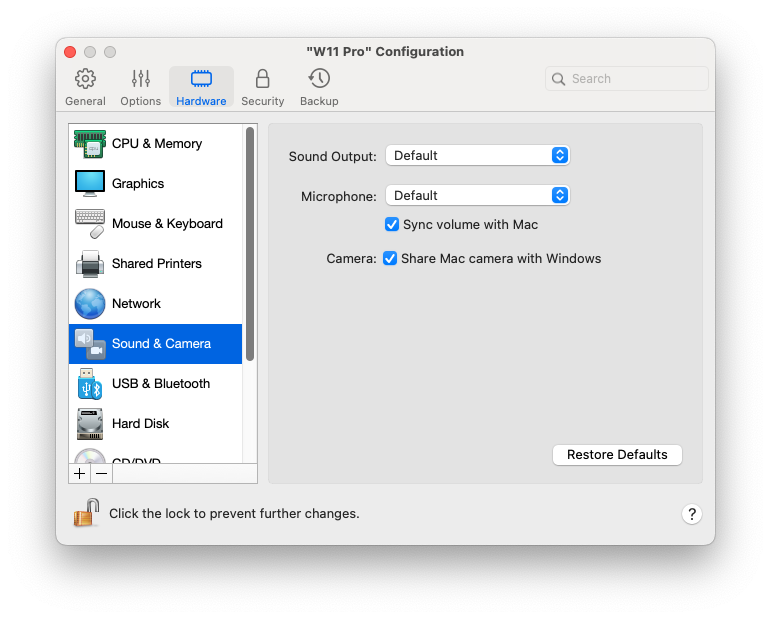
In the **Sound & Camera** pane, you can view and configure the sound device parameters and share the Mac's camera with the virtual machine.

To open these settings, choose **Actions** > **Configure** > **Hardware**, then click **Sound & Camera**.

<figure><img src="https://content.gitbook.com/content/hVLphlNWs82OS4cXatMx/blobs/DPSZQvW8sFp27AP3X0TI/Screenshot%202024-01-19%20at%2018.27.08.png" alt="" width="563"><figcaption></figcaption></figure>

<table><thead><tr><th width="299">Option</th><th>Description</th></tr></thead><tbody><tr><td><strong>Sound Output</strong></td><td><p>Use the <strong>Sound Output</strong> list to choose the necessary device:</p><ul><li><strong>Default</strong>. Select this option if you want to use the output device set as default in macOS.</li><li><strong>Built-in Output</strong>. Select this option if you want to use one of the output devices from your Mac.</li><li><strong>Disable</strong>. Select this option if you want to disable the output device.</li></ul></td></tr><tr><td><strong>Microphone</strong></td><td><p>Use the <strong>Microphone</strong> list to choose the necessary device:</p><ul><li><strong>Default</strong>. Select this option if you want to use the microphone set as default in macOS.</li><li><strong>Built-in Microphone</strong>. Select this option if you want to use the built-in microphone.</li><li><strong>Disable</strong>. Select this option if you want to disable the microphone.</li></ul></td></tr><tr><td><strong>Sync volume with Mac</strong></td><td><p>For Windows XP and later with Parallels Tools installed, you can set Windows and macOS volume levels to remain the same. With the <strong>Sync volume with Mac</strong> option selected, if you manually change the volume level in Windows, it is changed accordingly in macOS and vice versa.<br></p><p>If Parallels Tools are not installed, this option is called <strong>Use Mac sound volume</strong>. When it is selected, Windows has the same sound volume as in macOS.</p></td></tr><tr><td><strong>Share Mac camera with Windows</strong></td><td>Use this option to enable or disable camera sharing.</td></tr><tr><td><strong>Type</strong></td><td><p>From the <strong>Type</strong> menu, you can select the type of sound card you want to use in the virtual machine. You can choose between <strong>AC'97</strong> and <strong>HD Audio</strong>.<br></p><p><strong>Note:</strong> this menu is available only on Intel Macs. Virtual machines on Apple Silicon Macs always use <strong>HD Audio</strong>.</p></td></tr></tbody></table>


---

# Agent Instructions
This documentation is published with GitBook. GitBook is the documentation platform designed so that both humans and AI agents can read, navigate, and reason over technical content effectively. Learn more at gitbook.com.

## Querying This Documentation
If you need additional information that is not directly available in this page, you can query the documentation dynamically by asking a question.

Perform an HTTP GET request on the current page URL with the `ask` query parameter, and the optional `goal` query parameter:

```
GET https://docs.parallels.com/landing/pdfm-ug/parallels-desktop-for-mac-27-users-guide/parallels-desktop-preferences-and-virtual-machine-settings/virtual-machine-settings/hardware-settings/sound-and-camera-settings.md?ask=<question>&goal=<endgoal>
```

`ask` is the immediate question: it should be specific, self-contained, and written in natural language.
`goal` is optional and describes the broader end goal you are ultimately trying to accomplish on behalf of the user. GitBook uses it to tailor the answer towards what is most useful for that goal.

The response will contain a direct answer to the question and relevant excerpts and sources from the documentation.

Use this mechanism when the answer is not explicitly present in the current page, you need clarification or additional context, or you want to retrieve related documentation sections.
