> For the complete documentation index, see [llms.txt](https://docs.parallels.com/landing/llms.txt). Markdown versions of documentation pages are available by appending `.md` to page URLs; this page is available as [Markdown](https://docs.parallels.com/landing/pdfm-ug/parallels-desktop-for-mac-27-users-guide/parallels-desktop-preferences-and-virtual-machine-settings/virtual-machine-settings/options/more-options.md).

# More Options

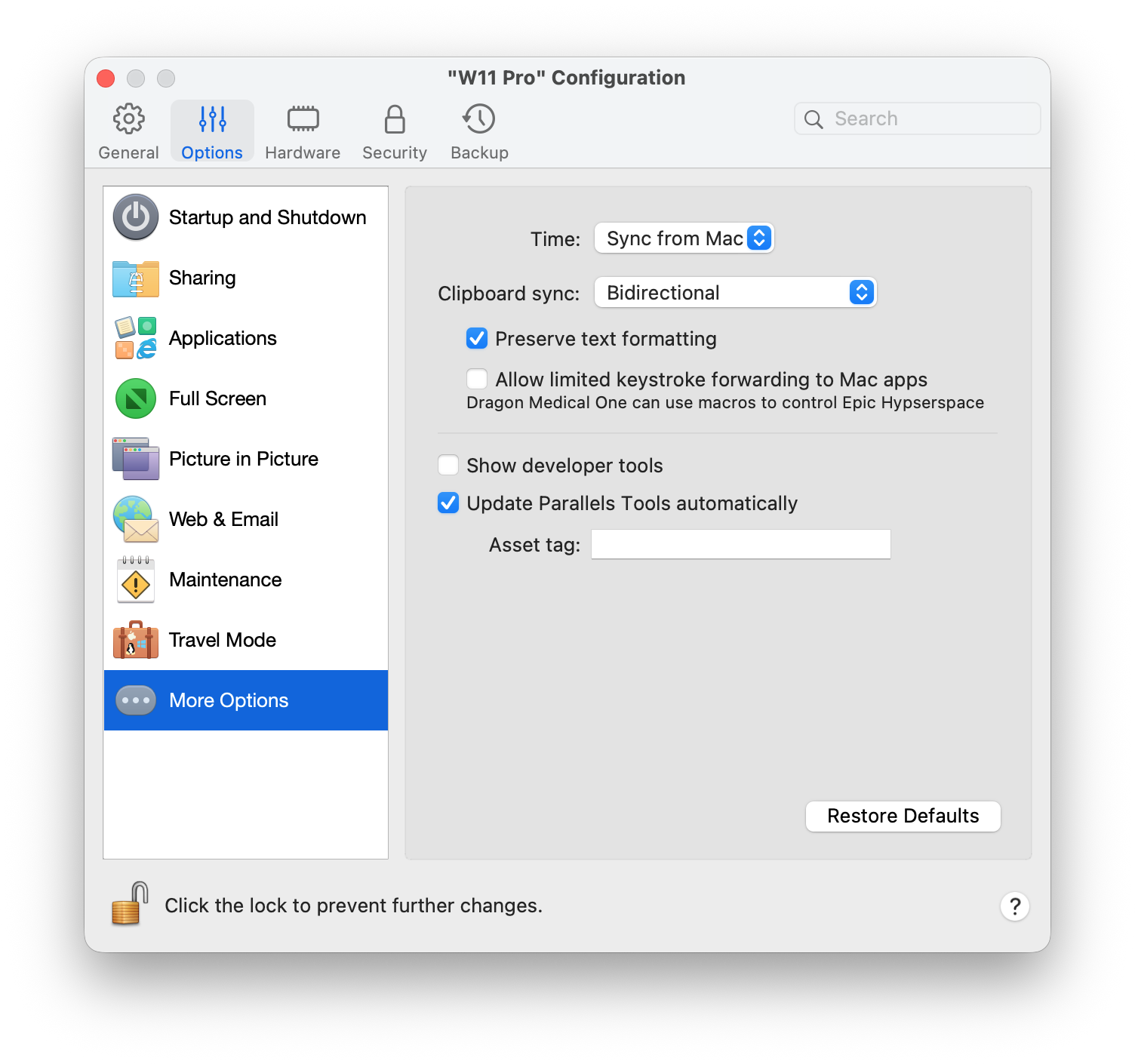
In the **More Options** pane, you can choose whether to share the Mac clipboard, set whether to sync time from macOS, and more.

To open these settings, choose **Actions** > **Configure** > **Options**, then click **More Options**.

<figure><img src="https://content.gitbook.com/content/hVLphlNWs82OS4cXatMx/blobs/hEAWCwQ2zDjBtTu5oD3o/PDFM-125476_Keystroke_Fwding.png" alt="" width="563"><figcaption></figcaption></figure>

<table><thead><tr><th width="267">Option</th><th>Description</th></tr></thead><tbody><tr><td><strong>Time</strong> (not available for macOS virtual machines on Apple Silicon Macs)</td><td><p>Select <strong>Sync from Mac</strong> to synchronize the virtual machine time settings with those of your Mac.</p><p>If you want the virtual machine and macOS time settings to always be the same, select <strong>Sync from either OS</strong>. With this option selected, if you manually change the time settings in the virtual machine, they are changed accordingly in macOS and vice versa.</p><p>If the time zone set in your virtual machine differs from that of your Mac, you can maintain this time difference by selecting <strong>Do not sync</strong>.</p></td></tr><tr><td><strong>Clipboard sync</strong> (not available for macOS virtual machines on Apple Silicon Macs)</td><td><p>This setting controls the availability of clipboard contents (your copy-and-paste buffer) between your Mac and virtual machines.</p><ul><li>The default option, <strong>Bidirectional</strong>, allows copy and paste both ways: from your Mac to the virtual machine and back.</li><li>The option <strong>Disabled</strong> blocks copy and paste both ways.</li><li>The options <strong>From {virtual_machine} to Mac</strong> and <strong>From Mac to {virtual_machine}</strong> let you limit which way copy-and-paste is allowed, and are only available in Parallels Desktop for Mac Pro and Business/Enterprise Editions.</li></ul></td></tr><tr><td><strong>Preserve text formatting</strong></td><td>Select this option if you want to preserve the formatting of the text you copy between your Mac apps and the virtual machine.</td></tr><tr><td><strong>Allow limited keystroke forwarding to Mac apps</strong> (available in Parallels Desktop for Mac Business and Enterprise Editions only)</td><td>Select this option to allow limited keystroke forwarding from the virtual machine to the host Mac apps to enable specific enterprise software workflows.<br><br><strong>Note</strong>: This option is designed for Dragon Medical One workflows, allowing macros and dictation commands to control Epic Hyperspace. For security reasons, this feature excludes <code>Cmd</code>.</td></tr><tr><td><strong>Show developer tools</strong> (available in Parallels Desktop for Mac Pro and Business/Enterprise Editions only)</td><td><p>Parallels Desktop has several useful features for software developers. Select this option to display the <strong>Develop</strong> menu in the macOS menu bar. From this menu, you can:</p><ul><li>Start an SSH session.</li><li>Open the virtual machine IP address in the macOS default web browser.</li><li>Start a debugging session.</li><li>Generate the virtual machine memory dump.</li></ul><p>The following items are available only for Windows virtual machines (some of the items may not be shown - this depends on the version of Windows):</p><ul><li>Open the list of <strong>All Tasks</strong> (aka "God Mode");</li><li>Start Steps Recorder.</li><li>Open Registry Editor.</li><li>Open Command Prompt.</li><li>Open the Run window.</li></ul></td></tr><tr><td><strong>Update Parallels Tools automatically</strong> (available in Parallels Desktop for Mac Pro and Business/Enterprise Editions only)</td><td>Select this option to update Parallels Tools automatically.</td></tr><tr><td><strong>Authenticate with macOS SSH public key</strong> (available for Linux machines in Parallels Desktop for Mac Pro and Business/Enterprise Edition only)</td><td>This option enables you to synchronize your Mac's public SSH keys with your Linux virtual machine, enabling you to authenticate on your virtual machine without entering the password. This feature does not support SSH certificates and requires the virtual machine to have only one regular user, or the username to match between your Mac and the virtual machine.</td></tr><tr><td><strong>Set VM name as guest OS hostname</strong> (available for Linux machines in Parallels Desktop for Mac Pro and Business/Enterprise Edition only)</td><td>This feature is useful when working with a Linux virtual machine over SSH, so that instead of, e.g., <code>{username}@dhcp-{IPv4_address}:~ $</code> you will see <code>{username}@{Virtual_machine_name}:~ $</code>. Applying this setting requires restarting the virtual machine.</td></tr><tr><td><strong>Asset tag</strong> (available in Parallels Desktop for Mac Business/Enterprise Edition only)</td><td>Asset tags help identify, control, and track computer assets in an organization. Parallels Desktop allows setting an asset tag in the virtual machine BIOS, which can then be read using the standard tools of the guest operating system. To set an asset tag, enter the desired tag into the corresponding field.</td></tr></tbody></table>


---

# Agent Instructions
This documentation is published with GitBook. GitBook is the documentation platform designed so that both humans and AI agents can read, navigate, and reason over technical content effectively. Learn more at gitbook.com.

## Querying This Documentation
If you need additional information that is not directly available in this page, you can query the documentation dynamically by asking a question.

Perform an HTTP GET request on the current page URL with the `ask` query parameter, and the optional `goal` query parameter:

```
GET https://docs.parallels.com/landing/pdfm-ug/parallels-desktop-for-mac-27-users-guide/parallels-desktop-preferences-and-virtual-machine-settings/virtual-machine-settings/options/more-options.md?ask=<question>&goal=<endgoal>
```

`ask` is the immediate question: it should be specific, self-contained, and written in natural language.
`goal` is optional and describes the broader end goal you are ultimately trying to accomplish on behalf of the user. GitBook uses it to tailor the answer towards what is most useful for that goal.

The response will contain a direct answer to the question and relevant excerpts and sources from the documentation.

Use this mechanism when the answer is not explicitly present in the current page, you need clarification or additional context, or you want to retrieve related documentation sections.
