> For the complete documentation index, see [llms.txt](https://docs.parallels.com/landing/llms.txt). Markdown versions of documentation pages are available by appending `.md` to page URLs; this page is available as [Markdown](https://docs.parallels.com/landing/pdfm-ug/v20-de-de/parallels-desktop-for-mac-20-handbuch/windows-auf-dem-mac-benutzen/anschliessen-von-bluetooth-geraten/verbindung-mit-einem-bluetooth-game-controller-herstellen.md).
# Verbindung mit einem Bluetooth-Game-Controller herstellen
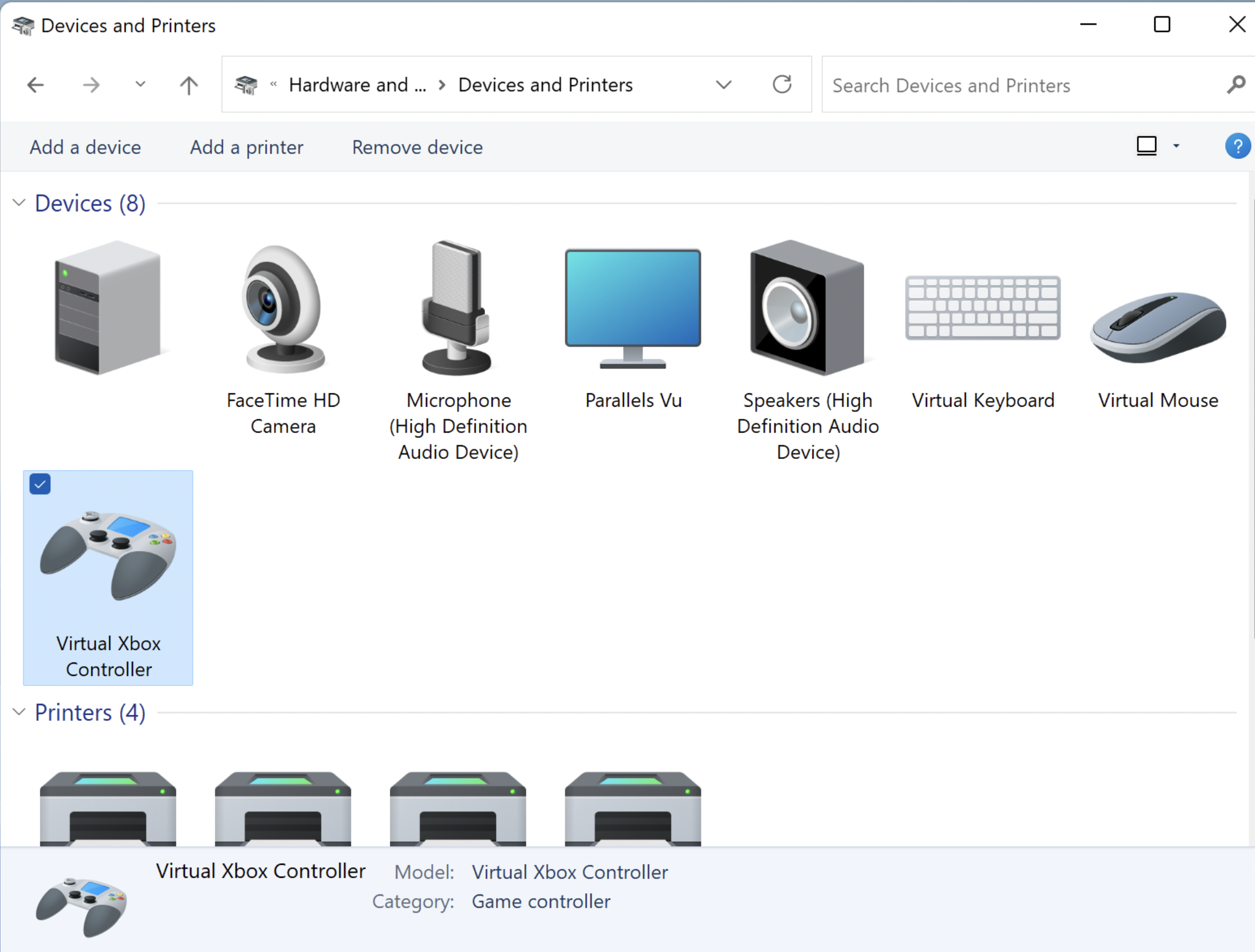
Ab Parallels Desktop für Mac 18 profitieren Sie von einer nahtloseren Integration von beliebten Bluetooth-Game-Controllern. Anstatt sie mit einer virtuellen Maschine zu verbinden, müssen Sie diese jetzt direkt mit Ihrem Mac verbinden, und Parallels Desktop gibt sie dann automatisch für Windows frei. Bitte beachten Sie, dass Ihr Game-Controller unabhängig von der tatsächlichen Marke und dem Modell in Windows als "Virtual Xbox Controller" angezeigt wird.
### **Voraussetzungen:**
1. Windows 10 oder eine neuere Version muss auf Ihrer virtuellen Maschine installiert sein;
2. Jeder Game-Controller, der vom macOS-Game-Controller-Framework unterstützt wird. Folgende Controller wurden überprüft und haben sich bewährt:
* Microsoft Xbox Wireless-Controller (die letzten zwei Generationen);
* Sony PlayStation DualShock und DualSense\*;
* Nintendo Joy-Cons
\*Das Touchpad und die Bewegungssensoren von DualSense werden noch nicht unterstützt.
### **Einrichtung des Controllers**
1. Achten Sie darauf, dass die Akkus aufgeladen sind;
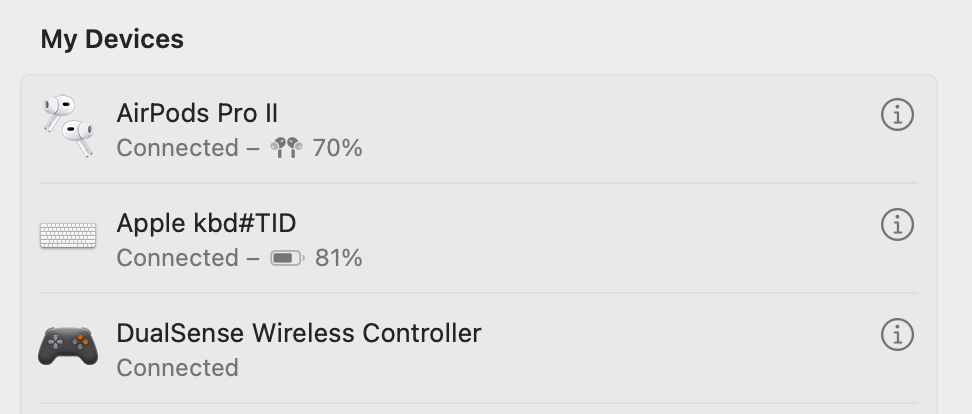
2. Verbinden Sie den Controller mit Ihren Mac. Der Controller sollte in **Systemeinstellungen** > **Bluetooth** in der Liste der Geräte erscheinen;
3. Um sicherzustellen, dass Ihr Gerät mit Ihrer virtuellen Windows-Maschine verbunden ist, starten Sie Windows und geben in der Windows-Suchleiste **Systemsteuerung** > **Geräte und Drucker** ein. Das Gerät sollte als **Virtual Xbox Controller** angezeigt werden.
---
# Agent Instructions
This documentation is published with GitBook. GitBook is the documentation platform designed so that both humans and AI agents can read, navigate, and reason over technical content effectively. Learn more at gitbook.com.
## Querying This Documentation
If you need additional information that is not directly available in this page, you can query the documentation dynamically by asking a question.
Perform an HTTP GET request on the current page URL with the `ask` query parameter, and the optional `goal` query parameter:
```
GET https://docs.parallels.com/landing/pdfm-ug/v20-de-de/parallels-desktop-for-mac-20-handbuch/windows-auf-dem-mac-benutzen/anschliessen-von-bluetooth-geraten/verbindung-mit-einem-bluetooth-game-controller-herstellen.md?ask=&goal=
```
`ask` is the immediate question: it should be specific, self-contained, and written in natural language.
`goal` is optional and describes the broader end goal you are ultimately trying to accomplish on behalf of the user. GitBook uses it to tailor the answer towards what is most useful for that goal.
The response will contain a direct answer to the question and relevant excerpts and sources from the documentation.
Use this mechanism when the answer is not explicitly present in the current page, you need clarification or additional context, or you want to retrieve related documentation sections.