> For the complete documentation index, see [llms.txt](https://docs.parallels.com/landing/llms.txt). Markdown versions of documentation pages are available by appending `.md` to page URLs; this page is available as [Markdown](https://docs.parallels.com/landing/pdfm-ug/v20-de-de/parallels-desktop-for-mac-20-handbuch/windows-auf-dem-mac-benutzen/prasentation-auf-einem-externen-monitor-oder-projektor.md).
# Präsentation auf einem externen Monitor oder Projektor
Sie können Ihren ganz einfach an einen externen Monitor oder Projektor anschließen und eine Präsentation von einem Windows Programm aus zeigen. Sie müssen nur eine kleine Konfiguration vornehmen.
Gehen Sie dazu folgendermaßen vor:
1. [Starten Sie Windows](/landing/pdfm-ug/v20-de-de/parallels-desktop-for-mac-20-handbuch/windows-auf-dem-mac-benutzen/erste-schritte/starten-von-windows.md), falls es noch nicht ausgeführt wird.
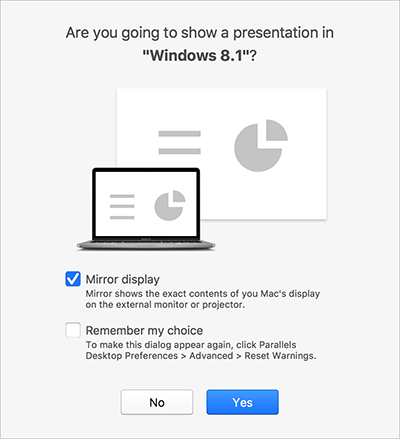
2. Schließen Sie einen externen Monitor oder Projektor an, wie es normalerweise tun würden. Es erscheint eine Nachricht, in der gefragt wird, ob Sie eine Präsentation zeigen möchten.
3. Wenn Sie genau denselben Inhalt Ihrer Bildschirmanzeige auf dem Computer auch auf dem externen Bildschirm oder Projektor anzeigen möchten, wählen Sie **Bildschirm spiegeln**.
Wenn Sie **Bildschirm spiegeln** nicht auswählen, zeigen bestimmte Programme, wie etwa Microsoft Powerpoint, unter Umständen eine Präsentationsansicht auf Ihrem Computer, während auf dem externen Bildschirm oder Projektor nur die Präsentation angezeigt wird.
4. Klicken Sie auf **Ja**. Windows wechselt in den Präsentationsmodus, in dem es als Vollbild sowohl auf dem Bildschirm Ihres Computers als auch Ihres externen Bildschirms oder Projektors angezeigt. Danach können Sie mit Ihrer Präsentation beginnen.
{% hint style="info" %}
**Hinweis:** Wenn Sie herausfinden wollen, wie Sie auswählen, auf welchem Bildschirm die Präsentation angezeigt wird, ziehen Sie die Hilfe des Programms, das Sie für Präsentationen verwenden, zurate.
{% endhint %}
{% hint style="warning" %}
**Wichtig!** Während Sie im Präsentationsmodus arbeiten, sollten Sie die Anzeige-Einstellungen unter Windows nicht ändern, da dies sonst zu Fehlfunktionen der Präsentation führen kann.
{% endhint %}
---
# Agent Instructions
This documentation is published with GitBook. GitBook is the documentation platform designed so that both humans and AI agents can read, navigate, and reason over technical content effectively. Learn more at gitbook.com.
## Querying This Documentation
If you need additional information that is not directly available in this page, you can query the documentation dynamically by asking a question.
Perform an HTTP GET request on the current page URL with the `ask` query parameter, and the optional `goal` query parameter:
```
GET https://docs.parallels.com/landing/pdfm-ug/v20-de-de/parallels-desktop-for-mac-20-handbuch/windows-auf-dem-mac-benutzen/prasentation-auf-einem-externen-monitor-oder-projektor.md?ask=&goal=
```
`ask` is the immediate question: it should be specific, self-contained, and written in natural language.
`goal` is optional and describes the broader end goal you are ultimately trying to accomplish on behalf of the user. GitBook uses it to tailor the answer towards what is most useful for that goal.
The response will contain a direct answer to the question and relevant excerpts and sources from the documentation.
Use this mechanism when the answer is not explicitly present in the current page, you need clarification or additional context, or you want to retrieve related documentation sections.