> For the complete documentation index, see [llms.txt](https://docs.parallels.com/landing/llms.txt). Markdown versions of documentation pages are available by appending `.md` to page URLs; this page is available as [Markdown](https://docs.parallels.com/landing/pdfm-ug/v20-en-us/parallels-desktop-for-mac-20-users-guide/parallels-desktop-preferences-and-virtual-machine-settings/parallels-desktop-preferences/network-preferences.md).
# Network Preferences
Use **Network** Preferences to change the shared and host-only network settings or to add a new host-only network.
To open these preferences, choose **Parallels Desktop** > **Preferences**, then click **Network**.
{% hint style="info" %}
**Note:** This tab is available in Parallels Desktop for Mac Pro and Business/Enterprise Editions only.
{% endhint %}
### Shared Network
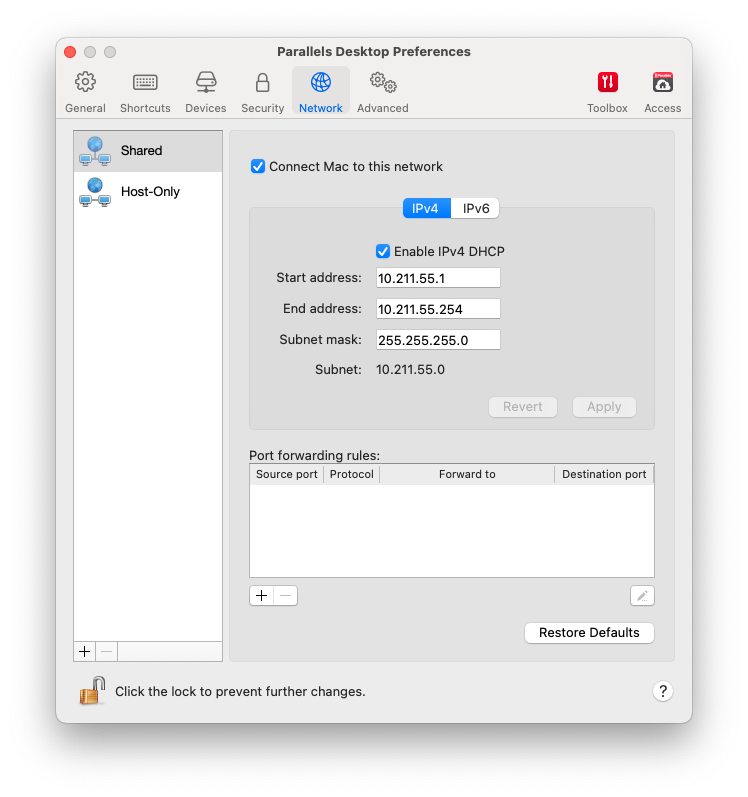
By default, virtual machines are set to share network settings with macOS. When a virtual machine is connected to the shared network, it can access the Mac, other virtual machines on the Mac, computers on your local network, and the Internet.
To change the shared network settings, click **Shared** and make the necessary changes to the settings of the Parallels DHCP servers for IPv4 and IPv6. These servers, enabled by default, automatically assign IP addresses to your virtual machines operating in the shared networking mode. Please note that your Mac’s IPv4 address in this network is 10.211.55.2, not 10.211.55.1.
Unchecking the **Connect Mac to this network** checkbox will prevent virtual machines from accessing your Mac via the [Internet Protocol (IP)](https://en.wikipedia.org/wiki/OSI_model#Layer_3:_Network_layer).
{% hint style="info" %}
**Note**: On Intel Macs running macOS Monterey 12, the only reliable way to isolate the Mac from the virtual machines in Shared mode is to use a firewall.
{% endhint %}
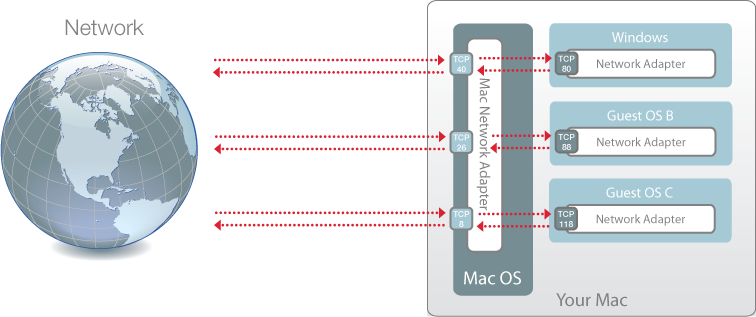
Normally, virtual machines set to operate in the shared networking mode cannot be accessed from external computers. The port forwarding functionality allows computers on your local network and the Internet to transfer data to any of your virtual machines that use the shared networking mode. The data sent to a specific port on your Mac will be redirected to a specific port of your virtual machine according to the port-forwarding rule.
To add a port forwarding rule:
1. Click the **Add** button (+) below the **Port forwarding rules** list.
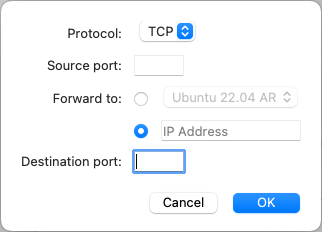
2. In the displayed window, do the following:
* In the **Protocol** field, specify the port type you want to use for establishing network connections. You can choose between the **TCP** or **UDP** port types.
* In the **Source Port** field, type the incoming port number on your Mac.
* In the **Forward to** section, indicate the name or IP address of the virtual machine you want to connect.
* In the **Destination Port** field, type the port on the virtual machine to which the data will be transferred.
* Click **OK** to add the rule.
When the rule is added, use the following IP address combination for external connections to your virtual machine: `:`.
To edit a rule, select it in the **Port forwarding rules** list, click the **Edit** button, modify the necessary settings, and click **OK** to apply them.
To remove a port forwarding rule, select it in the **Port forwarding rules** list and click the **Remove** button (-).
### Host-Only Network
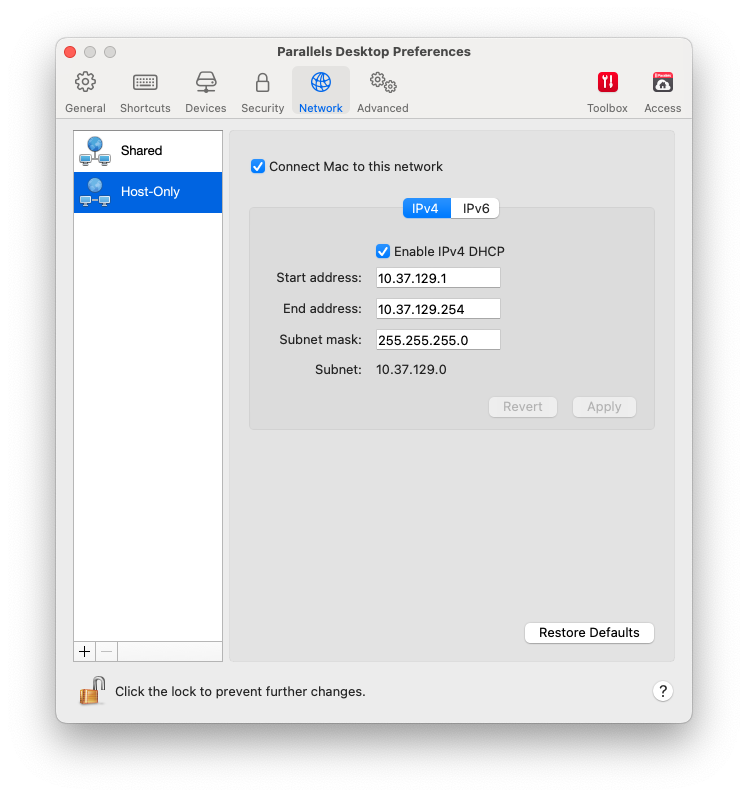
When a virtual machine is connected to a host-only network, it can access the Mac and other virtual machines on the Mac.
{% hint style="info" %}
**Note**: If you have an Apple silicon Mac and want to run a macOS virtual machine in host-only mode, you need to update your Mac's OS to macOS Sequoia 15 or newer and Parallels Desktop to version 20.4.0 or newer.
{% endhint %}
To change the host-only network settings, click **Host-Only** and make the necessary changes to the settings of the Parallels DHCP servers for IPv4 and IPv6. These servers, enabled by default, automatically assign IP addresses to your virtual machines operating in the host-only networking mode. Please note that your Mac’s IPv4 address in this network is 10.37.129.2, not 10.37.129.1.
Unchecking the **Connect Mac to this network** checkbox will prevent virtual machines from accessing your Mac via the [Internet Protocol (IP)](https://en.wikipedia.org/wiki/OSI_model#Layer_3:_Network_layer).
### Add a New Host-Only Network
If you need to manage network traffic between virtual machines, you can add a new host-only network.
To add a new host-only network, click the **Add** button (+). Once a new host-only network is added, configure its settings the way you need.
{% hint style="info" %}
**Note:** To rename a new host-only network, double-click its name and type another one.
{% endhint %}
To remove a custom host-only network, select it and click the **Remove** button (-).
---
# Agent Instructions
This documentation is published with GitBook. GitBook is the documentation platform designed so that both humans and AI agents can read, navigate, and reason over technical content effectively. Learn more at gitbook.com.
## Querying This Documentation
If you need additional information that is not directly available in this page, you can query the documentation dynamically by asking a question.
Perform an HTTP GET request on the current page URL with the `ask` query parameter, and the optional `goal` query parameter:
```
GET https://docs.parallels.com/landing/pdfm-ug/v20-en-us/parallels-desktop-for-mac-20-users-guide/parallels-desktop-preferences-and-virtual-machine-settings/parallels-desktop-preferences/network-preferences.md?ask=&goal=
```
`ask` is the immediate question: it should be specific, self-contained, and written in natural language.
`goal` is optional and describes the broader end goal you are ultimately trying to accomplish on behalf of the user. GitBook uses it to tailor the answer towards what is most useful for that goal.
The response will contain a direct answer to the question and relevant excerpts and sources from the documentation.
Use this mechanism when the answer is not explicitly present in the current page, you need clarification or additional context, or you want to retrieve related documentation sections.