> For the complete documentation index, see [llms.txt](https://docs.parallels.com/landing/llms.txt). Markdown versions of documentation pages are available by appending `.md` to page URLs; this page is available as [Markdown](https://docs.parallels.com/landing/pdfm-ug/v20-en-us/parallels-desktop-for-mac-20-users-guide/parallels-desktop-preferences-and-virtual-machine-settings/virtual-machine-settings/hardware-settings/graphics-settings.md).
# Graphics Settings
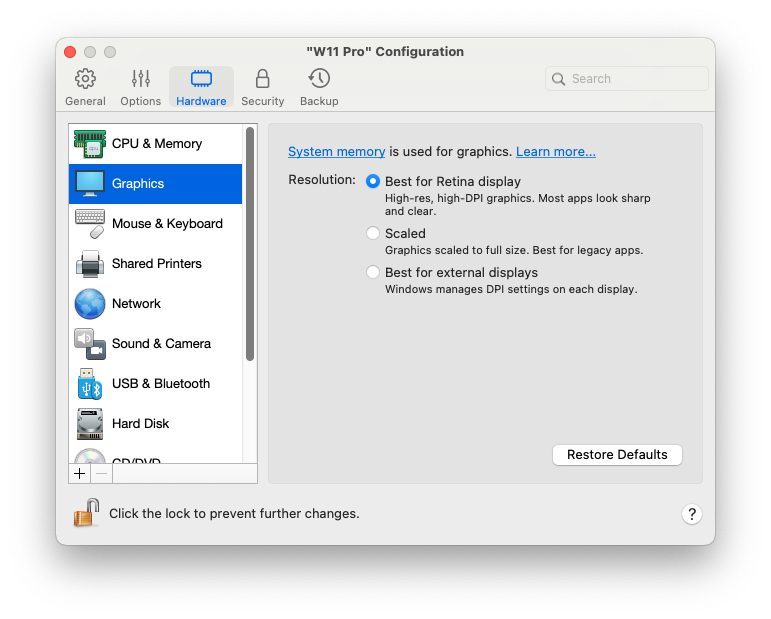
In the **Graphics** pane, you can view and configure the amount of video memory available to the virtual machine video card, set resolution, and more.
To open these settings, choose **Actions** > **Configure** > **Hardware**, then click **Graphics**.
| Option | Description |
| -------------------------------------------------------------------------------------------------------- | -------------------------------------------------------------------------------------------------------------------------------------------------------------------------------------------------------------------------------------------------------------------------------------------------------------------------------------------------------------------------------------------------------------------------------------------------------------------------------------------------------------------------------------------------------------------------------------------------------------------------------------------------------------------------------------------------------------------------------------------------------------------------------------------------------------------------------------------------------------------------------------------------------------------------------------------------------------------------------------------------------------------------------------------------------------------------------------------------------------------------------------------------------------------------------------------------------------------------------------------------------------------------------------------------------------------------------------------------------------------------------------------- |
| **Memory** |
If you have a virtual machine running Windows 8 or later, Parallels Desktop uses system memory for graphics. To increase the amount of graphics memory allocated to your virtual machine, increase the amount of system memory in the CPU & Memory pane.
If you have a virtual machine running Windows 7 or earlier, Linux, or macOS, you can set the amount of video memory that will be available to the virtual machine using the Memory menu.
|
| **Resolution** |
If you're working with Windows 7 or later on a Mac with a Retina display, you can choose how Windows is displayed on the screen:
Best for Retina display. Windows resolution matches that of the Retina display, and the DPI setting increases. Windows interface elements and text are clear, sharp, and full-size. This option is supported by Windows 7 and later.
Scaled. Windows resolution and DPI settings don't change. Instead, Windows is scaled to full size. As a result, Windows interface elements and text are not sharp. This option is useful for Windows applications that don't support high-DPI settings and appear small onscreen.
Best for external displays. Use this option if you're working with Windows on multiple displays, one of which is non-Retina. The option is supported by Windows 8 and later.
For Windows XP:
If you're working with Windows XP on a Mac with a Retina display, Windows becomes scaled, but its resolution doesn't change. As a result, Windows interface elements and text are not sharp.
However, you can enable full (2880x1800) Retina resolution for Windows by selecting Enable Retina resolution. At such a high resolution, Windows interface elements and text become sharp but small.
|
| **3D acceleration** |
This menu is available for Linux virtual machines only, and the 3D acceleration option is enabled by default. If you are experiencing issues with GUI in Linux, you may start the debugging process by selecting Off from the 3D acceleration menu.
For Linux guest operating systems, Parallels Desktop supports OpenGL 4.1 (Compatibility Profile).
In Windows virtual machines, this menu is not available because 3D acceleration is considered stable and is permanently enabled. For Windows, Parallels Desktop supports OpenGL 4.1 (Compatibility Profile) and DirectX 11.1.
As for macOS, virtual machines with macOS 12 Monterey and later running on Mac computers with macOS 12 Monterey and later support Metal graphics. The only condition is that such a virtual machine must have Parallels Tools installed.
If any of your Windows or Linux apps claim to require a higher version of DirectX or OpenGL, please let us know about this application on the Parallels forum. To access the forum, either click Help > Suggest a Feature or search our forum for the latest relevant topic.
|
|
Always use high-performance graphics
(not available on Apple Silicon Macs)
| This option is accessible only if your Mac supports graphics switching. Select this option for better performance or deselect for better battery life. |
---
# Agent Instructions
This documentation is published with GitBook. GitBook is the documentation platform designed so that both humans and AI agents can read, navigate, and reason over technical content effectively. Learn more at gitbook.com.
## Querying This Documentation
If you need additional information that is not directly available in this page, you can query the documentation dynamically by asking a question.
Perform an HTTP GET request on the current page URL with the `ask` query parameter, and the optional `goal` query parameter:
```
GET https://docs.parallels.com/landing/pdfm-ug/v20-en-us/parallels-desktop-for-mac-20-users-guide/parallels-desktop-preferences-and-virtual-machine-settings/virtual-machine-settings/hardware-settings/graphics-settings.md?ask=&goal=
```
`ask` is the immediate question: it should be specific, self-contained, and written in natural language.
`goal` is optional and describes the broader end goal you are ultimately trying to accomplish on behalf of the user. GitBook uses it to tailor the answer towards what is most useful for that goal.
The response will contain a direct answer to the question and relevant excerpts and sources from the documentation.
Use this mechanism when the answer is not explicitly present in the current page, you need clarification or additional context, or you want to retrieve related documentation sections.