> For the complete documentation index, see [llms.txt](https://docs.parallels.com/landing/llms.txt). Markdown versions of documentation pages are available by appending `.md` to page URLs; this page is available as [Markdown](https://docs.parallels.com/landing/pdfm-ug/v20-es-es/guia-del-usuario-de-parallels-desktop-para-mac-20/temas-avanzados/uso-de-otros-sistemas-operativos-en-su-mac/personalizacion-del-teclado-para-el-so-huesped.md).
# Personalización del teclado para el SO huésped
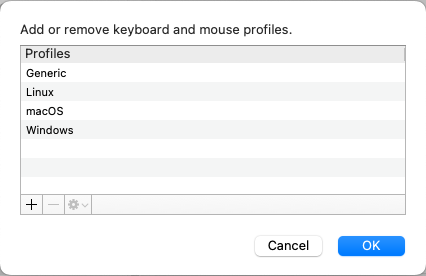
Por defecto, Parallels Desktop contiene cuatro perfiles que representan los grupos de combinaciones de teclas típicos para los siguientes sistemas operativos:
* Windows
* Linux
* macOS
* Genérico (para otros SO huéspedes)
Cuando crea o registra una máquina virtual, uno de sus perfiles, en función del sistema operativo huésped, se asigna a la máquina virtual por omisión. Puede crear su propio perfil y asignarlo a sus máquinas virtuales.
Para crear un perfil de teclado personalizado o editar los perfiles existentes:
1. Realice una de las siguientes acciones:
* Haga clic en el icono de Parallels Desktop en la barra de menús y seleccione **Preferencias**.
* Haga clic con el botón derecho en el icono de Parallels Desktop en el Dock y seleccione **Preferencias**.
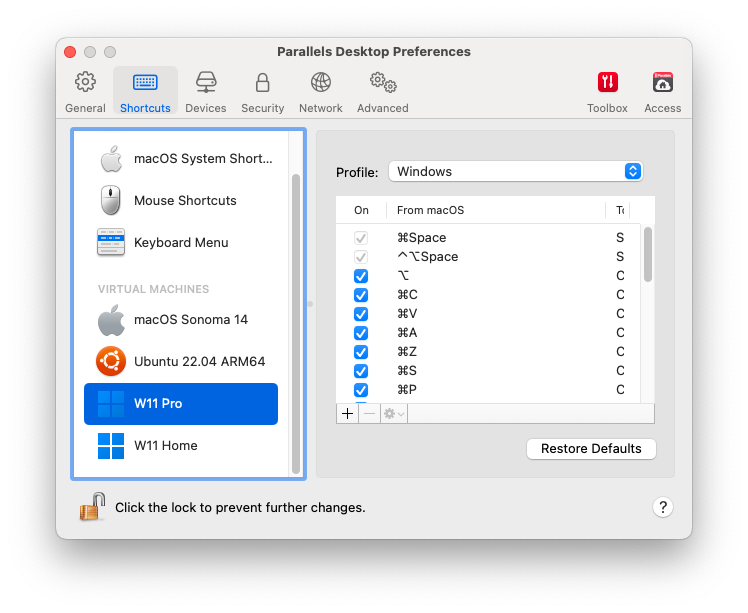
2. Haga clic en **Accesos directos**.
3. Seleccione una máquina virtual en la barra lateral, haga clic en el menú **Perfil** y seleccione **Editar lista de perfiles**.
4. Realice una de las siguientes acciones:
* Para añadir un perfil nuevo, haga clic en el botón **Añadir** (+). Especifique el nombre del nuevo perfil y seleccione el perfil base en la lista. Una vez creado el perfil, puede enviar los cambios haciendo clic en **ACEPTAR**. A continuación, seleccione este perfil nuevo en la lista **Perfil** y configure sus accesos directos.
* Para eliminar uno de los perfiles personalizados existentes, seleccione el perfil y haga clic en el botón **Eliminar** (-).
* Para duplicar o cambiar el nombre de uno de los perfiles existentes, selecciónelo y haga clic en el botón , y seleccione la acción pertinente en el menú.
{% hint style="info" %}
**Nota:** Solo puede eliminar o cambiar el nombre de sus perfiles personalizados.
{% endhint %}
En el panel **Acceso directos** de las preferencias de Parallels Desktop también puede asignar perfiles a sus máquinas virtuales.
Para cambiar un perfil asignado a una máquina virtual, seleccione una máquina virtual y escoja un perfil en el menú **Perfil**.
---
# Agent Instructions
This documentation is published with GitBook. GitBook is the documentation platform designed so that both humans and AI agents can read, navigate, and reason over technical content effectively. Learn more at gitbook.com.
## Querying This Documentation
If you need additional information that is not directly available in this page, you can query the documentation by asking a question.
Perform an HTTP GET request on the following URL with the `ask` and `goal` query parameters:
```
GET https://docs.parallels.com/landing/pdfm-ug/v20-es-es/guia-del-usuario-de-parallels-desktop-para-mac-20/temas-avanzados/uso-de-otros-sistemas-operativos-en-su-mac/personalizacion-del-teclado-para-el-so-huesped.md?ask=&goal=
```
`ask` is the immediate question: it should be specific, self-contained, and written in natural language.
`goal` is what the user is ultimately trying to achieve, the reason they need the answer. Sharing it helps GitBook give you a better, more relevant answer. A goal is most helpful when it describes the outcome the user wants rather than restating the question. For example, with `ask=how do I create an API token`, a goal like `automate deployments from our CI pipeline` lets GitBook tailor the answer to that use case.
The response will contain a direct answer to the question and relevant excerpts and sources from the documentation.
Use this mechanism when the answer is not explicitly present in the current page, you need clarification or additional context, or you want to retrieve related documentation sections.