> For the complete documentation index, see [llms.txt](https://docs.parallels.com/landing/llms.txt). Markdown versions of documentation pages are available by appending `.md` to page URLs; this page is available as [Markdown](https://docs.parallels.com/landing/pdfm-ug/v20-fr-fr/guide-de-lutilisateur-de-parallels-desktop-pour-mac-20/preferences-de-parallels-desktop-et-parametres-de-la-machine-virtuelle/parametres-de-la-machine-virtuelle/parametres-materiels/parametres-du-port-serie.md).

# Paramètres du port série

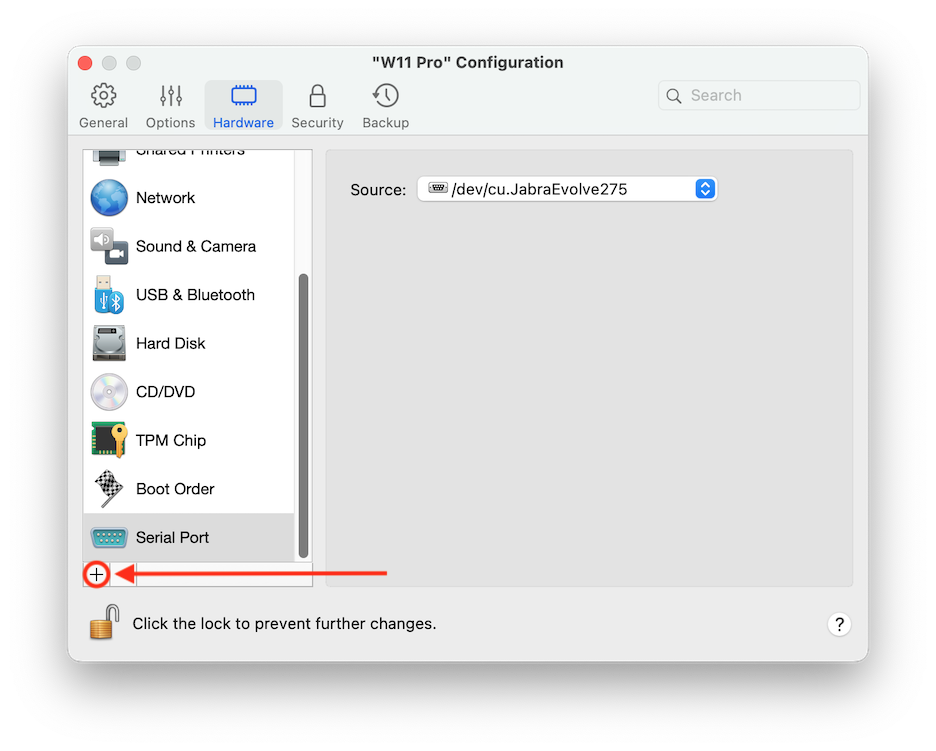
Dans le volet **Port série**, vous pouvez afficher et configurer les paramètres du port série de la machine virtuelle.

Pour ouvrir ces paramètres, choisissez **Actions** > **Configurer** > **Matériel**, puis cliquez sur **Port série**. Si l'option Port série n'est pas affichée, cliquez sur le signe **+** pour ajouter un port, puis suivez les instructions ci-dessous pour le configurer.

<figure><img src="https://content.gitbook.com/content/6L4NL5qFhHsflDi9DiQk/blobs/eue8WHqdnaVnBgRCSIlL/image.png" alt="" width="563"><figcaption></figcaption></figure>

<table><thead><tr><th width="100">Option</th><th>Description</th></tr></thead><tbody><tr><td><strong>Source</strong></td><td><p>Dans le champ <strong>Source</strong>, sélectionnez le périphérique source qui émule ce port série :</p><ul><li><strong>Port série physique</strong>. Pour connecter le port série de la machine virtuelle à l'un des ports série existants sur votre Mac, choisissez le port approprié.</li><li><strong>Socket</strong>. Pour connecter deux machines virtuelles via les sockets, cliquez sur le socket approprié. Si aucun socket n'est disponible, cliquez sur <strong>Nouveau socket</strong> et indiquez son nom dans le champ <strong>Entrer un nom de socket</strong>. Vous devez également configurer le rôle que la machine virtuelle jouera dans la connexion en choisissant le rôle nécessaire dans la liste <strong>Mode</strong>. Sélectionner <strong>Serveur</strong> vous permet d'utiliser cette machine virtuelle pour diriger l'autre. Sélectionner <strong>Client</strong> vous permet de diriger cette machine virtuelle à partir de l'autre.</li><li><strong>Fichier de sortie</strong>. Pour connecter le port série de la machine virtuelle à un fichier de sortie, choisissez le fichier de sortie approprié ou cliquez sur <strong>Choisir un fichier de sortie</strong> pour localiser le fichier nécessaire.</li></ul></td></tr></tbody></table>


---

# Agent Instructions
This documentation is published with GitBook. GitBook is the documentation platform designed so that both humans and AI agents can read, navigate, and reason over technical content effectively. Learn more at gitbook.com.

## Querying This Documentation
If you need additional information that is not directly available in this page, you can query the documentation dynamically by asking a question.

Perform an HTTP GET request on the following URL with the `ask` and `goal` query parameters:

```
GET https://docs.parallels.com/landing/pdfm-ug/v20-fr-fr/guide-de-lutilisateur-de-parallels-desktop-pour-mac-20/preferences-de-parallels-desktop-et-parametres-de-la-machine-virtuelle/parametres-de-la-machine-virtuelle/parametres-materiels/parametres-du-port-serie.md?ask=<question>&goal=<user_goal>
```

`ask` is the immediate question: it should be specific, self-contained, and written in natural language.
`goal` is what the user is ultimately trying to achieve, the reason they need the answer. Sharing it helps GitBook give you a better, more relevant answer. A goal is most helpful when it describes the outcome the user wants rather than restating the question. For example, with `ask=how do I create an API token`, a goal like `build a script that syncs our docs to a CMS` lets GitBook tailor the answer to that use case.

The response will contain a direct answer to the question and relevant excerpts and sources from the documentation.

Use this mechanism when the answer is not explicitly present in the current page, you need clarification or additional context, or you want to retrieve related documentation sections.