> For the complete documentation index, see [llms.txt](https://docs.parallels.com/landing/llms.txt). Markdown versions of documentation pages are available by appending `.md` to page URLs; this page is available as [Markdown](https://docs.parallels.com/landing/pdfm-ug/v20-fr-fr/guide-de-lutilisateur-de-parallels-desktop-pour-mac-20/rubriques-avancees/masquer-et-afficher-parallels-desktop.md).
# Masquer et afficher Parallels Desktop
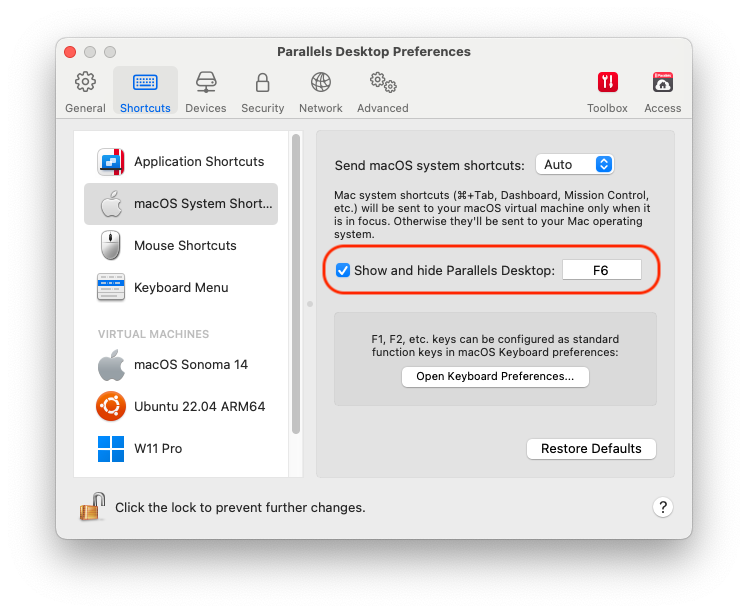
Lorsque Parallels Desktop est en cours d'exécution, vous pouvez masquer et afficher ses fenêtres en maintenant la touche Fonction (Fn) enfoncée et en appuyant sur la touche F6.
Si Parallels Desktop est visible mais fonctionne en arrière-plan, appuyer sur Fn+F6 placera Parallels Desktop et toutes ses fenêtres au premier plan. La touche permettant d’afficher et masquer Parallels Desktop peut être configurée dans l’onglet **Raccourcis** des préférences de Parallels Desktop :
{% hint style="info" %}
**Remarque :** la plupart des touches Fonction (F1, F2, etc.) sur les claviers Mac servent de touches de contrôle spécifiques, comme les contrôles du volume et de luminosité. Vous devez maintenir la touche Fn enfoncée au moment où vous appuyez sur la touche de fonction pour déclencher une fonction alternative et spécifique à l'application. Si vous voulez configurer des touches Fonction à utiliser pour des fonctions alternatives sans avoir à appuyer sur la touche Fn, sélectionnez le menu **Apple** **> Préférences système et cliquez sur Clavier. Puis cliquez sur Clavier et choisissez Utiliser les touches F1, F2... comme des touches de fonction standard.**
{% endhint %}
---
# Agent Instructions
This documentation is published with GitBook. GitBook is the documentation platform designed so that both humans and AI agents can read, navigate, and reason over technical content effectively. Learn more at gitbook.com.
## Querying This Documentation
If you need additional information that is not directly available in this page, you can query the documentation dynamically by asking a question.
Perform an HTTP GET request on the following URL with the `ask` and `goal` query parameters:
```
GET https://docs.parallels.com/landing/pdfm-ug/v20-fr-fr/guide-de-lutilisateur-de-parallels-desktop-pour-mac-20/rubriques-avancees/masquer-et-afficher-parallels-desktop.md?ask=&goal=
```
`ask` is the immediate question: it should be specific, self-contained, and written in natural language.
`goal` is what the user is ultimately trying to achieve, the reason they need the answer. Sharing it helps GitBook give you a better, more relevant answer. A goal is most helpful when it describes the outcome the user wants rather than restating the question. For example, with `ask=how do I create an API token`, a goal like `build a script that syncs our docs to a CMS` lets GitBook tailor the answer to that use case.
The response will contain a direct answer to the question and relevant excerpts and sources from the documentation.
Use this mechanism when the answer is not explicitly present in the current page, you need clarification or additional context, or you want to retrieve related documentation sections.