> For the complete documentation index, see [llms.txt](https://docs.parallels.com/landing/llms.txt). Markdown versions of documentation pages are available by appending `.md` to page URLs; this page is available as [Markdown](https://docs.parallels.com/landing/pdfm-ug/v20-it-it/guida-utente-di-parallels-desktop-per-mac-20/argomenti-avanzati/nascondi-e-mostra-parallels-desktop.md).
# Nascondi e mostra Parallels Desktop
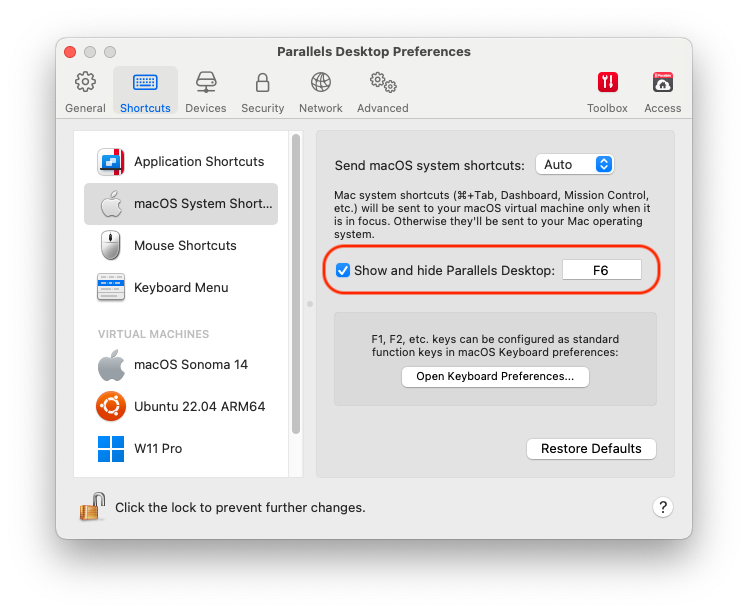
Quando Parallels Desktop è in esecuzione, è possibile nasconderlo e visualizzarlo, così come le relative finestre, premendo il tasto Funzione (Fn) e premendo il tasto F6.
Se Parallels Desktop è visibile ma è attivo in secondo piano, premendo Fn-F6, Parallels Desktop e le relative finestre compariranno in primo piano. Il tasto per visualizzare e nascondere Parallels Desktop può essere configurata nella scheda **Abbreviazioni** delle Preferenze di Parallels Desktop:
{% hint style="info" %}
**Nota:** La maggior parte di tasti Funzione (F1, F2 ecc) sulle tastiere Mac agiscono da tasti di controlli specifici, quali i controlli di volume e di luminosità ed è necessario tenere premuto il tasto Fn mentre si preme il tasto Funzione per attivare una funzione specifica dell'applicazione alternativa. Se desideri definire i tasti funzione da usare per funzioni alternative senza dover premere il tasto Fn, scegli il menu **Apple** **> Preferenze di sistema e clicca su Tastiera. Quindi, fai clic sulla scheda Tastiera e scegli Usa tutti i tasti F1, F2 ecc. come tasti di funzione standard.**
{% endhint %}
---
# Agent Instructions
This documentation is published with GitBook. GitBook is the documentation platform designed so that both humans and AI agents can read, navigate, and reason over technical content effectively. Learn more at gitbook.com.
## Querying This Documentation
If you need additional information that is not directly available in this page, you can query the documentation dynamically by asking a question.
Perform an HTTP GET request on the current page URL with the `ask` query parameter, and the optional `goal` query parameter:
```
GET https://docs.parallels.com/landing/pdfm-ug/v20-it-it/guida-utente-di-parallels-desktop-per-mac-20/argomenti-avanzati/nascondi-e-mostra-parallels-desktop.md?ask=&goal=
```
`ask` is the immediate question: it should be specific, self-contained, and written in natural language.
`goal` is optional and describes the broader end goal you are ultimately trying to accomplish on behalf of the user. GitBook uses it to tailor the answer towards what is most useful for that goal.
The response will contain a direct answer to the question and relevant excerpts and sources from the documentation.
Use this mechanism when the answer is not explicitly present in the current page, you need clarification or additional context, or you want to retrieve related documentation sections.