> For the complete documentation index, see [llms.txt](https://docs.parallels.com/landing/llms.txt). Markdown versions of documentation pages are available by appending `.md` to page URLs; this page is available as [Markdown](https://docs.parallels.com/landing/pdfm-ug/v20-it-it/guida-utente-di-parallels-desktop-per-mac-20/preferenze-di-parallels-desktop-e-impostazioni-della-macchina-virtuale/virtual-machine-settings/impostazioni-hardware/impostazioni-della-porta-seriale.md).

# Impostazioni della Porta Seriale

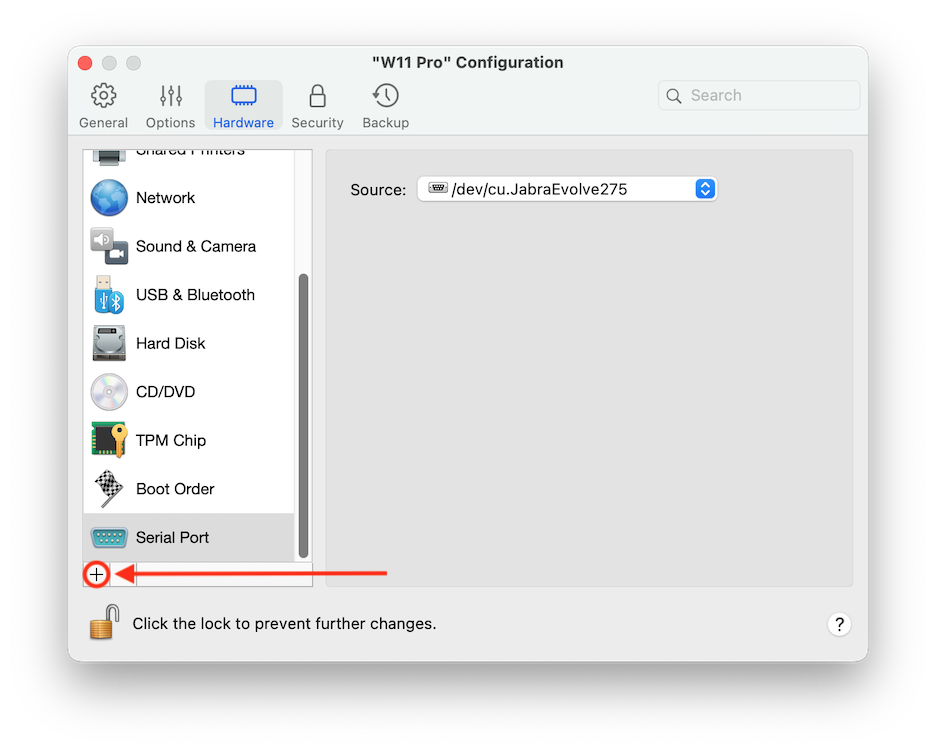
Nel riquadro **Porta seriale**, è possibile visualizzare e configurare le impostazioni della porta seriale della macchina virtuale.

Per aprire queste impostazioni, scegli **Azioni** > **Configura** > **Hardware**, quindi fai clic su **Porta seriale**. Se la Porta seriale non è presente, fai clic su **+** per aggiungerne una, quindi segui le indicazioni seguenti per configurarla.

<figure><img src="https://content.gitbook.com/content/h0SdKNvITn0Fq6vAfunk/blobs/3OiS6Emdmnx4njd9urO1/image.png" alt="" width="563"><figcaption></figcaption></figure>

<table><thead><tr><th width="133">Opzione</th><th>Descrizione</th></tr></thead><tbody><tr><td><strong>Sorgente</strong></td><td><p>Nel campo <strong>Sorgente</strong>, seleziona il dispositivo di origine che emula questa porta seriale:</p><ul><li><strong>Porta seriale fisica</strong>. Per connettere la porta seriale della macchina virtuale a una delle porte seriali esistenti sul Mac, scegli la porta adatta.</li><li><strong>Socket</strong>. Per connettere le macchine virtuali tramite i socket e scegli il socket adatto. Se non ci sono socket disponibili, fai clic su <strong>Nuovo socket</strong> ed indica il nome nel campo <strong>Inserisci nome di socket</strong>. È anche possibile configurare il ruolo che la macchina virtuale adotterà nella connessione, selezionando il ruolo necessario nella lista <strong>Modalità</strong> . La selezione del <strong>Server</strong> consente di usare questa macchina virtuale per dirigere l'altra. La selezione del <strong>Client</strong> consente di dirigere questa macchina virtuale dall'altra.</li><li><strong>File di Output</strong>. Per connettere la porta seriale della macchina virtuale a un file di output, scegli il file di output appropriato o fai clic su <strong>Scegli un file di output</strong> per individuare il file necessario.</li></ul></td></tr></tbody></table>


---

# Agent Instructions
This documentation is published with GitBook. GitBook is the documentation platform designed so that both humans and AI agents can read, navigate, and reason over technical content effectively. Learn more at gitbook.com.

## Querying This Documentation
If you need additional information that is not directly available in this page, you can query the documentation by asking a question.

Perform an HTTP GET request on the following URL with the `ask` and `goal` query parameters:

```
GET https://docs.parallels.com/landing/pdfm-ug/v20-it-it/guida-utente-di-parallels-desktop-per-mac-20/preferenze-di-parallels-desktop-e-impostazioni-della-macchina-virtuale/virtual-machine-settings/impostazioni-hardware/impostazioni-della-porta-seriale.md?ask=<question>&goal=<user_goal>
```

`ask` is the immediate question: it should be specific, self-contained, and written in natural language.
`goal` is what the user is ultimately trying to achieve, the reason they need the answer. Sharing it helps GitBook give you a better, more relevant answer. A goal is most helpful when it describes the outcome the user wants rather than restating the question. For example, with `ask=how do I create an API token`, a goal like `automate deployments from our CI pipeline` lets GitBook tailor the answer to that use case.

The response will contain a direct answer to the question and relevant excerpts and sources from the documentation.

Use this mechanism when the answer is not explicitly present in the current page, you need clarification or additional context, or you want to retrieve related documentation sections.