> For the complete documentation index, see [llms.txt](https://docs.parallels.com/landing/llms.txt). Markdown versions of documentation pages are available by appending `.md` to page URLs; this page is available as [Markdown](https://docs.parallels.com/landing/pdfm-ug/v20-it-it/guida-utente-di-parallels-desktop-per-mac-20/usa-windows-sul-mac/connessione-di-dispositivi-bluetooth/connetti-un-controller-di-gioco-bluetooth.md).
# Connetti un controller di gioco Bluetooth
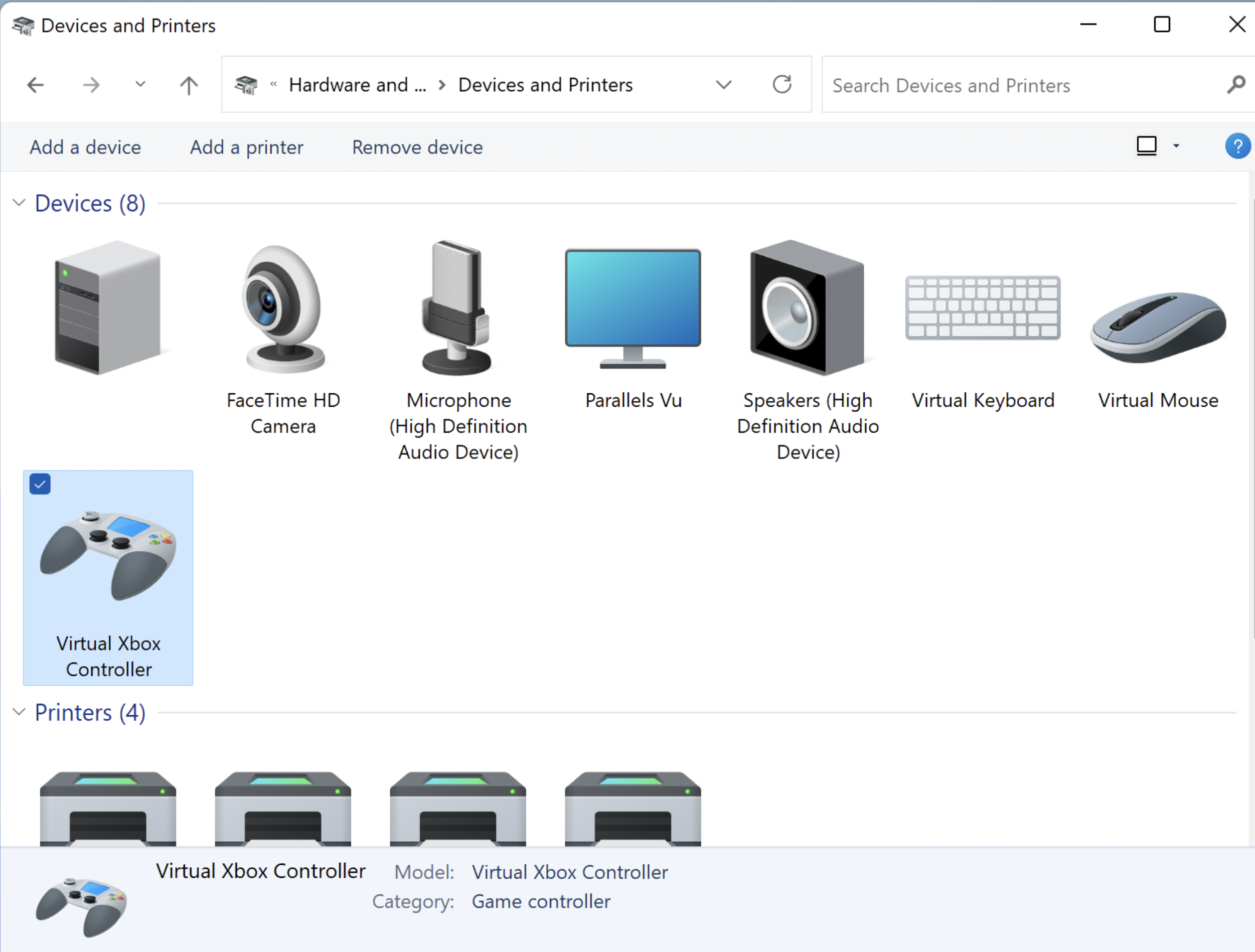
A partire da Parallels Desktop per Mac 18, puoi integrare in modo più fluido i più popolari controller di gioco Bluetooth. Invece che collegarli a una macchina virtuale, ora devi collegarli direttamente al tuo Mac e Parallels Desktop li condividerà automaticamente con Windows. Tieni presente che indipendentemente dal modello e dalla marca, il tuo controller di gioco apparirà in Windows come un "controller Xbox virtuale".
### Requisiti:
1. Windows 10 o versioni successive installato sulla macchina virtuale.
2. Qualsiasi controller di gioco supportato nel Game Controller macOS. I seguenti controller sono stati testati e risultano funzionare:
* controller wireless Microsoft Xbox (ultime due generazioni);
* Sony PlayStation DualShock e DualSense\*;
* Nintendo Joy-Cons
\* Il touchpad e i sensori di movimento del controller DualSense non sono ancora supportati.
### **Configurazione del** controller
1. Assicurati che le batterie all'interno siano cariche.
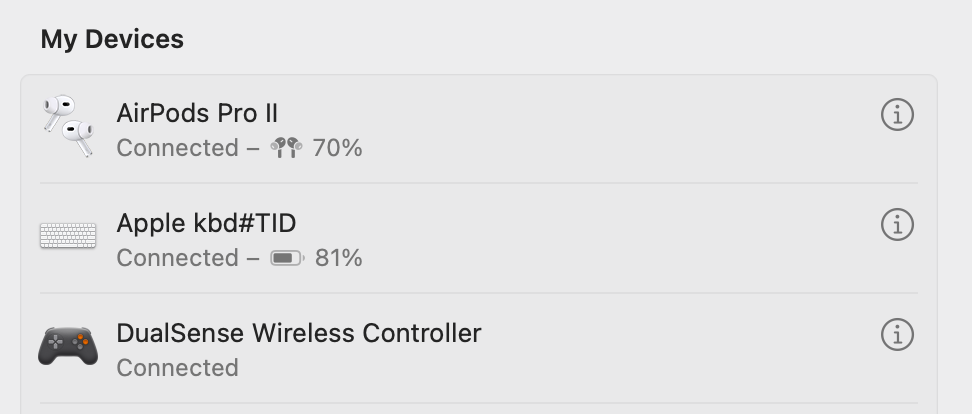
2. Collega il controller al Mac. Deve apparire nell'elenco di dispositivi come Collegato in **Impostazioni di Sistema** > **Bluetooth**.
3. Per verificare che il dispositivo sia collegato alla macchina virtuale Windows, avvia Windows e nella barra di ricerca di Windows immetti **Pannello di controllo** > **Dispositivi e stampanti** > il dispositivo dovrebbe apparire come **Controller Xbox virtuale**.
---
# Agent Instructions
This documentation is published with GitBook. GitBook is the documentation platform designed so that both humans and AI agents can read, navigate, and reason over technical content effectively. Learn more at gitbook.com.
## Querying This Documentation
If you need additional information that is not directly available in this page, you can query the documentation dynamically by asking a question.
Perform an HTTP GET request on the following URL with the `ask` and `goal` query parameters:
```
GET https://docs.parallels.com/landing/pdfm-ug/v20-it-it/guida-utente-di-parallels-desktop-per-mac-20/usa-windows-sul-mac/connessione-di-dispositivi-bluetooth/connetti-un-controller-di-gioco-bluetooth.md?ask=&goal=
```
`ask` is the immediate question: it should be specific, self-contained, and written in natural language.
`goal` is what the user is ultimately trying to achieve, the reason they need the answer. Sharing it helps GitBook give you a better, more relevant answer. A goal is most helpful when it describes the outcome the user wants rather than restating the question. For example, with `ask=how do I create an API token`, a goal like `build a script that syncs our docs to a CMS` lets GitBook tailor the answer to that use case.
The response will contain a direct answer to the question and relevant excerpts and sources from the documentation.
Use this mechanism when the answer is not explicitly present in the current page, you need clarification or additional context, or you want to retrieve related documentation sections.