> For the complete documentation index, see [llms.txt](https://docs.parallels.com/landing/llms.txt). Markdown versions of documentation pages are available by appending `.md` to page URLs; this page is available as [Markdown](https://docs.parallels.com/landing/pdfm-ug/v20-it-it/guida-utente-di-parallels-desktop-per-mac-20/usa-windows-sul-mac/definisci-come-windows-funziona-con-macos/condividi-elementi-tra-macos-e-windows/condividi-cartelle-di-icloud-dropbox-o-google-drive-con-windows.md).
# Condividi cartelle di iCloud, Dropbox o Google Drive con Windows
Se utilizzi l'archiviazione cloud iCloud, Dropbox o Google Drive in macOS, puoi facilmente condividere le relative cartelle macOS con Windows. Una volta abilitata la condivisione, puoi caricare, scaricare e sincronizzare file da questi servizi all'interno di Windows senza dover duplicare nessuno dei relativi file sul disco rigido.
{% hint style="info" %}
**Note:**\
1\. Questa funzionalità è disponibile anche per le macchine virtuali Linux.\
2\. Questa funzionalità non è supportata nella App Store Edition di Parallels Desktop. Per ulteriori informazioni sulle differenze tra Standard e App Store Edition, visita questo [link](https://kb.parallels.com/123796).\
3\. Per poterla utilizzare, è necessario installare [Parallels Tools](/landing/pdfm-ug/v20-it-it/guida-utente-di-parallels-desktop-per-mac-20/argomenti-avanzati/installa-o-aggiorna-parallels-tools/panoramica-di-parallels-tools.md).
{% endhint %}
Per condividere le cartelle macOS iCloud, Dropbox o Google Drive con Windows, procedi nel modo seguente:
{% hint style="info" %}
**Nota:** in Parallels Desktop per Mac Pro e Business Edition, è anche possibile condividere con Windows le cartelle di Dropbox for Business.
{% endhint %}
1. Configura iCloud, Dropbox o Google Drive in macOS, se ancora non lo hai fatto.
2. [Avvia Windows](/landing/pdfm-ug/v20-it-it/guida-utente-di-parallels-desktop-per-mac-20/usa-windows-sul-mac/per-iniziare/avvio-di-windows.md).
3. Esegui una di queste azioni:
* Fai clic sull'icona Parallels Desktop nella barra dei menu e scegli **Configura.**
* Se la barra dei menu di Parallels Desktop è visibile nella parte superiore dello schermo, scegli **Azioni** > **Configura**.
4. Fai clic su **Opzioni** e scegli **Condivisione** > **Condividi Mac**.
5. Seleziona **Condividi cartelle cloud con Windows**.
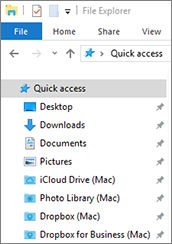
6. Accedi a Windows e apri **Computer**. Le cartelle per iCloud, Dropbox o Google Drive sono disponibili nella sezione **Preferiti** (o la sezione **Quick Access** in Windows 10). Puoi usarle per caricare e scaricare file dal cloud.
---
# Agent Instructions
This documentation is published with GitBook. GitBook is the documentation platform designed so that both humans and AI agents can read, navigate, and reason over technical content effectively. Learn more at gitbook.com.
## Querying This Documentation
If you need additional information that is not directly available in this page, you can query the documentation by asking a question.
Perform an HTTP GET request on the following URL with the `ask` and `goal` query parameters:
```
GET https://docs.parallels.com/landing/pdfm-ug/v20-it-it/guida-utente-di-parallels-desktop-per-mac-20/usa-windows-sul-mac/definisci-come-windows-funziona-con-macos/condividi-elementi-tra-macos-e-windows/condividi-cartelle-di-icloud-dropbox-o-google-drive-con-windows.md?ask=&goal=
```
`ask` is the immediate question: it should be specific, self-contained, and written in natural language.
`goal` is what the user is ultimately trying to achieve, the reason they need the answer. Sharing it helps GitBook give you a better, more relevant answer. A goal is most helpful when it describes the outcome the user wants rather than restating the question. For example, with `ask=how do I create an API token`, a goal like `automate deployments from our CI pipeline` lets GitBook tailor the answer to that use case.
The response will contain a direct answer to the question and relevant excerpts and sources from the documentation.
Use this mechanism when the answer is not explicitly present in the current page, you need clarification or additional context, or you want to retrieve related documentation sections.