> For the complete documentation index, see [llms.txt](https://docs.parallels.com/landing/llms.txt). Markdown versions of documentation pages are available by appending `.md` to page URLs; this page is available as [Markdown](https://docs.parallels.com/landing/pdfm-ug/v20-it-it/guida-utente-di-parallels-desktop-per-mac-20/usa-windows-sul-mac/utilizzo-della-webcam-integrata-o-di-una-webcam-esterna.md).
# Utilizzo della webcam integrata o di una webcam esterna
Se il Mac o il monitor ha una camera integrata o se connetti una webcam esterna compatibile, puoi utilizzarla su Windows per impostazione predefinita.
{% hint style="info" %}
**Nota**: La camera OBS e il modello di colore BGRA sono supportati a partire da Parallels Desktop per Mac versione 20.3.0 e successive.
{% endhint %}
Per usare una webcam esterna o integrata con Windows:
* Basta semplicemente aprire un’applicazione Windows che utilizzi una webcam e selezionare iSight o una webcam esterna da usare con l’applicazione.
{% hint style="info" %}
**Nota:** Se stai eseguendo un sistema operativo guest diverso da Windows 10 o 11, accertati che i driver USB video class (UVC) siano installati.
{% endhint %}
### Disab**ilita la condivisione della webcam**
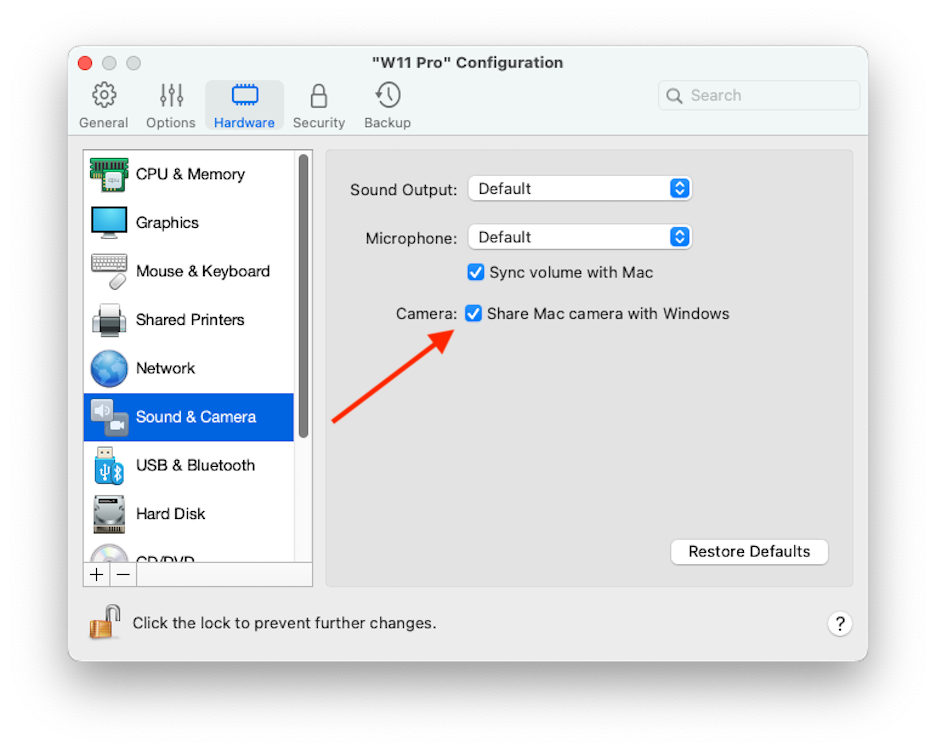
Se non vuoi che le applicazioni Windows possano utilizzare webcam connesse o la webcam integrata, puoi disabilitare la condivisione della webcam nel modo seguente:
1. Apri il Centro di controllo, fai clic con il pulsante destro del mouse sulla macchina virtuale scelta e seleziona **Configura**.
2. Fai clic su **Hardware** e poi su **Audio e webcam**.
3. Deseleziona **Webcam**.
---
# Agent Instructions
This documentation is published with GitBook. GitBook is the documentation platform designed so that both humans and AI agents can read, navigate, and reason over technical content effectively. Learn more at gitbook.com.
## Querying This Documentation
If you need additional information that is not directly available in this page, you can query the documentation dynamically by asking a question.
Perform an HTTP GET request on the following URL with the `ask` and `goal` query parameters:
```
GET https://docs.parallels.com/landing/pdfm-ug/v20-it-it/guida-utente-di-parallels-desktop-per-mac-20/usa-windows-sul-mac/utilizzo-della-webcam-integrata-o-di-una-webcam-esterna.md?ask=&goal=
```
`ask` is the immediate question: it should be specific, self-contained, and written in natural language.
`goal` is what the user is ultimately trying to achieve, the reason they need the answer. Sharing it helps GitBook give you a better, more relevant answer. A goal is most helpful when it describes the outcome the user wants rather than restating the question. For example, with `ask=how do I create an API token`, a goal like `build a script that syncs our docs to a CMS` lets GitBook tailor the answer to that use case.
The response will contain a direct answer to the question and relevant excerpts and sources from the documentation.
Use this mechanism when the answer is not explicitly present in the current page, you need clarification or additional context, or you want to retrieve related documentation sections.