> For the complete documentation index, see [llms.txt](https://docs.parallels.com/landing/llms.txt). Markdown versions of documentation pages are available by appending `.md` to page URLs; this page is available as [Markdown](https://docs.parallels.com/landing/pdfm-ug/v20-ja-jp/parallels-desktop-for-mac-20-yzzugaido/mac-de-windows-wosuru/intnettomatahanettowkuheno/windows-henononettowkuno.md).
# Windows への個別のネットワーク設定の適用
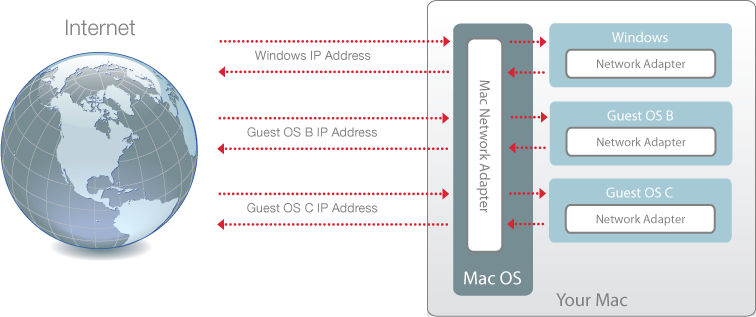
ブリッジイーサネットモードを使用すると、Windows はネットワーク上に独自の IP アドレスとネットワーク名を持つスタンドアロンのコンピューターとして表示されます。
{% hint style="info" %}
**注:** ブリッジイーサネットネットワークモードは共有ネットワークモードよりも複雑であるため、その適切な構成にはシステム管理者と連携が必要になる場合があります。
{% endhint %}
ブリッジイーサネットモードで動作するよう Windows を構成するには、以下の操作を実行します。
1. 次のいずれかを実行します。
* メニューバーの Parallels Desktop アイコンをクリックし、**\[構成]** を選択します。
* Parallels Desktop のメニューバーが画面上部にある場合は、**\[アクション]** > **\[構成]** を選択します。
2. **\[ハードウェア]**、**\[ネットワーク]** の順にクリックします。
3. **\[ネットワーク]** ペインで、適切なネットワークアダプタを一覧から選択します。仮想マシンのアダプタを Mac のアクティブなネットワークアダプタに接続するには、**\[デフォルトのアダプタ]** を選択します。
{% hint style="info" %}
**注:** \[MAC アドレス] フィールドでは、現在 Windows に割り当てられている MAC アドレスを変更できます。MAC アドレスは、Windows の初回セットアップ時に自動的に生成されます。デフォルトの MAC アドレスは、\[MAC アドレス] フィールドに別の値を入力するか、**\[生成]** ボタンをクリックすることで変更できます。新しい MAC アドレスを入力した場合、ネットワーク内で一意であることを確認してください。
{% endhint %}
Windows をブリッジイーサネットモードで動作するように構成できない場合は、[共有ネットワーク](/landing/pdfm-ug/v20-ja-jp/parallels-desktop-for-mac-20-yzzugaido/mac-de-windows-wosuru/intnettomatahanettowkuheno/macos-to-windows-denettowkuakusesuwosuru.md)モードの使用を検討してください。
ネットワーク問題のトラブルシューティングについては、Parallels Web サイトの [Parallels 技術情報](http://kb.parallels.com/)を参照してください。
---
# Agent Instructions
This documentation is published with GitBook. GitBook is the documentation platform designed so that both humans and AI agents can read, navigate, and reason over technical content effectively. Learn more at gitbook.com.
## Querying This Documentation
If you need additional information that is not directly available in this page, you can query the documentation by asking a question.
Perform an HTTP GET request on the following URL with the `ask` and `goal` query parameters:
```
GET https://docs.parallels.com/landing/pdfm-ug/v20-ja-jp/parallels-desktop-for-mac-20-yzzugaido/mac-de-windows-wosuru/intnettomatahanettowkuheno/windows-henononettowkuno.md?ask=&goal=
```
`ask` is the immediate question: it should be specific, self-contained, and written in natural language.
`goal` is what the user is ultimately trying to achieve, the reason they need the answer. Sharing it helps GitBook give you a better, more relevant answer. A goal is most helpful when it describes the outcome the user wants rather than restating the question. For example, with `ask=how do I create an API token`, a goal like `automate deployments from our CI pipeline` lets GitBook tailor the answer to that use case.
The response will contain a direct answer to the question and relevant excerpts and sources from the documentation.
Use this mechanism when the answer is not explicitly present in the current page, you need clarification or additional context, or you want to retrieve related documentation sections.