> For the complete documentation index, see [llms.txt](https://docs.parallels.com/landing/llms.txt). Markdown versions of documentation pages are available by appending `.md` to page URLs; this page is available as [Markdown](https://docs.parallels.com/landing/pdfm-ug/v20-ja-jp/parallels-desktop-for-mac-20-yzzugaido/mac-de-windows-wosuru/macos-deno-windows-nono/windows-to-macos-nomji.md).
# Windows と macOS のマージ
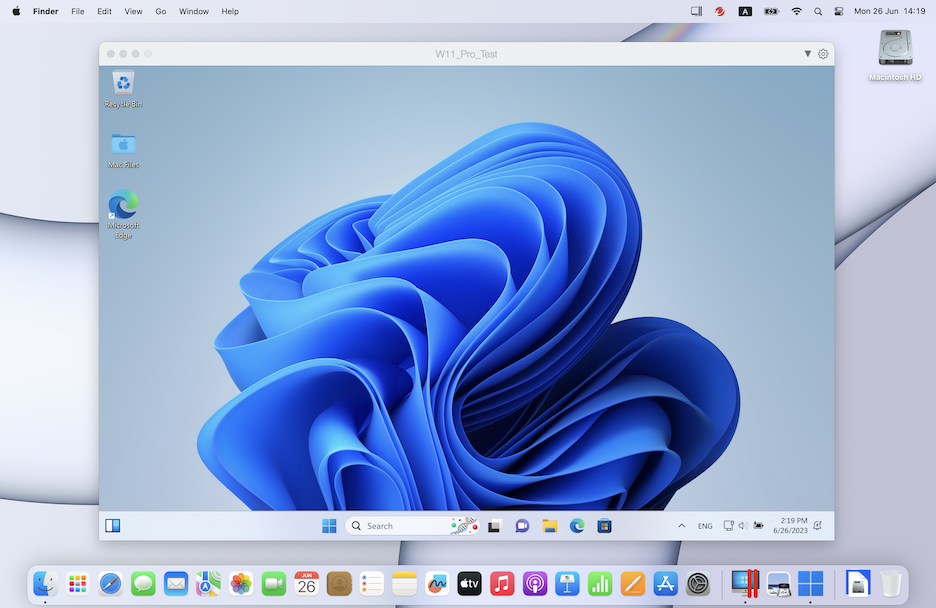
Windows と macOS を、1 つの OS のようにシームレスに連携させることができます。これは **Coherence** モードと呼ばれ、Windows アプリケーションが Mac デスクトップの Mac アプリケーションの隣に表示され、Windows アプリケーションと Mac アプリケーションの文書が同じフォルダー内に保存されます。
{% hint style="info" %}
**注**: Coherence モードは、Parallels Desktop の App Store エディションではサポートされていません。スタンダードエディションと App Store エディションの違いについては、こちらの[リンク](https://kb.parallels.com/123796)を参照してください。
{% endhint %}
### Coherence **モードへの切り替え**
ウィンドウモードから Coherence モードに切り替えるには、次のいずれかを実行します。
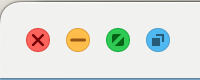
* 仮想マシンウィンドウの左上隅の Coherence アイコン(青)をクリックします。\
* **\[表示]** > **\[Coherence]** を選択します。
* Control-Command-Cを押します。
フルスクリーンモードを Coherence モードに切り替えるには、次のいずれかを実行します。
* Control-Command-F を押してフルスクリーンを終了します。次に、**\[表示]** > **\[Coherence]** をクリックします。
* macOS メニューバーが表示されるまで、画面上部にポインターを移動し、**\[表示]** > **\[ウィンドウモード]** をクリックします。次に、**\[表示]** メニューをもう一度開き、**\[Coherence]** をクリックします。ゲームに最適化されたフルスクリーンを使用している場合は、Control-Option(Alt)を押して Mac メニューバーを表示します。
{% hint style="info" %}
**注:** Coherence 表示モードを有効にするには、Parallels Tools をインストールする必要があります。ほとんどの場合、Parallels Tools はデフォルトでインストールされています。
{% endhint %}
### Parallels **メニュー**
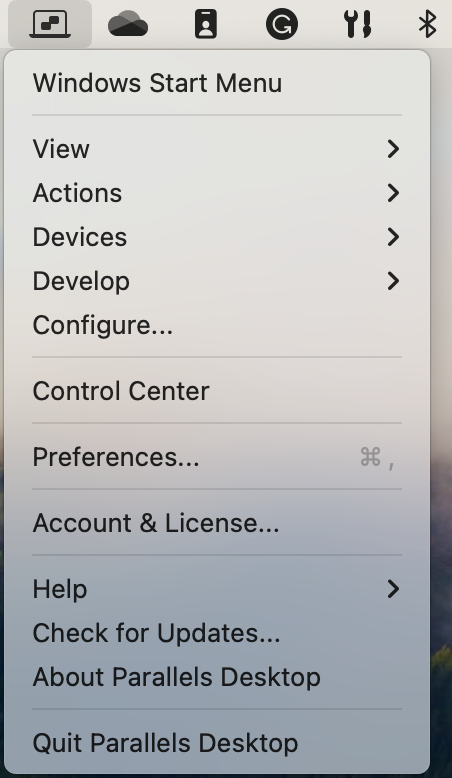
Coherence モードでは、Parallels Desktop メニューは、画面上部のメニューバーに表示されます。
一般的な機能に対し、メニューを使用します。
* Parallels Desktop アイコンを**クリック**し、次のアイテムを含む基本的なメニューを開きます。
* **Windows の \[スタート] メニュー:** Windows の \[スタート] メニューにアクセスします。
* **表示:** 仮想マシンの表示モードを切り替えます。
* **アクション:** このメニューを使用して、さまざまな操作を実行します。
* **デバイス:** プリンターや DVD デバイスなどのハードウェアデバイスを管理します。
* **構成:** \[仮想マシン構成] ダイアログボックスを開きます。
* **コントロールセンター:** Parallels Desktop コントロールセンターを開きます。
* **最新情報:** 新しい仮想マシンを作成します。
* **開く:** 既存の仮想マシンを開きます。
* **環境設定:** Parallels Desktop の環境設定を開きます。
* その他
* このアイコンを**右クリック**して、Windows の \[スタート] メニューを開きます。
{% hint style="info" %}
**重要:** Coherence モードで Parallels Desktop を終了し、メニューバーの Parallels Desktop アイコンをクリックし、**\[Parallels Desktop の終了]** を選択します。
{% endhint %}
### Windows **システムトレイ**
Parallels Desktop が Coherence モードになっている場合は、Windows システムトレイのアイコンが画面上部の macOS メニューバーに表示されます。
システムトレイアイコンは、Windows デスクトップと同じように使用できます。
### **Windows アプリケーションをデスクトップ(Spaces)間で移動する**
Windows が Coherence で動作しているときに、ゲスト OS アプリケーションのウィンドウを macOS デスクトップ(Spaces)間で簡単に移動できます。
---
# Agent Instructions
This documentation is published with GitBook. GitBook is the documentation platform designed so that both humans and AI agents can read, navigate, and reason over technical content effectively. Learn more at gitbook.com.
## Querying This Documentation
If you need additional information that is not directly available in this page, you can query the documentation dynamically by asking a question.
Perform an HTTP GET request on the current page URL with the `ask` query parameter, and the optional `goal` query parameter:
```
GET https://docs.parallels.com/landing/pdfm-ug/v20-ja-jp/parallels-desktop-for-mac-20-yzzugaido/mac-de-windows-wosuru/macos-deno-windows-nono/windows-to-macos-nomji.md?ask=&goal=
```
`ask` is the immediate question: it should be specific, self-contained, and written in natural language.
`goal` is optional and describes the broader end goal you are ultimately trying to accomplish on behalf of the user. GitBook uses it to tailor the answer towards what is most useful for that goal.
The response will contain a direct answer to the question and relevant excerpts and sources from the documentation.
Use this mechanism when the answer is not explicitly present in the current page, you need clarification or additional context, or you want to retrieve related documentation sections.
 * **\[表示]** > **\[Coherence]** を選択します。
* Control-Command-Cを押します。
フルスクリーンモードを Coherence モードに切り替えるには、次のいずれかを実行します。
* Control-Command-F を押してフルスクリーンを終了します。次に、**\[表示]** > **\[Coherence]** をクリックします。
* macOS メニューバーが表示されるまで、画面上部にポインターを移動し、**\[表示]** > **\[ウィンドウモード]** をクリックします。次に、**\[表示]** メニューをもう一度開き、**\[Coherence]** をクリックします。ゲームに最適化されたフルスクリーンを使用している場合は、Control-Option(Alt)を押して Mac メニューバーを表示します。
{% hint style="info" %}
**注:** Coherence 表示モードを有効にするには、Parallels Tools をインストールする必要があります。ほとんどの場合、Parallels Tools はデフォルトでインストールされています。
{% endhint %}
### Parallels **メニュー**
Coherence モードでは、Parallels Desktop メニューは、画面上部のメニューバーに表示されます。
* **\[表示]** > **\[Coherence]** を選択します。
* Control-Command-Cを押します。
フルスクリーンモードを Coherence モードに切り替えるには、次のいずれかを実行します。
* Control-Command-F を押してフルスクリーンを終了します。次に、**\[表示]** > **\[Coherence]** をクリックします。
* macOS メニューバーが表示されるまで、画面上部にポインターを移動し、**\[表示]** > **\[ウィンドウモード]** をクリックします。次に、**\[表示]** メニューをもう一度開き、**\[Coherence]** をクリックします。ゲームに最適化されたフルスクリーンを使用している場合は、Control-Option(Alt)を押して Mac メニューバーを表示します。
{% hint style="info" %}
**注:** Coherence 表示モードを有効にするには、Parallels Tools をインストールする必要があります。ほとんどの場合、Parallels Tools はデフォルトでインストールされています。
{% endhint %}
### Parallels **メニュー**
Coherence モードでは、Parallels Desktop メニューは、画面上部のメニューバーに表示されます。