> For the complete documentation index, see [llms.txt](https://docs.parallels.com/landing/llms.txt). Markdown versions of documentation pages are available by appending `.md` to page URLs; this page is available as [Markdown](https://docs.parallels.com/landing/pdfm-ug/v20-ja-jp/parallels-desktop-for-mac-20-yzzugaido/mac-de-windows-wosuru/mausutorakkupaddokbdo/mausumatahatorakkupaddohenokurikkuoyobikurikkuno.md).
# マウスまたはトラックパッドへの右クリックおよび中央クリックの設定
ショートカットメニューを表示するなど、Windows の多くのタスクは、右クリックすることで行います。
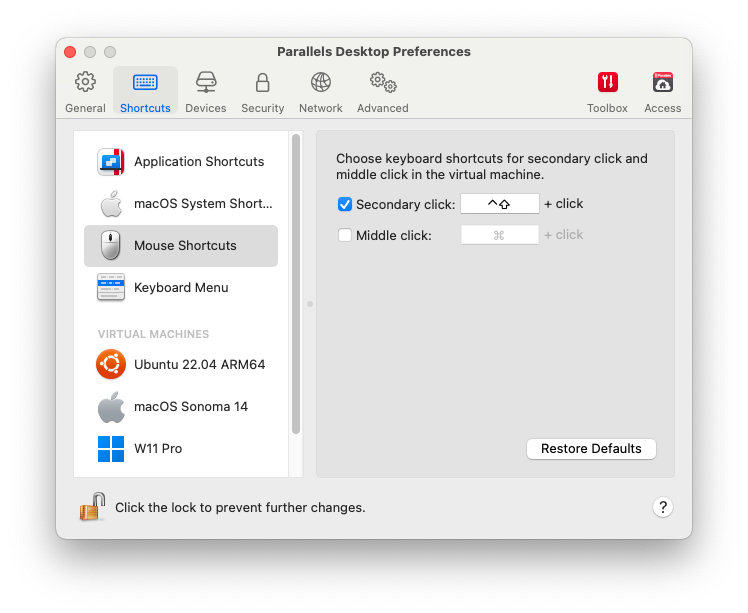
デフォルトでは、Parallels Desktop は Shift+Control を押しながらマウスをクリックすることで、右クリックの動作を行うよう設定されています。右クリックの動作を行うキーの組み合わせを変更できます。
また、トラックパッドを右クリックできるように設定したり、Apple Magic Mouse をお持ちの場合は、マウスを右クリックできるように設定することも可能です。
その他のほとんどのマウスは、右クリックできるようあらかじめ設定されています。
### **トラックパッドで右クリックできるよう設定する**
1. **Apple メニュー** > **\[システム設定]** を選択し、**\[トラックパッド]** をクリックします。
2. **\[セカンダリータップ]** を選択します。
トラックパッドを 2 本指でタップすると、右クリックを模倣できます。
### **Apple Mighty Mouse で右クリックできるよう設定する**
1. **\[アップルメニュー]** > **\[システム設定]** を選択し、**\[マウス]** または **\[キーボードとマウス]** をクリックします。
2. マウスの右側のメニューから **\[セカンダリボタン]** を選択します。
これで、マウスの右側を押して、右クリックできるようになります。
### **Apple Magic Mouse で右クリックできるよう設定する**
1. **\[アップルメニュー]** > **\[システム設定]** を選択し、**\[マウス]** または **\[キーボードとマウス]** をクリックします。
2. **\[セカンダリークリック]** を選択します。
これで、マウスの右側を押して、右クリックできるようになります。
### **右クリックまたは中央クリックを行うキーの組み合わせを設定する**
1. 次のいずれかを実行します。
* メニューバーの Parallels Desktop アイコンをクリックし、**\[環境設定]** を選択します。
* Dock 内の Parallels Desktop のアイコンを右クリックし、**\[環境設定]** を選択します。
2. **\[ショートカット]** をクリックします。
3. 必要であれば、\[カギ] アイコンをクリックして、管理者パスワードを入力します。
4. サイドバーの **\[マウスショートカット]** を選択します。
5. **\[セカンダリクリック]**(右クリック用)または **\[中央クリック]** を選択します。
6. 対応するテキストフィールドをクリックし、右クリックまたは中央クリックを実行するためにマウスをクリックしながら押すキー、またはキーの組み合わせを押します。
Control、Option(Alt)、Shift、および Command キーの任意の組み合わせを使用できます。
---
# Agent Instructions
This documentation is published with GitBook. GitBook is the documentation platform designed so that both humans and AI agents can read, navigate, and reason over technical content effectively. Learn more at gitbook.com.
## Querying This Documentation
If you need additional information that is not directly available in this page, you can query the documentation by asking a question.
Perform an HTTP GET request on the following URL with the `ask` and `goal` query parameters:
```
GET https://docs.parallels.com/landing/pdfm-ug/v20-ja-jp/parallels-desktop-for-mac-20-yzzugaido/mac-de-windows-wosuru/mausutorakkupaddokbdo/mausumatahatorakkupaddohenokurikkuoyobikurikkuno.md?ask=&goal=
```
`ask` is the immediate question: it should be specific, self-contained, and written in natural language.
`goal` is what the user is ultimately trying to achieve, the reason they need the answer. Sharing it helps GitBook give you a better, more relevant answer. A goal is most helpful when it describes the outcome the user wants rather than restating the question. For example, with `ask=how do I create an API token`, a goal like `automate deployments from our CI pipeline` lets GitBook tailor the answer to that use case.
The response will contain a direct answer to the question and relevant excerpts and sources from the documentation.
Use this mechanism when the answer is not explicitly present in the current page, you need clarification or additional context, or you want to retrieve related documentation sections.