> For the complete documentation index, see [llms.txt](https://docs.parallels.com/landing/llms.txt). Markdown versions of documentation pages are available by appending `.md` to page URLs; this page is available as [Markdown](https://docs.parallels.com/landing/pdfm-ug/v20-ja-jp/parallels-desktop-for-mac-20-yzzugaido/na/mac-deno-os-wosuru/gesuto-os-nokbdonokasutamaizu.md).
# ゲスト OS のキーボードのカスタマイズ
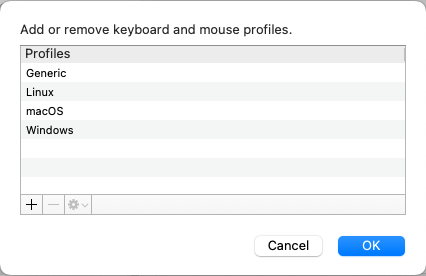
デフォルトでは、Parallels Desktop には次の OS の標準的なキーの組み合わせを表す 4 つのプロファイルが含まれています。
* Windows
* Linux
* macOS
* Generic(その他のゲスト OS 用)
仮想マシンを作成または登録すると、そのゲスト OS に応じてこれらのプロファイルのいずれかがそのマシンにデフォルトで割り当てられます。ユーザーは独自のプロファイルを作成し、それを仮想マシンに割り当てることができます。
カスタムキーボードプロファイルを作成、または既存のプロファイルを編集するには、以下の操作を実行します。
1. 次のいずれかを実行します。
* メニューバーの Parallels Desktop アイコンをクリックし、**\[環境設定]** を選択します。
* Dock 内の Parallels Desktop のアイコンを右クリックし、**\[環境設定]** を選択します。
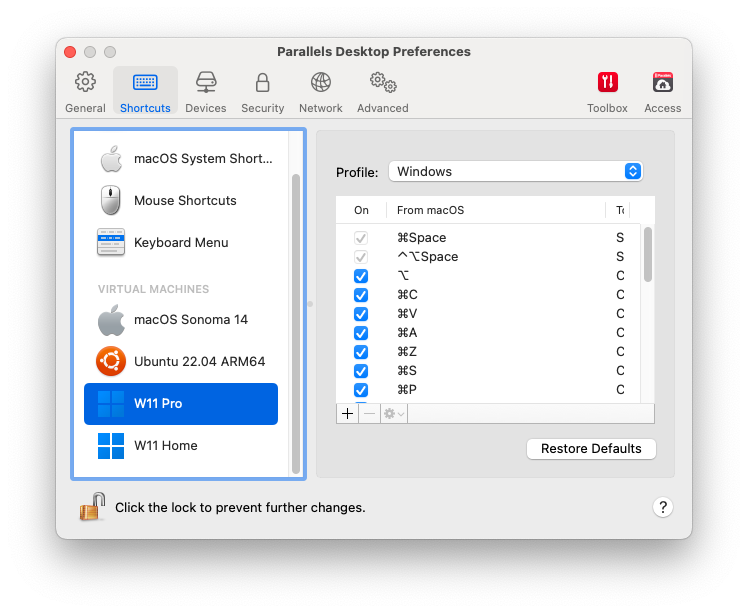
2. **\[ショートカット]** をクリックします。
3. サイドバーから仮想マシンを選択し、**\[プロファイル]** メニューをクリックし、**\[プロファイルリストの編集]** を選択します。
4. 次のいずれかを実行します。
* 新しいプロファイルを追加するには、**\[追加]** ボタンをクリックします 。新しいプロファイル名を指定し、リストから基本プロファイルを選択します。プロファイルが作成されたら、**\[OK]** をクリックして変更を送信します。次に、**\[プロファイル]** リストでこの新規プロファイルを選択し、ショートカットを構成します。
* 既存のカスタムプロファイルのいずれかを削除するには、そのプロファイルを選択して **\[削除]** ボタンをクリックします 。
* 既存のプロファイルの 1 つを複製または名称変更するには、そのプロファイルを選択し、ボタンをクリックして 、メニューから該当する処理を選択します。
{% hint style="info" %}
**注:** 名前変更または削除が可能なのは、カスタムプロファイルのみです。
{% endhint %}
Parallels Desktop 環境設定の **\[ショートカット]** ペインで、仮想マシンにプロファイルを割り当てることもできます。
仮想マシンに割り当てられたプロファイルを変更するには、仮想マシンを選択し、**\[プロファイル]**メニューからプロファイルを選択します。
---
# Agent Instructions
This documentation is published with GitBook. GitBook is the documentation platform designed so that both humans and AI agents can read, navigate, and reason over technical content effectively. Learn more at gitbook.com.
## Querying This Documentation
If you need additional information that is not directly available in this page, you can query the documentation by asking a question.
Perform an HTTP GET request on the following URL with the `ask` and `goal` query parameters:
```
GET https://docs.parallels.com/landing/pdfm-ug/v20-ja-jp/parallels-desktop-for-mac-20-yzzugaido/na/mac-deno-os-wosuru/gesuto-os-nokbdonokasutamaizu.md?ask=&goal=
```
`ask` is the immediate question: it should be specific, self-contained, and written in natural language.
`goal` is what the user is ultimately trying to achieve, the reason they need the answer. Sharing it helps GitBook give you a better, more relevant answer. A goal is most helpful when it describes the outcome the user wants rather than restating the question. For example, with `ask=how do I create an API token`, a goal like `automate deployments from our CI pipeline` lets GitBook tailor the answer to that use case.
The response will contain a direct answer to the question and relevant excerpts and sources from the documentation.
Use this mechanism when the answer is not explicitly present in the current page, you need clarification or additional context, or you want to retrieve related documentation sections.