> For the complete documentation index, see [llms.txt](https://docs.parallels.com/landing/llms.txt). Markdown versions of documentation pages are available by appending `.md` to page URLs; this page is available as [Markdown](https://docs.parallels.com/landing/pdfm-ug/v20-ja-jp/parallels-desktop-for-mac-20-yzzugaido/parallels-desktop-tomashin/debaisunoto.md).
# デバイスの追加と削除
新しいデバイスを仮想マシンに追加するのは、新しいデバイスを物理的なコンピューターに接続するよりも容易です。デバイスを削除または切断することも簡単です。次の仮想デバイスを、構成に追加したり、構成から削除したりできます。
* ハードディスク
* CD/DVD ドライブ
* ネットワークアダプター
* プリンターポート
* シリアルポート
* TPM チップ
{% hint style="info" %}
**注**:前述のデバイスは、対応する仮想マシンが停止しているときにのみ追加できます。仮想マシンが実行されている場合、**追加** 機能は無効になります。
{% endhint %}
### **新しいデバイスの仮想マシンへの追加**
1. **\[処理]** メニューの **\[構成]** を選択して仮想マシン構成を開きます。
2. **\[仮想マシン構成]** ダイアログボックスの一番上にある **\[ハードウェア]** ボタンをクリックし、ハードウェアデバイスを編集するためのペインを開きます。
3. **\[仮想マシン構成]** ダイアログボックスの一番下にある **\[追加]** ボタン(+)をクリックし、仮想マシンに追加するデバイスを選択します。\
\
**注:** 仮想マシンの実行中は **\[追加]** ボタンが無効になっています。このボタンを使用するには、仮想マシンを停止する必要があります。
4. ハードディスク以外のデバイスを選択した場合は、対応するデバイスが一般的な構成で直ちに追加され、使用できるようになります。
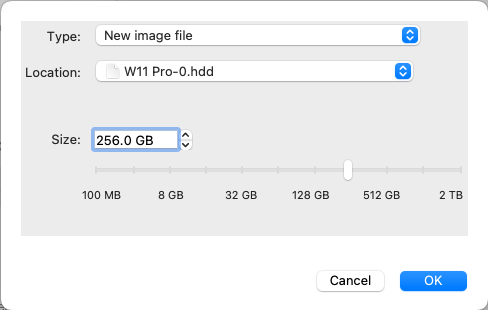
ハードディスクを選択した場合は、以下のようないくつかのパラメーターを指定する必要があります。
* ハードディスクの種類: 新しいイメージファイル、既存のイメージファイル、または物理ディスク。既存の Boot Camp パーティションをハードディスクとして仮想マシンに追加する場合は、Boot Camp を選択します。
* 既存のイメージファイルを追加する場合は、Mac のパスを指定してください。Boot Camp や物理ディスクを追加する場合は、そのロケーションを指定します。
* 新しいハードディスクイメージファイルのハードディスクサイズ。
\  \
**\[OK]** をクリックしてハードディスクを追加します。新しい仮想ハードディスクを仮想マシン構成に追加しても、それを初期化するまでは仮想マシンにインストールされている OS には表示されません。新しく追加されたハードディスクの初期化方法の詳細については、仮想マシンにインストールされている OS のドキュメントおよびヘルプリソースを参照してください。
新しいデバイスが追加された後は、そのプロパティを通常通りに管理し、使用を開始できます。
### **仮想マシン構成からのデバイスの削除**
1. **\[処理]** メニューの **\[構成]** を選択して仮想マシン構成を開きます。
2. **\[仮想マシン構成]** ダイアログボックスの一番上にある **\[ハードウェア]** ボタンをクリックし、ハードウェアデバイスを編集するためのペインを開きます。
3. 削除するデバイスを選択して、**\[仮想マシン構成]** ダイアログボックスの一番下の **\[削除]** ボタン(-)をクリックします。
---
# Agent Instructions
This documentation is published with GitBook. GitBook is the documentation platform designed so that both humans and AI agents can read, navigate, and reason over technical content effectively. Learn more at gitbook.com.
## Querying This Documentation
If you need additional information that is not directly available in this page, you can query the documentation dynamically by asking a question.
Perform an HTTP GET request on the current page URL with the `ask` query parameter, and the optional `goal` query parameter:
```
GET https://docs.parallels.com/landing/pdfm-ug/v20-ja-jp/parallels-desktop-for-mac-20-yzzugaido/parallels-desktop-tomashin/debaisunoto.md?ask=&goal=
```
`ask` is the immediate question: it should be specific, self-contained, and written in natural language.
`goal` is optional and describes the broader end goal you are ultimately trying to accomplish on behalf of the user. GitBook uses it to tailor the answer towards what is most useful for that goal.
The response will contain a direct answer to the question and relevant excerpts and sources from the documentation.
Use this mechanism when the answer is not explicitly present in the current page, you need clarification or additional context, or you want to retrieve related documentation sections.
\
**\[OK]** をクリックしてハードディスクを追加します。新しい仮想ハードディスクを仮想マシン構成に追加しても、それを初期化するまでは仮想マシンにインストールされている OS には表示されません。新しく追加されたハードディスクの初期化方法の詳細については、仮想マシンにインストールされている OS のドキュメントおよびヘルプリソースを参照してください。
新しいデバイスが追加された後は、そのプロパティを通常通りに管理し、使用を開始できます。
### **仮想マシン構成からのデバイスの削除**
1. **\[処理]** メニューの **\[構成]** を選択して仮想マシン構成を開きます。
2. **\[仮想マシン構成]** ダイアログボックスの一番上にある **\[ハードウェア]** ボタンをクリックし、ハードウェアデバイスを編集するためのペインを開きます。
3. 削除するデバイスを選択して、**\[仮想マシン構成]** ダイアログボックスの一番下の **\[削除]** ボタン(-)をクリックします。
---
# Agent Instructions
This documentation is published with GitBook. GitBook is the documentation platform designed so that both humans and AI agents can read, navigate, and reason over technical content effectively. Learn more at gitbook.com.
## Querying This Documentation
If you need additional information that is not directly available in this page, you can query the documentation dynamically by asking a question.
Perform an HTTP GET request on the current page URL with the `ask` query parameter, and the optional `goal` query parameter:
```
GET https://docs.parallels.com/landing/pdfm-ug/v20-ja-jp/parallels-desktop-for-mac-20-yzzugaido/parallels-desktop-tomashin/debaisunoto.md?ask=&goal=
```
`ask` is the immediate question: it should be specific, self-contained, and written in natural language.
`goal` is optional and describes the broader end goal you are ultimately trying to accomplish on behalf of the user. GitBook uses it to tailor the answer towards what is most useful for that goal.
The response will contain a direct answer to the question and relevant excerpts and sources from the documentation.
Use this mechanism when the answer is not explicitly present in the current page, you need clarification or additional context, or you want to retrieve related documentation sections.