> For the complete documentation index, see [llms.txt](https://docs.parallels.com/landing/llms.txt). Markdown versions of documentation pages are available by appending `.md` to page URLs; this page is available as [Markdown](https://docs.parallels.com/landing/pdfm-ug/v20-ja-jp/parallels-desktop-for-mac-20-yzzugaido/parallels-desktop-tomashin/mashin/hdowea/mausutokbdono.md).

# マウスとキーボードの設定

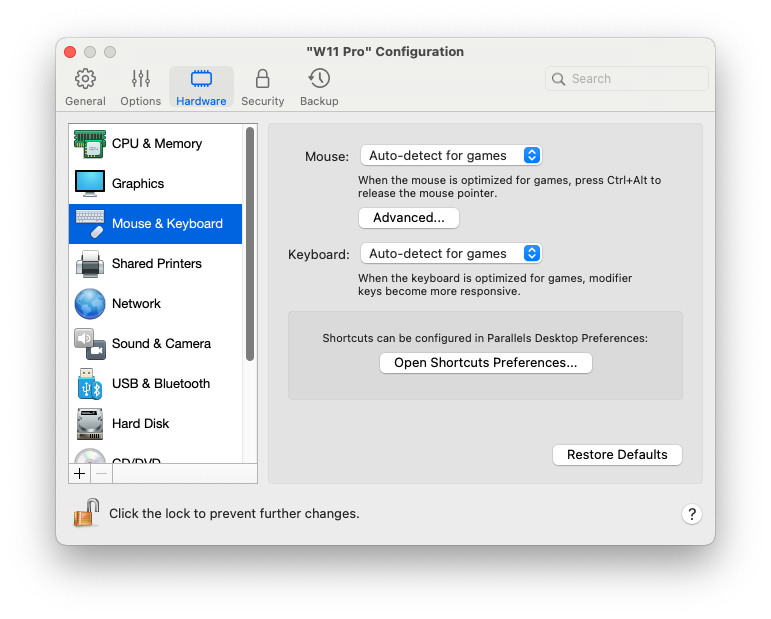
**\[マウスとキーボード]** ペインでは、マウスおよびキーボード関連の設定を表示および構成できます。

この設定を開くには、**\[処理]** > **\[構成]** > **\[ハードウェア]** を選択し、**\[マウスとキーボード]** をクリックします。

<figure><img src="https://content.gitbook.com/content/yW32bt55qpQ60Sjv48dc/blobs/pXC9byCgvgnwwh1WHsBg/Screenshot%202024-01-19%20at%2017.58.07.png" alt="" width="563"><figcaption></figcaption></figure>

<table><thead><tr><th width="342">オプション</th><th>説明</th></tr></thead><tbody><tr><td><strong>マウス</strong></td><td><p>仮想マシンでゲームをプレイする場合、<strong>[マウス]</strong> メニューでマウスをどのように使用するかを設定できます。</p><ul><li><strong>[ゲームを自動検出する]</strong>: これは、推奨されるデフォルト設定です。ゲスト OS アプリケーションを使用している場合は、ゲスト OS と macOS の間でマウスを自由に動かすことができます。ただし、ゲームを開始すると、マウスの入力が仮想マシンで自動的にキャプチャーされるため、誤って macOS にマウスを移動してしまうことはありません。ゲームを終了すると、マウスは自動的に解放されます。</li><li><strong>[ゲームに最適化する]</strong>: ゲームのプレイ中に誤ってマウスが macOS に移動される心配がある場合は、このオプションを選択すると、マウスが仮想マシン内でのみ機能するようになります。マウスの入力を解放して macOS に切り替えるには、Ctrl + Alt キーを押します。</li><li><strong>[ゲームに最適化しない]</strong>: まれに、Parallels Desktop がアプリケーションをゲームと誤認識し、マウスがアプリケーションで正しく機能しなくなることがあります。このような問題が生じた場合、<strong>[ゲームに最適化しない]</strong> を選択します。</li></ul></td></tr><tr><td><strong>マウスポインタをウィンドウの端に固定する</strong></td><td><p>ウィンドウ表示モードで仮想マシンを使用中、さまざまなゲスト OS アイテムを表示するために、仮想マシンウィンドウの端にマウスポインターを動かさなければならない場合があります。たとえば、Windows 8 のスタートメニューを表示する、Windows XP の隠れたタスクバーを表示する、macOS アプリケーションをフルスクリーン表示しているときに macOS メニューバーを表示する場合などです。<br></p><p><strong>[マウスポインタをウィンドウの端に固定する]</strong> オプションを使用すると、マウスポインタは仮想マシンウィンドウの端にしばらく固定され、マウスが仮想マシンウィンドウの外に誤って移動することがなくなります。端から離すには、マウスをすばやく動かします。</p></td></tr><tr><td><strong>キーボード</strong></td><td><p>アクションゲームで修飾キー Option（Alt）、Ctrl、Shift をアクティブに使用するときは、<strong>[キーボード]</strong> メニューで <strong>[ゲームに最適化する]</strong> を選択します。このオプションを選択すると、これらのキーからの信号が即座に処理されます。<br></p><p><strong>注:</strong> ゲームをプレイしていないときは、キーボードをゲームに最適化することはお勧めしません。Ctrl、Alt、Shift、オプションキーと一部のキーの組み合わせは、機能しない場合があります。</p></td></tr></tbody></table>

### Linux でスクロールの感度を調整する

IntelとAppleの両方のシリコンMac上のLinux仮想マシンでは、マウスやトラックパッドが過度のスクロール感度に設定されていると、時々問題が発生することが知られています。このような問題が発生した場合、macOS のターミナルで以下のコマンドを実行することで、スクロールの感度を任意に調整することができます。

`$ defaults write "com.parallels.Parallels Desktop" "HID Host Hook.Scroll Sensitivity" X`

ここで X は逆スクロールの感度の値です。デフォルトは 20 で、最大は 120 です。120 は、最も低い感度を意味します。値が 120 に設定されている場合、Linux VM でスクロールを実行するには、トラックパッドの操作量がかなり大きくなります。

{% hint style="info" %}
**注**: このコマンドは Parallels Desktop for Mac 19.3 以降でのみ動作し、メインの macOS システムではなく仮想マシンのスクロール感度に影響します。
{% endhint %}


---

# Agent Instructions
This documentation is published with GitBook. GitBook is the documentation platform designed so that both humans and AI agents can read, navigate, and reason over technical content effectively. Learn more at gitbook.com.

## Querying This Documentation
If you need additional information that is not directly available in this page, you can query the documentation dynamically by asking a question.

Perform an HTTP GET request on the current page URL with the `ask` query parameter, and the optional `goal` query parameter:

```
GET https://docs.parallels.com/landing/pdfm-ug/v20-ja-jp/parallels-desktop-for-mac-20-yzzugaido/parallels-desktop-tomashin/mashin/hdowea/mausutokbdono.md?ask=<question>&goal=<endgoal>
```

`ask` is the immediate question: it should be specific, self-contained, and written in natural language.
`goal` is optional and describes the broader end goal you are ultimately trying to accomplish on behalf of the user. GitBook uses it to tailor the answer towards what is most useful for that goal.

The response will contain a direct answer to the question and relevant excerpts and sources from the documentation.

Use this mechanism when the answer is not explicitly present in the current page, you need clarification or additional context, or you want to retrieve related documentation sections.
