> For the complete documentation index, see [llms.txt](https://docs.parallels.com/landing/llms.txt). Markdown versions of documentation pages are available by appending `.md` to page URLs; this page is available as [Markdown](https://docs.parallels.com/landing/pdfm-ug/v20-ja-jp/parallels-desktop-for-mac-20-yzzugaido/parallels-desktop-tomashin/mashin/opushon/apurikshon.md).

# アプリケーション設定

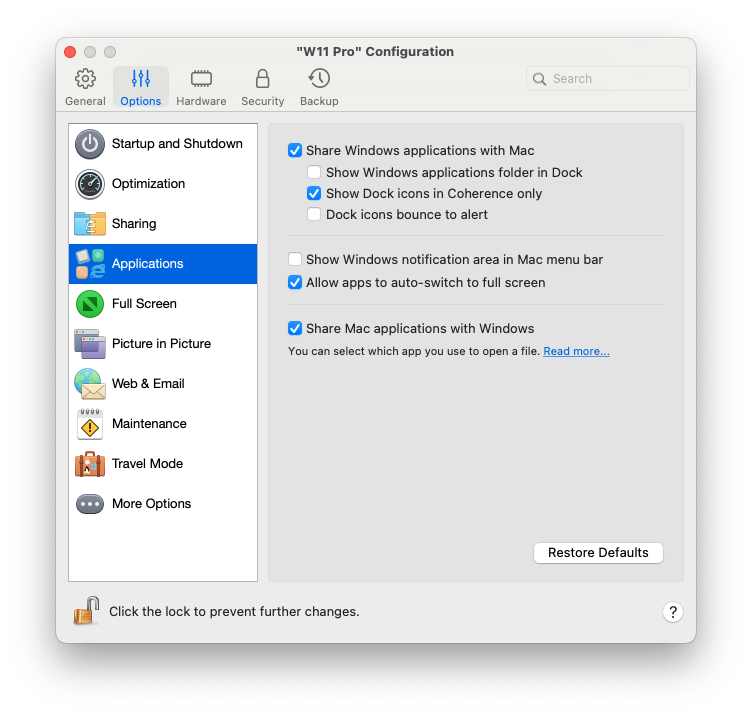
**\[Applications]** ペインで、Windows アプリケーションを macOS と共有し、macOS アプリケーションを Windows と共有するかどうかを選択する、Windows アプリケーションを含むフォルダーを Dock に追加する、Dock でアラート時に Windows アプリケーションがバウンドするかどうかを設定することができます。

この設定を開くには、**\[アクション]** > **\[構成]** > **\[オプション]** を選択し、**\[アプリケーション]** をクリックします。

<figure><img src="https://content.gitbook.com/content/yW32bt55qpQ60Sjv48dc/blobs/4H4NjJi5bNo1q8WwbDcE/Screenshot%202024-01-19%20at%2017.01.00.png" alt="" width="563"><figcaption></figcaption></figure>

<table><thead><tr><th width="283">オプション</th><th>記述</th></tr></thead><tbody><tr><td><strong>Windows アプリケーションを Mac と共有する</strong></td><td>Windows アプリケーションの共有が有効になっていると、macOS の Finder から Windows アプリケーションを開くことができます。また、すべての Windows アプリケーションを含むフォルダーを Dock に追加すると簡単にアクセスできます。</td></tr><tr><td><strong>Dock に Windows アプリケーションフォルダーを表示する</strong></td><td><p>Windows アプリケーションフォルダーを Dock に追加するには、このオプションを選択します。<br></p><p>このフォルダーは macOS の Dock にあり、Windows アプリケーションがすべて含まれています。さらにアプリケーションをインストールすると、そのアプリケーションも自動的に追加されます。<br></p><p><a href="https://download.parallels.com/desktop/v19/docs/en_US/Parallels%20Desktop%20User&#x27;s%20Guide/43124.htm"><img src="https://download.parallels.com/desktop/v19/docs/en_US/Parallels%20Desktop%20User&#x27;s%20Guide/49454.png" alt="WAF"></a></p><p><br>Windows アプリケーションフォルダーを使用して、Windows アプリケーションを開くには、フォルダーをクリックし、アプリケーションを選択します。</p></td></tr><tr><td><strong>Dock アイコンを Coherence でのみ表示する</strong></td><td><p>ウィンドウモードまたはフルスクリーンモードのときに、macOS Dock に Window アプリケーションのアイコンを表示するかどうかを選択できます。アプリケーションを Windows デスクトップで操作する場合は、混乱をきたさないよう、Dock の macOS アプリケーションのアイコンの隣にアプリケーションを表示したくないことがあります。<br></p><p>ウィンドウモードまたはフルスクリーンモードで、Dock に Windows アプリケーションのアイコンを表示するには、<strong>[Dock アイコンを Coherence でのみ表示する]</strong> を選択解除します。</p></td></tr><tr><td><strong>Dock アイコンがバウンドしてアラート</strong></td><td><p>Windows タスクバーで Windows アプリケーションアイコンが点滅して Skype の新規メッセージや Microsoft Outlook の通知をアラートするとき、デフォルトでは macOS の Dock でも当該アイコンがバウンドします。<br></p><p>Windows アプリケーションアイコンのバウンドによるアラートを有効または無効にするには、<strong>[Dock アイコンがバウンドしてアラート]</strong> を選択するか、選択を解除します。</p></td></tr><tr><td><strong>Mac メニューバーに Windows 通知領域を表示する</strong></td><td>このオプション選択すると、macOS メニューバーに Windows システムトレイのアイコンが表示されます。</td></tr><tr><td><strong>アプリケーションのフルスクリーンへの自動切り替えを許可する</strong></td><td>一部のアプリケーション（特に 3D ゲーム）は、フルスクリーンで表示するのが最適です。<strong>Coherence</strong> ビューモードでこのようなアプリケーションを開き、フルスクリーン表示にするには、このオプションを選択します。<br><br><strong>注</strong>： Parallels Desktop for Mac の次期メジャーバージョンから、この設定はユーザインターフェイスから削除されます。デフォルトで有効になります。</td></tr><tr><td><strong>Mac アプリケーションを Windows と共有する</strong></td><td>このオプションは、macOS アプリケーションを共有する場合に選択します。有効にすると、Windows または Windows アプリケーションから macOS アプリケーションを開くことができます。</td></tr></tbody></table>


---

# Agent Instructions
This documentation is published with GitBook. GitBook is the documentation platform designed so that both humans and AI agents can read, navigate, and reason over technical content effectively. Learn more at gitbook.com.

## Querying This Documentation
If you need additional information that is not directly available in this page, you can query the documentation dynamically by asking a question.

Perform an HTTP GET request on the current page URL with the `ask` query parameter, and the optional `goal` query parameter:

```
GET https://docs.parallels.com/landing/pdfm-ug/v20-ja-jp/parallels-desktop-for-mac-20-yzzugaido/parallels-desktop-tomashin/mashin/opushon/apurikshon.md?ask=<question>&goal=<endgoal>
```

`ask` is the immediate question: it should be specific, self-contained, and written in natural language.
`goal` is optional and describes the broader end goal you are ultimately trying to accomplish on behalf of the user. GitBook uses it to tailor the answer towards what is most useful for that goal.

The response will contain a direct answer to the question and relevant excerpts and sources from the documentation.

Use this mechanism when the answer is not explicitly present in the current page, you need clarification or additional context, or you want to retrieve related documentation sections.