> For the complete documentation index, see [llms.txt](https://docs.parallels.com/landing/llms.txt). Markdown versions of documentation pages are available by appending `.md` to page URLs; this page is available as [Markdown](https://docs.parallels.com/landing/pdfm-ug/v20-ja-jp/parallels-desktop-for-mac-20-yzzugaido/parallels-desktop-tomashin/mashin/opushon/pikuchainpikucha.md).

# ピクチャ・イン・ピクチャ設定

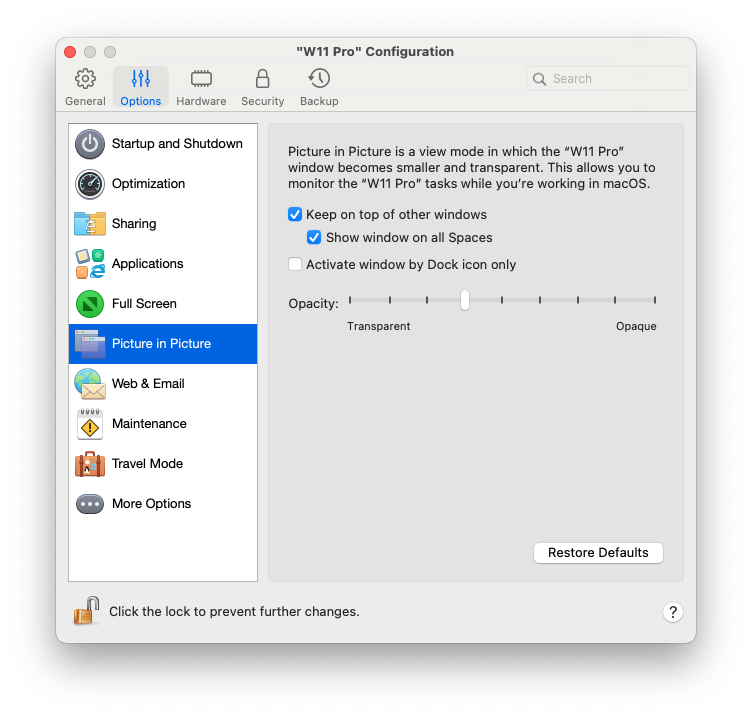
**\[ピクチャ・イン・ピクチャ]** ペインで、この表示モード関連の設定を構成できます。

この設定を開くには、**\[アクション]** > **\[構成]** > **\[オプション]** を選択し、**\[ピクチャ・イン・ピクチャ]** をクリックします。

<figure><img src="https://content.gitbook.com/content/yW32bt55qpQ60Sjv48dc/blobs/Lmhe99FRTq0oo4sCaHZd/Screenshot%202024-01-19%20at%2017.16.20.png" alt="" width="563"><figcaption></figcaption></figure>

<table><thead><tr><th width="292">オプション</th><th>説明</th></tr></thead><tbody><tr><td><strong>不透明度</strong></td><td>ピクチャ・イン・ピクチャモードでは、仮想マシンのウィンドウはデフォルトで透明になります。<strong>[透明]</strong> と <strong>[不透明]</strong> の間でスライダーをドラッグして、<strong>[不透明度]</strong> フィールドで可視性のレベルを指定できます。</td></tr><tr><td><strong>常に他のウィンドウの前面に表示する</strong></td><td>仮想マシンがピクチャ・イン・ピクチャモードの場合に、この他の開かれているすべてのウィンドウの前面にこの仮想マシンが表示されないようにするには、このオプションをオフにします。</td></tr><tr><td><strong>すべての操作スペースにウィンドウを表示</strong></td><td>仮想マシンのウィンドウをすべてのスペースに表示しないようにするには、このオプションをオフにします。</td></tr><tr><td><strong>Dock アイコンのみでウィンドウをアクティベート</strong></td><td>仮想マシンのウィンドウを非アクティブにするには、このオプションを選択します。選択したら、ウィンドウをクリック「スルー」します。ウィンドウを再度アクティブにしてマウスまたはキーボードによる入力をキャプチャするには、Dock 内の仮想マシンのアイコンをクリックします。</td></tr></tbody></table>


---

# Agent Instructions
This documentation is published with GitBook. GitBook is the documentation platform designed so that both humans and AI agents can read, navigate, and reason over technical content effectively. Learn more at gitbook.com.

## Querying This Documentation
If you need additional information that is not directly available in this page, you can query the documentation dynamically by asking a question.

Perform an HTTP GET request on the following URL with the `ask` and `goal` query parameters:

```
GET https://docs.parallels.com/landing/pdfm-ug/v20-ja-jp/parallels-desktop-for-mac-20-yzzugaido/parallels-desktop-tomashin/mashin/opushon/pikuchainpikucha.md?ask=<question>&goal=<user_goal>
```

`ask` is the immediate question: it should be specific, self-contained, and written in natural language.
`goal` is what the user is ultimately trying to achieve, the reason they need the answer. Sharing it helps GitBook give you a better, more relevant answer. A goal is most helpful when it describes the outcome the user wants rather than restating the question. For example, with `ask=how do I create an API token`, a goal like `build a script that syncs our docs to a CMS` lets GitBook tailor the answer to that use case.

The response will contain a direct answer to the question and relevant excerpts and sources from the documentation.

Use this mechanism when the answer is not explicitly present in the current page, you need clarification or additional context, or you want to retrieve related documentation sections.
