# セキュリティ環境設定

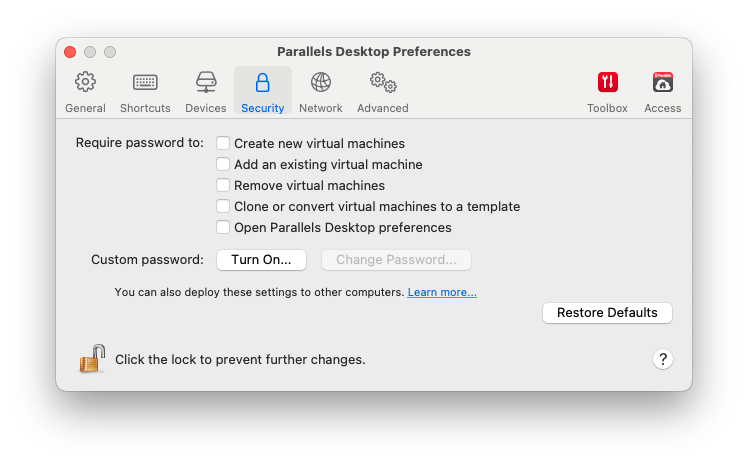
**\[セキュリティ]** 環境設定を使用して、パスワード要件を設定します。

これらの環境設定を開くには、**\[Parallels Desktop]** > **\[環境設定]** を選択し、**\[セキュリティ]** をクリックします。

<figure><img src="https://content.gitbook.com/content/yW32bt55qpQ60Sjv48dc/blobs/7EqzstCFdlnNUrM6UsjZ/Screenshot%202024-01-19%20at%2012.43.01.png" alt="" width="561"><figcaption></figcaption></figure>

<table><thead><tr><th width="311">オプション</th><th>説明</th></tr></thead><tbody><tr><td><strong>次の場合にパスワードを要求する</strong></td><td><p>このセクションで、Parallels Desktop が管理者パスワードを要求する処理を選択できます。<br></p><p><a data-footnote-ref href="#user-content-fn-1"><strong>注:</strong> <strong>[Parallels Desktop 環境設定を開く]</strong> は、Parallels Desktop for Mac Pro と Business Editions でのみ利用できます。</a></p></td></tr><tr><td><strong>カスタムパスワード</strong>（Parallels Desktop for Mac Pro Edition と Business Edition でのみ利用できます）</td><td><p>カスタムパスワードを作成して、上記の操作を制限できます。このパスワードで保護する操作を選択し、<strong>[暗号化する]</strong> をクリックして、パスワードを指定します。<br></p><p>パスワードを変更、またはオフにするには、<strong>[パスワードを変更]</strong> または <strong>[オフにする]</strong> をクリックします。</p></td></tr></tbody></table>

[^1]:
