> For the complete documentation index, see [llms.txt](https://docs.parallels.com/landing/llms.txt). Markdown versions of documentation pages are available by appending `.md` to page URLs; this page is available as [Markdown](https://docs.parallels.com/landing/pdfm-ug/v20-zh-cn/parallels-desktop-for-mac-20-yong-hu-zhi-nan/zai-mac-shang-shi-yong-windows/lian-jie-lan-ya-she-bei/lian-jie-lan-ya-you-xi-kong-zhi-qi.md).
# 连接蓝牙游戏控制器
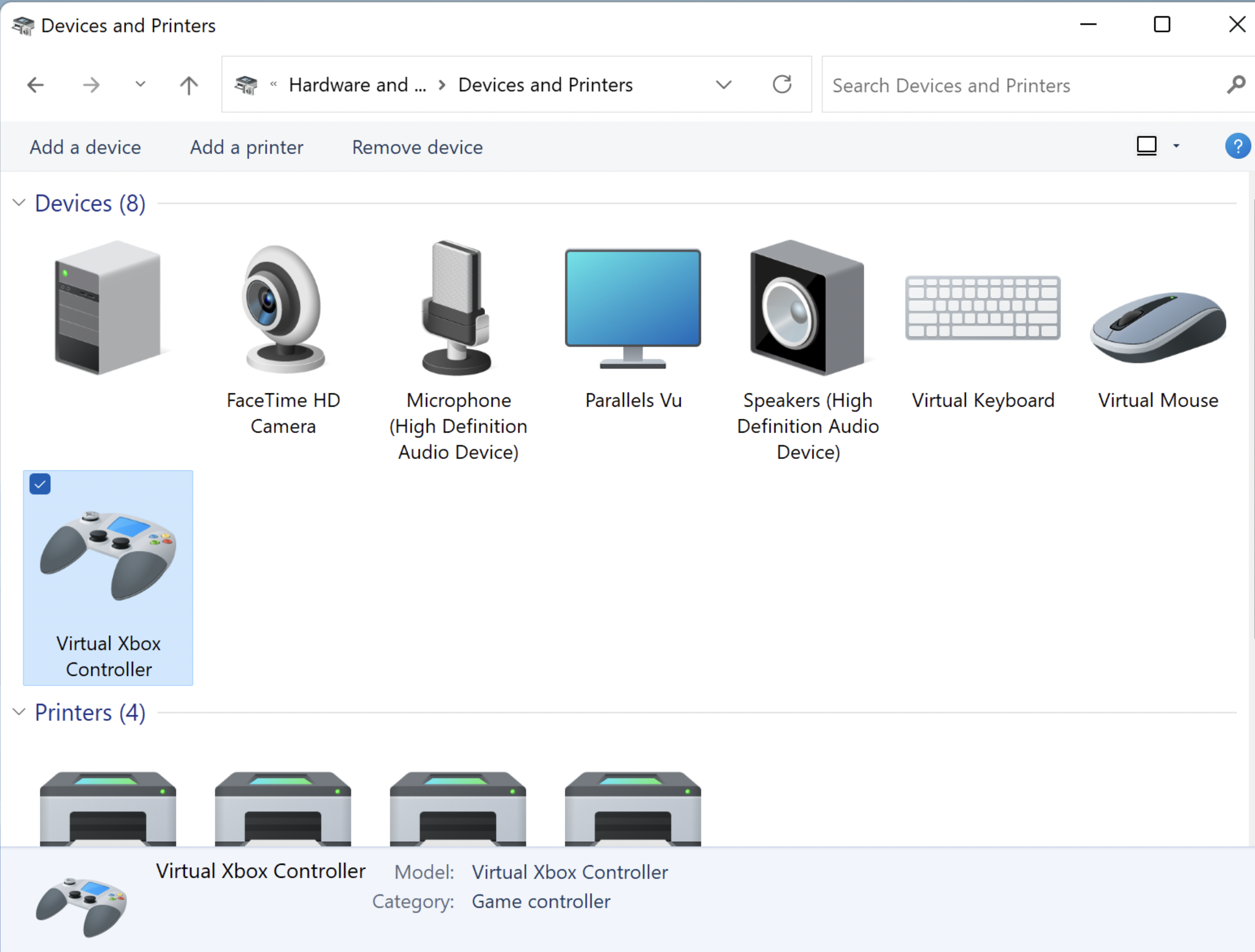
从 Parallels Desktop for Mac 18 开始,您可以畅享与热门蓝牙游戏控制器的增强无缝集成。现在,您无需将它们连接到虚拟机,而是可以直接将它们连接到 Mac,Parallels Desktop 会自动与 Windows 共享这些蓝牙游戏控制器。请注意,无论实际制造商和型号是什么,游戏控制器都将作为“虚拟 Xbox 控制器”显示在 Windows 中。
### **要求:**
1. 虚拟机上安装了 Windows 10 或更高版本;
2. macOS Game Controller 框架支持的任何游戏控制器。以下控制器已经过测试且经证明可用:
* Microsoft Xbox 无线控制器(最新两代);
* Sony PlayStation DualShock 和 DualSense\*;
* Nintendo Joy-Con
\*目前尚不支持 DualSense 的触控板和移动传感器。
### **设置控制器**
1. 确保内部电池电量充足;
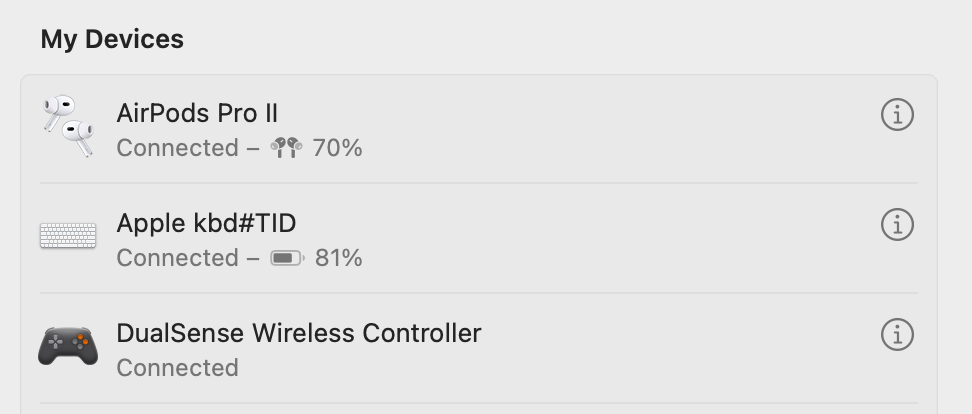
2. 将控制器连接到 Mac。依次点击**系统设置** > **蓝牙**,控制器应该会显示在“已连接”下的设备列表中;\\
3. 要确保设备已连接到 Windows 虚拟机,请启动 Windows,然后在 Windows 搜索栏中输入**控制面板**,找到**设备和打印机**,设备应该会显示为**虚拟 Xbox 控制器**。\\
---
# Agent Instructions
This documentation is published with GitBook. GitBook is the documentation platform designed so that both humans and AI agents can read, navigate, and reason over technical content effectively. Learn more at gitbook.com.
## Querying This Documentation
If you need additional information that is not directly available in this page, you can query the documentation by asking a question.
Perform an HTTP GET request on the following URL with the `ask` and `goal` query parameters:
```
GET https://docs.parallels.com/landing/pdfm-ug/v20-zh-cn/parallels-desktop-for-mac-20-yong-hu-zhi-nan/zai-mac-shang-shi-yong-windows/lian-jie-lan-ya-she-bei/lian-jie-lan-ya-you-xi-kong-zhi-qi.md?ask=&goal=
```
`ask` is the immediate question: it should be specific, self-contained, and written in natural language.
`goal` is what the user is ultimately trying to achieve, the reason they need the answer. Sharing it helps GitBook give you a better, more relevant answer. A goal is most helpful when it describes the outcome the user wants rather than restating the question. For example, with `ask=how do I create an API token`, a goal like `automate deployments from our CI pipeline` lets GitBook tailor the answer to that use case.
The response will contain a direct answer to the question and relevant excerpts and sources from the documentation.
Use this mechanism when the answer is not explicitly present in the current page, you need clarification or additional context, or you want to retrieve related documentation sections.