> For the complete documentation index, see [llms.txt](https://docs.parallels.com/landing/llms.txt). Markdown versions of documentation pages are available by appending `.md` to page URLs; this page is available as [Markdown](https://docs.parallels.com/landing/pdfm-ug/v26-de-de/parallels-desktop-for-mac-26-handbuch/windows-auf-dem-mac-benutzen/verbinden-mit-dem-internet-oder-einem-netzwerk/freigeben-des-netzwerkzugriffs-zwischen-macos-und-windows.md).
# Freigeben des Netzwerkzugriffs zwischen macOS und Windows
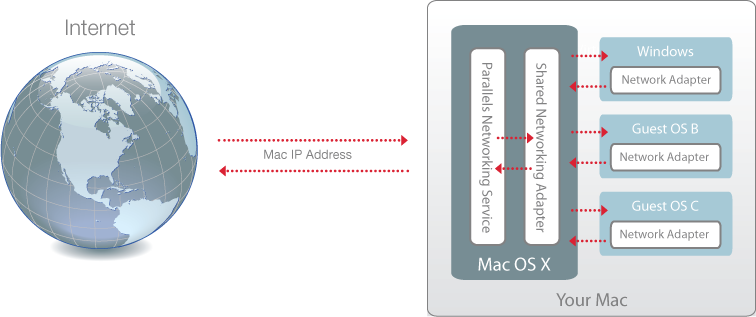
Standardmäßig greift Windows auf das Netzwerk über macOS zu. Windows-Anwendungen können über die IP-Adresse Ihres Macs auf andere Computer in Ihrem lokalen Netzwerk und dem Internet zugreifen. Windows besitzt in dem Netzwerk keine eigene IP-Adresse.
In den meisten Fällen müssen Sie Ihre Netzwerkeinstellung nicht anpassen. Wenn Ihr Mac so eingerichtet ist, dass er sich mit einem Netzwerk oder dem Internet verbindet, dann haben Windows-Anwendungen Zugriff auf dieselben Netzwerke und das Internet.
Unter Umständen wollen Sie in den folgenden Fällen den gemeinsamen Netzwerkmodus verwenden:
* Ihr Mac greift über ein Modem oder ein anderes Ethernet-Gerät auf das Internet zu.
* Sie müssen innerhalb von Windows auf das Internet zugreifen, haben aber Sicherheitsbedenken.
* Sie haben Probleme bei der Arbeit im Modus "Überbrücktes Ethernet".
So konfigurieren Sie Windows zur Verwendung des gemeinsamen Netzwerkmodus:
1. Führen Sie einen der folgenden Schritte aus:
* Klicken Sie in der Menüleiste auf das Parallels Desktop-Symbol und wählen Sie **Konfigurieren**.
* Wenn die Menüleiste von Parallels Desktop am oberen Rand des Bildschirms sichtbar ist, wählen Sie **Aktionen** > **Konfigurieren**.
2. Klicken Sie auf **Hardware** und dann auf **Netzwerk**.
3. Achten Sie darauf, dass im Bereich **Netzwerk** die Option **Gemeinsames Netzwerk** aktiviert ist.
Informationen zur Behebung von Netzwerkproblemen finden Sie in der [Parallels-Wissensdatenbank](https://kb.parallels.com/128867) auf der Website von Parallels.
---
# Agent Instructions
This documentation is published with GitBook. GitBook is the documentation platform designed so that both humans and AI agents can read, navigate, and reason over technical content effectively. Learn more at gitbook.com.
## Querying This Documentation
If you need additional information that is not directly available in this page, you can query the documentation by asking a question.
Perform an HTTP GET request on the following URL with the `ask` and `goal` query parameters:
```
GET https://docs.parallels.com/landing/pdfm-ug/v26-de-de/parallels-desktop-for-mac-26-handbuch/windows-auf-dem-mac-benutzen/verbinden-mit-dem-internet-oder-einem-netzwerk/freigeben-des-netzwerkzugriffs-zwischen-macos-und-windows.md?ask=&goal=
```
`ask` is the immediate question: it should be specific, self-contained, and written in natural language.
`goal` is what the user is ultimately trying to achieve, the reason they need the answer. Sharing it helps GitBook give you a better, more relevant answer. A goal is most helpful when it describes the outcome the user wants rather than restating the question. For example, with `ask=how do I create an API token`, a goal like `automate deployments from our CI pipeline` lets GitBook tailor the answer to that use case.
The response will contain a direct answer to the question and relevant excerpts and sources from the documentation.
Use this mechanism when the answer is not explicitly present in the current page, you need clarification or additional context, or you want to retrieve related documentation sections.