> For the complete documentation index, see [llms.txt](https://docs.parallels.com/landing/llms.txt). Markdown versions of documentation pages are available by appending `.md` to page URLs; this page is available as [Markdown](https://docs.parallels.com/landing/pdfm-ug/v26-de-de/parallels-desktop-for-mac-26-handbuch/windows-auf-dem-mac-benutzen/verwenden-sie-die-integrierte-oder-externe-webcam.md).
# Verwenden Sie die integrierte oder externe Webcam
Wenn Ihr Mac-Laptop bzw. -Monitor eine integrierte Kamera hat oder Sie eine kompatible externe Webcam anschließen, wird diese standardmäßig mit Windows verwendet.
{% hint style="info" %}
**Hinweis**: Die OBS-Kamera und das BGRA-Farbmodell werden ab Parallels Desktop für Mac Version 20.3.0 und neuer unterstützt.
{% endhint %}
So verwenden Sie eine integrierte- bzw. externe Kamera mit Windows:
* Öffnen Sie eine Windows-Anwendung, die eine Kamera verwendet. Sie können nun die iSight- bzw. externe Kamera zur Nutzung mit der Anwendung auswählen.
{% hint style="info" %}
**Hinweis:** Wenn Sie ein anderes Gastbetriebssystem als Windows 10 oder 11 verwenden, stellen Sie sicher, dass Sie USB-Videogerätetreiber (UVC) installiert haben.
{% endhint %}
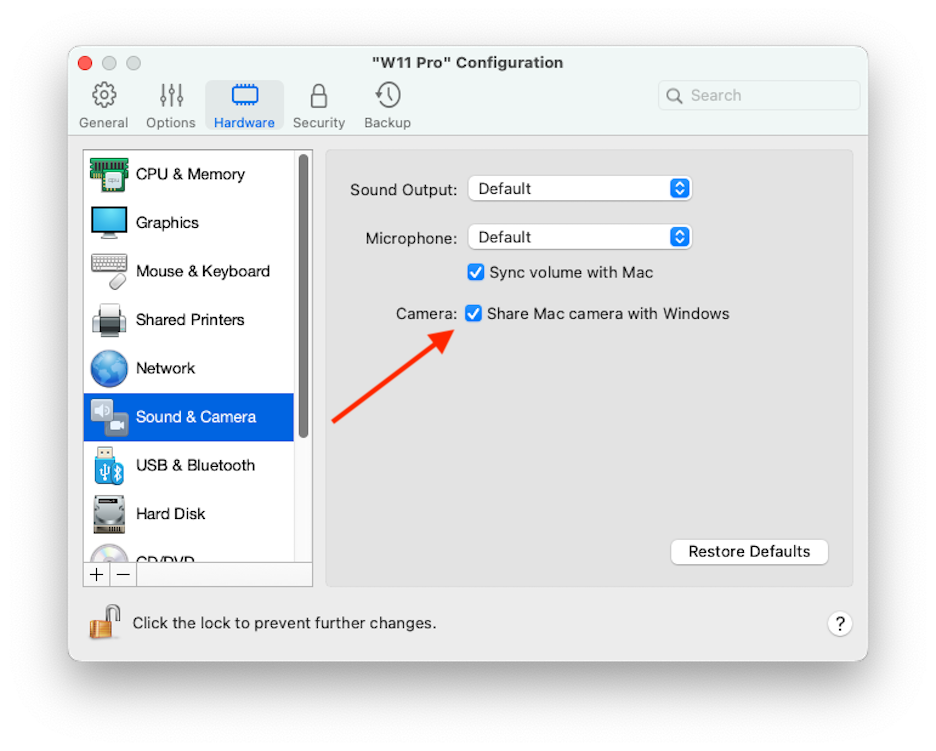
### **Kamera-Freigabe deaktivieren**
Wenn Windows-Anwendungen keine angeschlossenen Webcams oder nicht die integrierte Kamera nutzen sollen, müssen Sie die Kamerafreigabe deaktivieren:
1. Öffnen Sie das Kontrollcenter, klicken Sie mit der rechten Maustaste auf die ausgewählte virtuelle Maschine und wählen Sie **Konfigurieren**.
2. Klicken Sie auf **Hardware** und anschließend auf **Sound und Kamera**.
3. Entfernen Sie die Auswahl **Kamera**.
---
# Agent Instructions
This documentation is published with GitBook. GitBook is the documentation platform designed so that both humans and AI agents can read, navigate, and reason over technical content effectively. Learn more at gitbook.com.
## Querying This Documentation
If you need additional information that is not directly available in this page, you can query the documentation dynamically by asking a question.
Perform an HTTP GET request on the current page URL with the `ask` query parameter, and the optional `goal` query parameter:
```
GET https://docs.parallels.com/landing/pdfm-ug/v26-de-de/parallels-desktop-for-mac-26-handbuch/windows-auf-dem-mac-benutzen/verwenden-sie-die-integrierte-oder-externe-webcam.md?ask=&goal=
```
`ask` is the immediate question: it should be specific, self-contained, and written in natural language.
`goal` is optional and describes the broader end goal you are ultimately trying to accomplish on behalf of the user. GitBook uses it to tailor the answer towards what is most useful for that goal.
The response will contain a direct answer to the question and relevant excerpts and sources from the documentation.
Use this mechanism when the answer is not explicitly present in the current page, you need clarification or additional context, or you want to retrieve related documentation sections.