> For the complete documentation index, see [llms.txt](https://docs.parallels.com/landing/llms.txt). Markdown versions of documentation pages are available by appending `.md` to page URLs; this page is available as [Markdown](https://docs.parallels.com/landing/pdfm-ug/v26-it-it/guida-utente-di-parallels-desktop-per-mac-26/preferenze-di-parallels-desktop-e-impostazioni-della-macchina-virtuale/preferenze-di-parallels-desktop/preferenze-generali.md).

# Preferenze generali

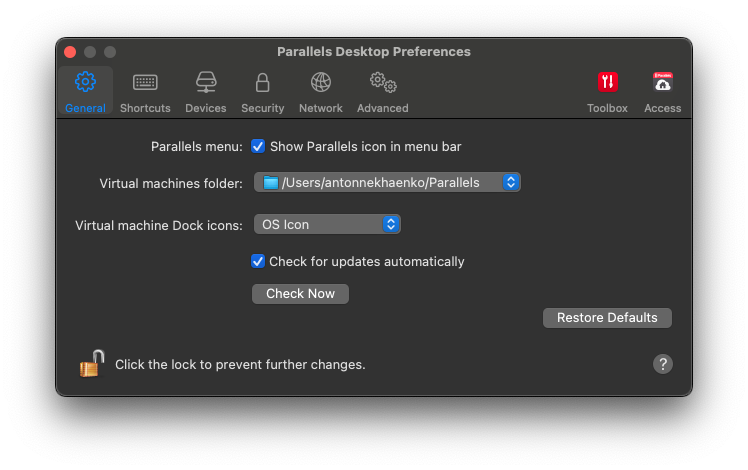
Usa le preferenze **Generali** per specificare se il menu di Parallels è disponibile nella barra dei menu macOS, modificare la cartella in cui sono archiviate le macchine virtuali e altro ancora.

<figure><img src="https://content.gitbook.com/content/0IDly6Lm0kHvRbywMB0B/blobs/FjFw2M5R584TPch4da32/Screenshot%202024-01-18%20at%2022.58.19.png" alt="" width="561"><figcaption></figcaption></figure>

Per aprire queste preferenze, scegli **Parallels Desktop** > **Preferenze**, quindi fai clic su **Generale**.

<table><thead><tr><th width="291">Opzione</th><th>Descrizione</th></tr></thead><tbody><tr><td><strong>Menu Parallels</strong></td><td>Scegli se rendere disponibile il menu di Parallels Desktop nella barra dei menu macOS. Questo menu fornisce un accesso rapido ai menu di Parallels Desktop, a Preferenze, Centro di controllo, risorse di supporto, azioni della macchina virtuale e altro ancora.</td></tr><tr><td><strong>Cartella Macchine virtuali</strong></td><td>Ti consente di determinare dove archiviare le nuove macchine virtuali. Per impostazione predefinita, vengono salvate nella cartella <code>Parallels</code> all'interno della cartella Home dell'utente.</td></tr><tr><td><strong>Icone del Dock della macchina virtuale</strong></td><td><p>Scegli il tipo di icone presenti nel Dock della macchina virtuale:</p><ul><li><strong>Icona del sistema operativo</strong>. L'icona del Dock mostra il tipo di sistema operativo guest.</li><li><strong>Istantanea Live</strong>. L'icona del Dock mostra un'immagine in miniatura di ciò che vedi nel sistema operativo guest.</li><li><strong>Nessuno</strong>. La macchina virtuale non ha alcuna icona nel Dock.</li></ul></td></tr><tr><td><strong>Verifica aggiornamenti</strong></td><td>Imposta la frequenza con cui Parallels Desktop verifica gli aggiornamenti software.</td></tr><tr><td><strong>Scarica aggiornamenti automaticamente</strong></td><td>Quando questa opzione è selezionata, Parallels Desktop scarica automaticamente gli aggiornamenti e chiede se vuoi installarli.</td></tr><tr><td><strong>Controlla ora</strong></td><td>Fai clic su questo pulsante per verificare gli aggiornamenti in modo manuale. È anche possibile scegliere <strong>Verifica degli aggiornamenti</strong> dal menu <strong>Parallels Desktop</strong>.</td></tr></tbody></table>


---

# Agent Instructions
This documentation is published with GitBook. GitBook is the documentation platform designed so that both humans and AI agents can read, navigate, and reason over technical content effectively. Learn more at gitbook.com.

## Querying This Documentation
If you need additional information that is not directly available in this page, you can query the documentation dynamically by asking a question.

Perform an HTTP GET request on the following URL with the `ask` and `goal` query parameters:

```
GET https://docs.parallels.com/landing/pdfm-ug/v26-it-it/guida-utente-di-parallels-desktop-per-mac-26/preferenze-di-parallels-desktop-e-impostazioni-della-macchina-virtuale/preferenze-di-parallels-desktop/preferenze-generali.md?ask=<question>&goal=<user_goal>
```

`ask` is the immediate question: it should be specific, self-contained, and written in natural language.
`goal` is what the user is ultimately trying to achieve, the reason they need the answer. Sharing it helps GitBook give you a better, more relevant answer. A goal is most helpful when it describes the outcome the user wants rather than restating the question. For example, with `ask=how do I create an API token`, a goal like `build a script that syncs our docs to a CMS` lets GitBook tailor the answer to that use case.

The response will contain a direct answer to the question and relevant excerpts and sources from the documentation.

Use this mechanism when the answer is not explicitly present in the current page, you need clarification or additional context, or you want to retrieve related documentation sections.
