> For the complete documentation index, see [llms.txt](https://docs.parallels.com/landing/llms.txt). Markdown versions of documentation pages are available by appending `.md` to page URLs; this page is available as [Markdown](https://docs.parallels.com/landing/pdfm-ug/v26-ja-jp/parallels-desktop-for-mac-26-yzzugaido/mac-de-windows-wosuru/bluetooth-debaisuno/bluetooth-gmukontorrwosuru.md).
# Bluetooth ゲームコントローラーを接続する
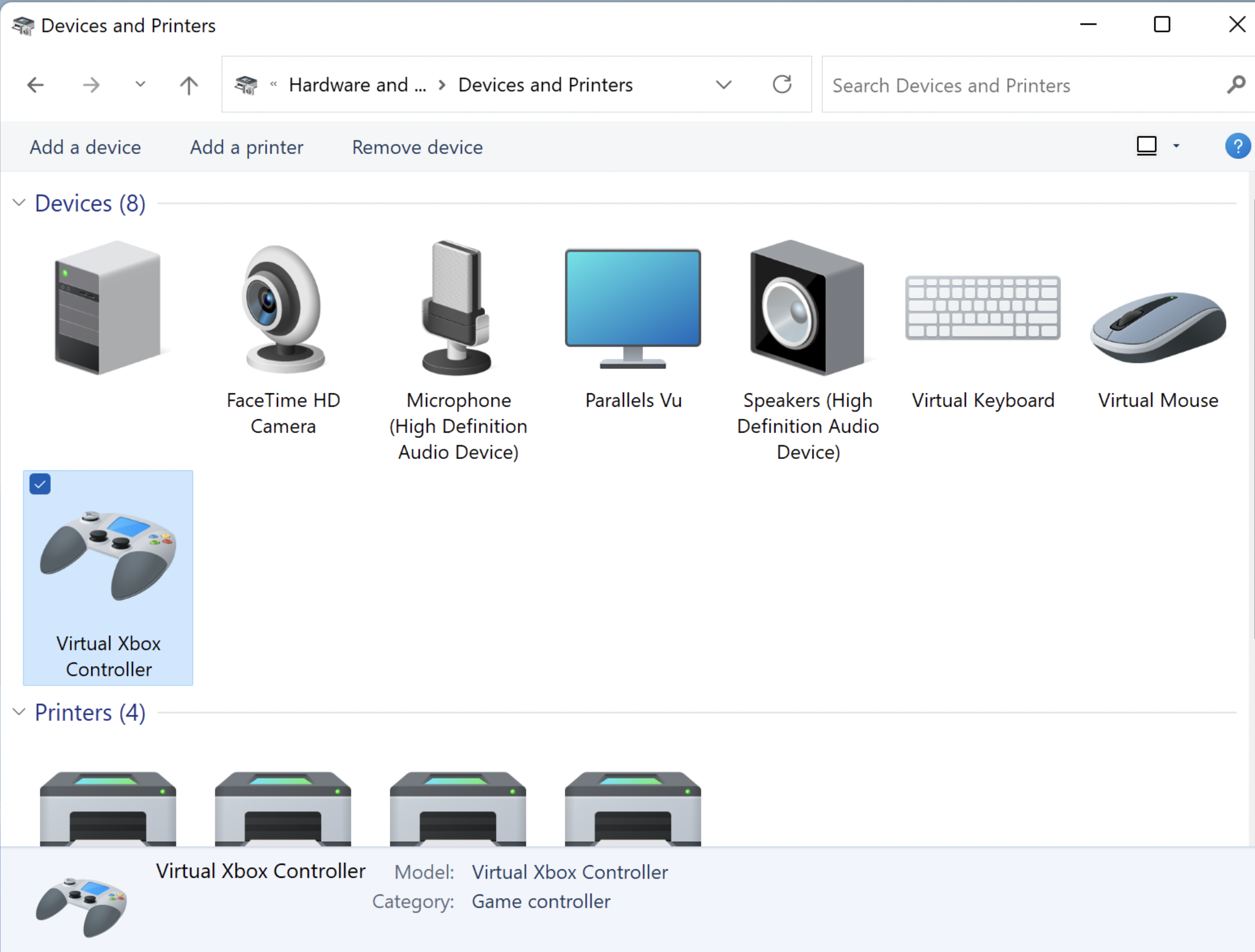
Parallels Desktop for Mac 18 以降では、一般的に使用されている Bluetooth ゲームコントローラーをよりシームレスに統合することができるようになっています。コントローラーは、仮想マシンではなく、Mac に直接接続する必要があり、Parallels Desktop が自動的に Windows と共有します。ゲームコントローラーは、実際のメーカーやモデルに関係なく、Windows 上に”Virtual Xbox Controller(Xbox の仮想コントローラー)”として表示されますのでご注意ください。
### **要件:**
1. 仮想マシンに Windows 10 以降がインストールされていること
2. macOS Game Controller フレームワークでサポートされているすべてのゲームコントローラー。以下のコントローラーは動作確認済みです。
* Microsoft Xbox ワイヤレスコントローラー(直近 2 世代)。
* Sony PlayStation の DualShock および DualSense\*。
* Nintendo Joy-Con
\*DualSense のタッチパッドとモーションセンサーには未対応です。
### **コントローラーの設定**
1. 内蔵バッテリーが十分に充電されていることを確認する
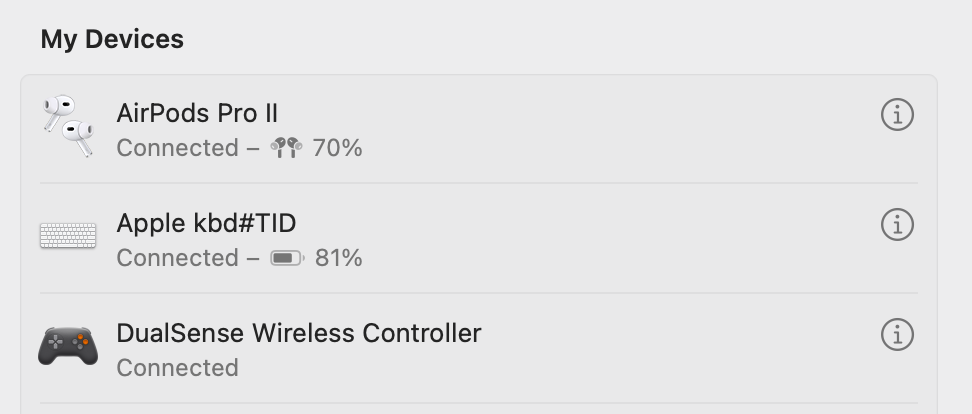
2. コントローラーを Mac に接続します。**\[システム設定]** > **\[Bluetooth]** の接続済みデバイス一覧にコントローラーが表示されるはずです。
3. お使いのデバイスが Windows 仮想マシンに接続されていることを確認するには、Windows を起動し、Windows の検索バーで、**\[コントロールパネル]** > **\[デバイスとプリンター]** に入力すれば、**Virtual Xbox Controller(Xbox の仮想コントローラー)** として表示されるはずです。
---
# Agent Instructions
This documentation is published with GitBook. GitBook is the documentation platform designed so that both humans and AI agents can read, navigate, and reason over technical content effectively. Learn more at gitbook.com.
## Querying This Documentation
If you need additional information that is not directly available in this page, you can query the documentation dynamically by asking a question.
Perform an HTTP GET request on the current page URL with the `ask` query parameter, and the optional `goal` query parameter:
```
GET https://docs.parallels.com/landing/pdfm-ug/v26-ja-jp/parallels-desktop-for-mac-26-yzzugaido/mac-de-windows-wosuru/bluetooth-debaisuno/bluetooth-gmukontorrwosuru.md?ask=&goal=
```
`ask` is the immediate question: it should be specific, self-contained, and written in natural language.
`goal` is optional and describes the broader end goal you are ultimately trying to accomplish on behalf of the user. GitBook uses it to tailor the answer towards what is most useful for that goal.
The response will contain a direct answer to the question and relevant excerpts and sources from the documentation.
Use this mechanism when the answer is not explicitly present in the current page, you need clarification or additional context, or you want to retrieve related documentation sections.