> For the complete documentation index, see [llms.txt](https://docs.parallels.com/landing/llms.txt). Markdown versions of documentation pages are available by appending `.md` to page URLs; this page is available as [Markdown](https://docs.parallels.com/landing/pdfm-ug/v26-ja-jp/parallels-desktop-for-mac-26-yzzugaido/mac-de-windows-wosuru/debaisuno.md).
# 外部デバイスの接続
Parallels Desktop では、USB、Thunderbolt、FireWire デバイスを Windows で使用することができます。
マウスやプリンターなどの多くの外部デバイスを Mac に接続すると、デフォルトで Windows でも macOS でも使用できるようになります。
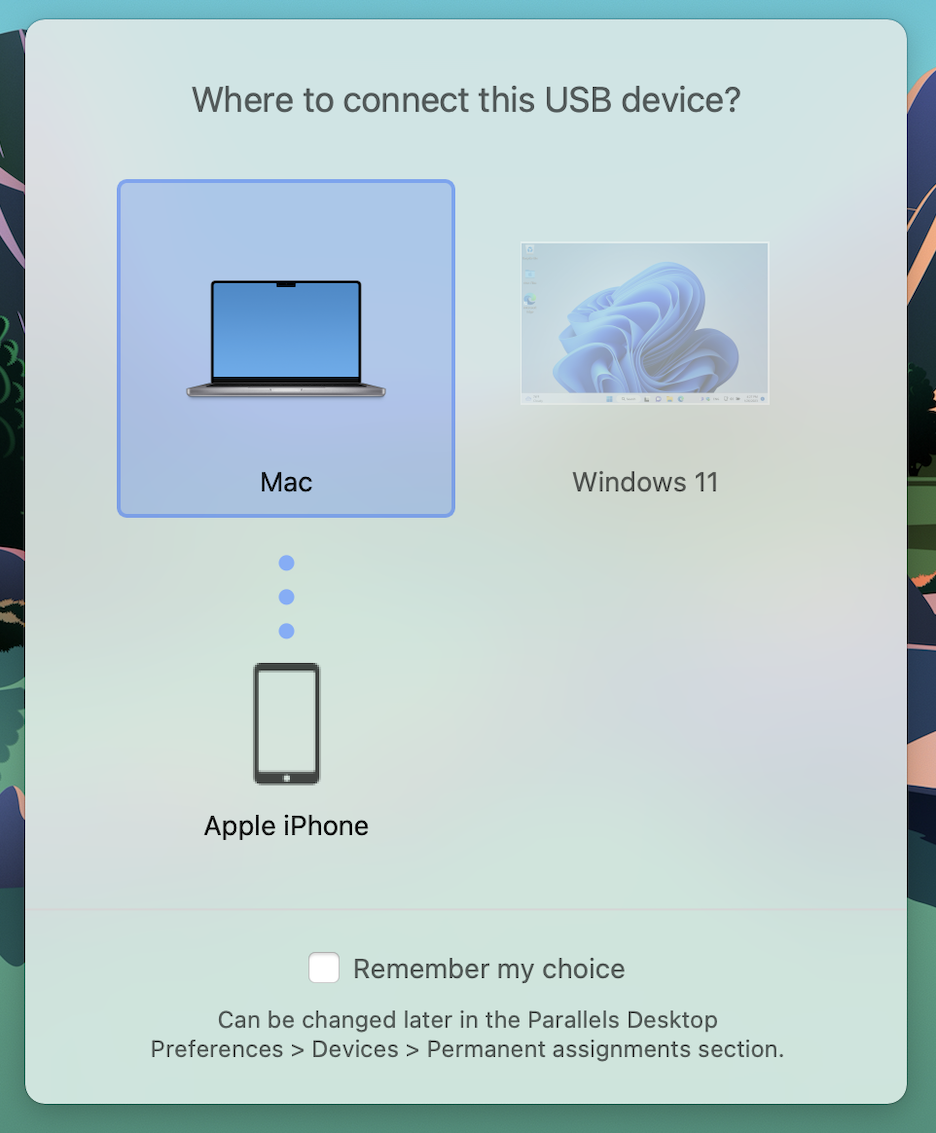
一方、Apple iPhone などの一部の外部デバイスは、macOS アプリケーションと Windows アプリケーションのいずれかで使用できますが、同時に両方で使用することはできません。このようなデバイスを接続する際には、macOS と Windows のどちらで使用するかを選択できます。
外部デバイスを接続するには、以下の操作を実行します。
1. デバイスを Mac に接続します。
2. Windows が動作中で、Windows と macOS で同時使用できないデバイスである場合は、どちらで使用するかを選択するよう求められます。Parallels Desktop にこの選択を記憶させる場合は、対応するチェックボックスを選択します。デバイスを macOS アプリケーションで使用する場合は、Mac アイコンをクリックします。Windows アプリケーションで使用する場合は、Windows の画面をクリックします。
{% hint style="info" %}
**重要:** USB デバイスを Windows アプリケーションで使用できるようにするには、デバイス用の Windows ドライバーのインストールが必要になる場合があります。通常、ドライバーは製造元の Web サイトでダウンロードできます。
{% endhint %}
また、[新しい外部デバイスが接続されたときの動作を設定したり、特定の外部デバイスが必ず macOS または Windows で使用されるよう設定したりすること](/landing/pdfm-ug/v26-ja-jp/parallels-desktop-for-mac-26-yzzugaido/mac-de-windows-wosuru/debaisuno/debaisuno.md)もできます。
すでに Mac に接続されている USB デバイスがある場合、以下の手順を実行して Windows に接続できます。
* Windows がフルスクリーンモードまたはウィンドウモードで動作している場合、画面の上部にマウスポインターを動かして、**\[デバイス]** > **\[USB]** の順に選択し、接続先のデバイスを選択します。
* Windows が Coherence モードで実行されている場合は、メニューバーで Parallels Desktop アイコンをクリックし、**\[デバイス]** > **\[USB]** を選択して、接続先のデバイスを選択します。
{% hint style="info" %}
**注:** 接続しようとしているデバイスが macOS アプリケーションに使用されている場合、警告メッセージが表示されます。この場合、まずそのアプリケーションを終了してから、もう一度デバイスを接続してみます。
{% endhint %}
### **CAC(Common Access Card)リーダーを接続する**
CAC(Common Access Card)リーダーは、macOS と Windows で同時に稼動できます。
1. CAC リーダーを Mac に接続します。
2. Windows か Mac を選ぶよう求められたら、Windows 画面をクリックします。CAC リーダーは Windows でも macOS でも使用できるようになります。
### 仮想マシンにUSBデバイスを接続する機能を無効にする方法
セキュリティ上の理由から、仮想マシンにUSBデバイスを接続することを禁止したい場合があります。以下に、コマンドラインインターフェースを使用してその方法を説明します:
```
prlctl set --device-del usb
```
このコマンドは、仮想マシンのUSBデバイスコントローラーを無効にします。より詳細なCLI機能については、当社の開発者ガイドの[該当するセクション](/landing/parallels-desktop-developers-guide/command-line-interface-utility.md)をご確認ください。
{% hint style="info" %}
**注**: Parallels Desktop コマンドラインインターフェースは、Pro、Business、および Enterprise ライセンスでのみ利用可能です。
{% endhint %}
---
# Agent Instructions
This documentation is published with GitBook. GitBook is the documentation platform designed so that both humans and AI agents can read, navigate, and reason over technical content effectively. Learn more at gitbook.com.
## Querying This Documentation
If you need additional information that is not directly available in this page, you can query the documentation dynamically by asking a question.
Perform an HTTP GET request on the current page URL with the `ask` query parameter, and the optional `goal` query parameter:
```
GET https://docs.parallels.com/landing/pdfm-ug/v26-ja-jp/parallels-desktop-for-mac-26-yzzugaido/mac-de-windows-wosuru/debaisuno.md?ask=&goal=
```
`ask` is the immediate question: it should be specific, self-contained, and written in natural language.
`goal` is optional and describes the broader end goal you are ultimately trying to accomplish on behalf of the user. GitBook uses it to tailor the answer towards what is most useful for that goal.
The response will contain a direct answer to the question and relevant excerpts and sources from the documentation.
Use this mechanism when the answer is not explicitly present in the current page, you need clarification or additional context, or you want to retrieve related documentation sections.