> For the complete documentation index, see [llms.txt](https://docs.parallels.com/landing/llms.txt). Markdown versions of documentation pages are available by appending `.md` to page URLs; this page is available as [Markdown](https://docs.parallels.com/landing/pdfm-ug/v26-ja-jp/parallels-desktop-for-mac-26-yzzugaido/mac-de-windows-wosuru/macos-deno-windows-nono/windows-wonisuruyou/furusukurnno.md).
# フルスクリーン設定の調整
フルスクリーンモードでの Windows の外観と動作をカスタマイズできます。
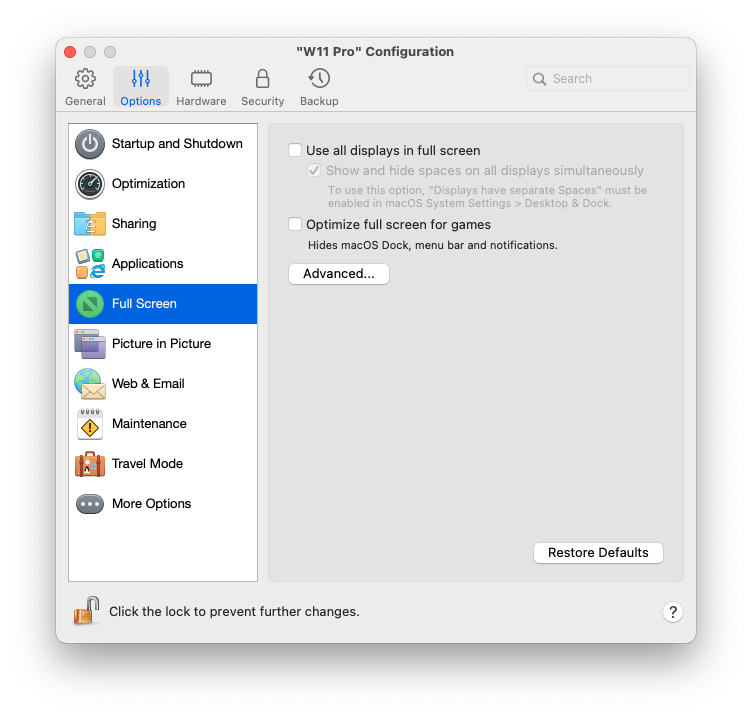
**\[フルスクリーン]** 設定にアクセスするには、以下の操作を実行します。
1. 次のいずれかを実行します。
* メニューバーの Parallels Desktop アイコンをクリックし、**\[構成]** > **\[オプション]** を選択します。
* Parallels Desktop のメニューバーが画面上部にある場合は、**\[処理]** > **\[構成]** を選択し、**\[オプション]** をクリックします。
2. **\[フルスクリーン]** をクリックします。
3. **\[フルスクリーン]** ペインで、以下の設定を調整できます。
### **Mac に接続されたディスプレイへの表示の設定**
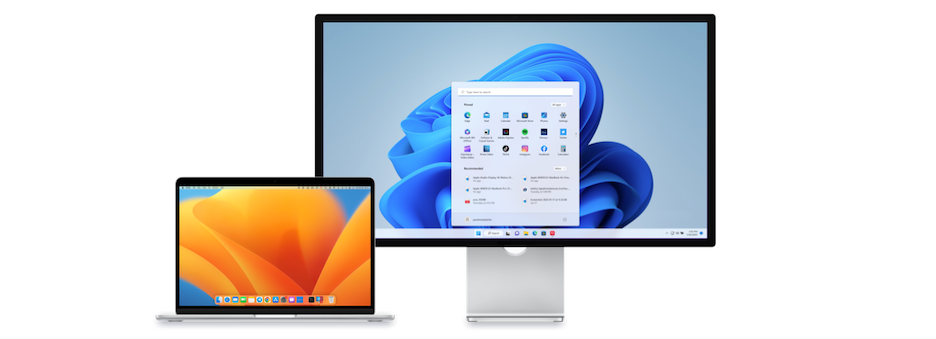
Mac に 2 台目のディスプレイが接続されている場合は、フルスクリーンモードに切り替えると、デフォルトでプライマリディスプレイに Windows が表示され、macOS はセカンダリディスプレイに表示されます。
ウィンドウをディスプレイにドラッグし、緑のフルスクリーンアイコンをクリックすると、Windows を表示するディスプレイを選択できます
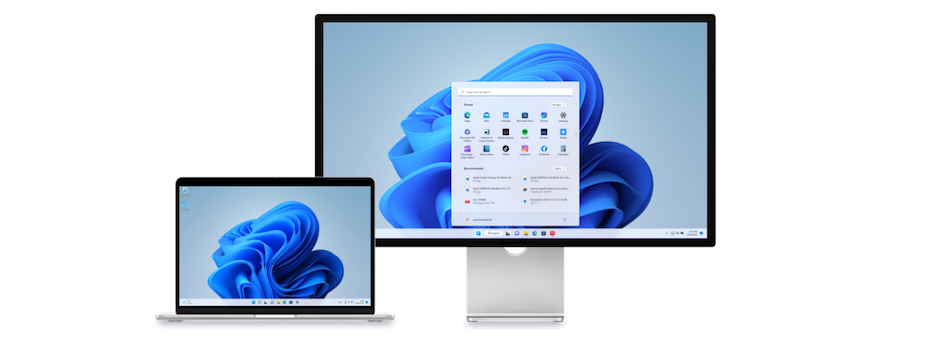
ディスプレイすべてに Windows を表示するには、**\[フルスクリーンですべてのディスプレイを使用]** を選択します。
\[フルスクリーン] に切り替えたとき、すべてのディスプレイに仮想マシンを表示するように選択した場合は、**\[すべてのディスプレイで同時に領域を表示するまたは隠す]** も選択できます。
このオプションを選択している場合は、いずれかのディスプレイで仮想マシンをクリックすると、その他のすべてのディスプレイに仮想マシンが表示されます。また、いずれかのディスプレイでフォーカスの切り替えを行った場合、仮想マシンの領域はその他のすべてのモニターで非表示になります。
### **ゲーム用のフルスクリーンに最適化**
仮想マシンを使用してフルスクリーン表示モードでビデオゲームをプレイする場合、**\[ゲーム用のフルスクリーンに最適化]** を選択します。このオプションを選択すると、マウスポインターを画面の上部および下部に移動しても、macOS Dock、メニューバー、および通知は表示されません。
### **Windows によるディスプレイガンマの設定を許可する**
Windows を使用してビデオゲームをプレイしているとき、Windows が異なる視覚効果を適切に表示するために Mac のディスプレイガンマの設定を一時的に変更しなければならない場合があります。Windows でガンマ設定を変更できるようにするには、**\[Windows のガンマ設定を使用する]** を選択します。
### **画面に合わせてスケール**
**\[画面に合わせてスケール]** メニューを使用すると、フルスクリーンで作業を行うときに Windows がどのように表示されるかを構成できます。
* **オフ:** [Parallels Tools](/landing/pdfm-ug/v26-ja-jp/parallels-desktop-for-mac-26-yzzugaido/na/parallels-tools-noinsutrumatahaappudto.md) がインストールされていると、Windows の解像度は Mac の解像度に合わせられます。Parallels Tools がインストールされていない場合は、Windows の解像度は変更されません。Mac の解像度よりも低い場合は、Windows は黒の背景に表示されます。Mac の解像度よりも高い場合は、Windows にはスクロールバーが表示されます。
* **自動:** Parallels Tools がインストールされていると、Windows の解像度は Mac の解像度に合わせられます。Parallels Tools がインストールされていない場合は、Windows の解像度は変更されません。Mac の解像度よりも低い場合は、Windows は黒の背景に表示されます。Mac の解像度よりも高い場合は、Windows はスクロールバーなしに画面全体に表示されます。
* **比率を保つ**: Parallels Tools がインストールされているかどうかにかかわらず、Windows の解像度は変更されません。Mac の解像度よりも低い場合は、Windows は黒の背景に表示されます。Mac の解像度よりも高い場合は、Windows はスクロールバーなしに画面全体に表示されます。
* **拡張**: Parallels Tools がインストールされているかどうかにかかわらず、Windows の解像度は変更されませんが、Windows は拡大され、画面全体に表示されます。
{% hint style="info" %}
**注:** フルスクリーン設定に対して不正な変更が行われないように、ウィンドウの下部にある**カギのアイコン**をクリックしてください。ロックされると、変更を加えるには管理者のパスワードが必要となります。
{% endhint %}
---
# Agent Instructions
This documentation is published with GitBook. GitBook is the documentation platform designed so that both humans and AI agents can read, navigate, and reason over technical content effectively. Learn more at gitbook.com.
## Querying This Documentation
If you need additional information that is not directly available in this page, you can query the documentation by asking a question.
Perform an HTTP GET request on the following URL with the `ask` and `goal` query parameters:
```
GET https://docs.parallels.com/landing/pdfm-ug/v26-ja-jp/parallels-desktop-for-mac-26-yzzugaido/mac-de-windows-wosuru/macos-deno-windows-nono/windows-wonisuruyou/furusukurnno.md?ask=&goal=
```
`ask` is the immediate question: it should be specific, self-contained, and written in natural language.
`goal` is what the user is ultimately trying to achieve, the reason they need the answer. Sharing it helps GitBook give you a better, more relevant answer. A goal is most helpful when it describes the outcome the user wants rather than restating the question. For example, with `ask=how do I create an API token`, a goal like `automate deployments from our CI pipeline` lets GitBook tailor the answer to that use case.
The response will contain a direct answer to the question and relevant excerpts and sources from the documentation.
Use this mechanism when the answer is not explicitly present in the current page, you need clarification or additional context, or you want to retrieve related documentation sections.