> For the complete documentation index, see [llms.txt](https://docs.parallels.com/landing/llms.txt). Markdown versions of documentation pages are available by appending `.md` to page URLs; this page is available as [Markdown](https://docs.parallels.com/landing/pdfm-ug/v26-ja-jp/parallels-desktop-for-mac-26-yzzugaido/mac-de-windows-wosuru/mausutorakkupaddokbdo/shiikbdoshtokattono.md).
# 新しいキーボードショートカットの作成
特定のキーの組み合わせ(キーボードショートカット)を使用すると、Parallels Desktop のさまざまな操作をすばやく行えます。たとえば、Command-Control-F を押すと、Windows をフルスクリーンモードに切り替えられます。既存のキーボードショートカットを使用することも(既存のショートカットは **\[Parallels Desktop]** > **\[環境設定]** > **\[ショートカット]** > **\[アプリケーションショートカット]** ペインで確認できます)、独自のショートカットを作成することもできます。
新しいキーボードショートカットを作成するには、以下の操作を実行します。
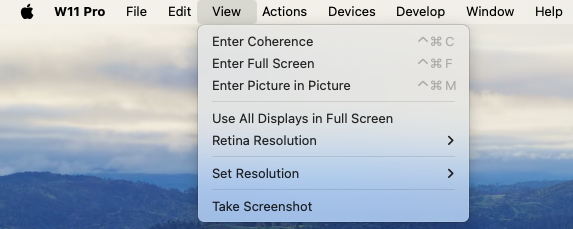
1. ショートカットを作成するコマンドの名前は、Parallels Desktop のメニューに表示されるとおりにメモしておきます。たとえば、フルスクリーンモードに切り替えるための新しいショートカットを作成する場合は、Parallels Desktop の **\[表示]** メニューを開くと、メニュー項目の名前は **\[フルスクリーン]** であることがわかります。
2. macOS で、**\[アップルメニュー]** > **\[システム環境設定]** の順に選択します。
3. システム環境設定で **\[キーボード]** をクリックし、**\[ショートカット]** をクリックします。
4. サイドバーの **\[アプリケーションショートカット]** を選択し、\[追加] ボタンをクリックします 。
5. 新しいショートカットを Parallels Desktop でのみ使用する場合は、**\[アプリケーション]** メニューから Parallels Desktop を選択します。**\[全アプリケーション]** を選択したままにしておくと、ショートカットは同じコマンド名を持ち、現在アクティブなすべてのアプリケーションで有効になります。
6. 手順 1 で確認したメニュー項目の名前を入力します。\
\
**重要:** Parallels Desktop メニューに記されているとおりに、正確にコマンド名を入力しなければ、新しいショートカットは動作しません。
7. **\[キーボードショートカット]** フィールドで、操作を実行するためのキーの組み合わせを押します。
{% hint style="info" %}
**注:** Parallels Desktop の状態によって、メニュー内の表示が変わるコマンドに対しては、別のショートカットを作成する必要があります(たとえば、**\[フルスクリーン]** と **\[ウィンドウモード]** など)。
{% endhint %}
---
# Agent Instructions
This documentation is published with GitBook. GitBook is the documentation platform designed so that both humans and AI agents can read, navigate, and reason over technical content effectively. Learn more at gitbook.com.
## Querying This Documentation
If you need additional information that is not directly available in this page, you can query the documentation dynamically by asking a question.
Perform an HTTP GET request on the following URL with the `ask` and `goal` query parameters:
```
GET https://docs.parallels.com/landing/pdfm-ug/v26-ja-jp/parallels-desktop-for-mac-26-yzzugaido/mac-de-windows-wosuru/mausutorakkupaddokbdo/shiikbdoshtokattono.md?ask=&goal=
```
`ask` is the immediate question: it should be specific, self-contained, and written in natural language.
`goal` is what the user is ultimately trying to achieve, the reason they need the answer. Sharing it helps GitBook give you a better, more relevant answer. A goal is most helpful when it describes the outcome the user wants rather than restating the question. For example, with `ask=how do I create an API token`, a goal like `build a script that syncs our docs to a CMS` lets GitBook tailor the answer to that use case.
The response will contain a direct answer to the question and relevant excerpts and sources from the documentation.
Use this mechanism when the answer is not explicitly present in the current page, you need clarification or additional context, or you want to retrieve related documentation sections.