> For the complete documentation index, see [llms.txt](https://docs.parallels.com/landing/llms.txt). Markdown versions of documentation pages are available by appending `.md` to page URLs; this page is available as [Markdown](https://docs.parallels.com/landing/pdfm-ug/v26-ja-jp/parallels-desktop-for-mac-26-yzzugaido/na/nettowkuno.md).
# 共有ネットワークの設定
{% hint style="info" %}
**注:**共有ネットワーク設定は、Parallels Desktop for Mac Pro および Business/Enterprise Editions でのみ使用できます。
{% endhint %}
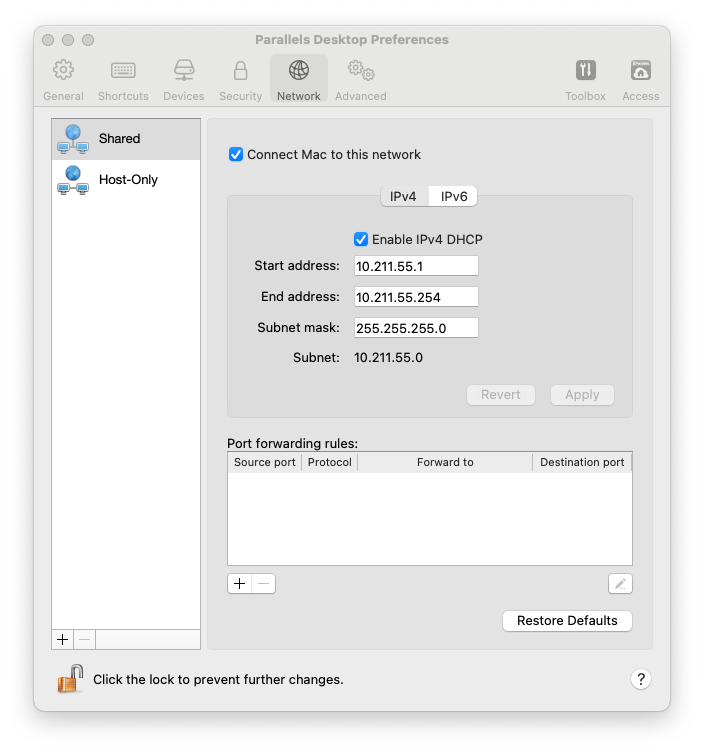
共有ネットワークの設定を変更するには、Parallels Desktop 環境設定の **\[ネットワーク]** タブを選択し、**\[共有]** をクリックします。次のウィンドウが表示されます。
このウィンドウで、IPv4 および IPv6 向けの Parallels DHCP サーバーの設定に、必要な変更を加えます。これらのサーバーはデフォルトで有効になっており、共有ネットワークモードで動作する仮想マシンに IP アドレスを自動的に割り当てます。これらのサーバーのいずれかを無効にするには、対応するオプションをクリアします。
共有ネットワークの構成に関する詳細については、「[**macOS と Windows 間でのネットワーク設定の共有**](/landing/pdfm-ug/v26-ja-jp/parallels-desktop-for-mac-26-yzzugaido/mac-de-windows-wosuru/intnettomatahanettowkuheno/macos-to-windows-denettowkuakusesuwosuru.md)」を参照してください。
### **ポートフォワーディング**
{% hint style="info" %}
**注:** この機能は Parallels Desktop for Mac Pro および Business/Enterprise Editions でのみ利用できます。
{% endhint %}
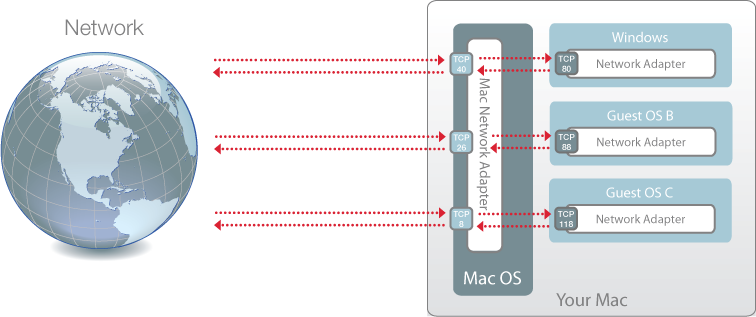
通常、共有ネットワークモードで動作するよう設定されている仮想マシンには外部コンピューターからアクセスできません。ポートフォワーディング機能を使用すると、ローカルネットワークやインターネット上のコンピューターから、共有ネットワークモードを使用している仮想マシンにデータを転送できます。Mac の特定ポートに送信されるデータは、ポートフォワーディングルールに基づいて仮想マシンの特定のポートにリダイレクトされます。
ポートフォワーディングルールを追加するには、以下の操作を実行します。
1. **\[ポートフォワーディングルール]** リストの下にある **\[追加]** ボタン(+)をクリックします。
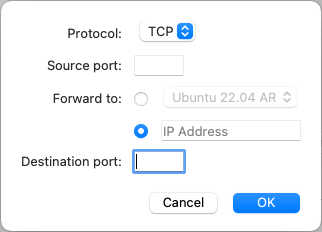
2. 表示されたウィンドウで、次の操作を実行します。
* **\[プロトコル]** フィールドで、ネットワーク接続の確立に使用するポートの種類を指定します。**TCP** または **UDP** のポートを選択できます。
* **\[ソースポート]** フィールドに、Mac の受信ポート番号を入力します。
* **\[転送先]** セクションに、接続先の仮想マシンの IP アドレス名を指定します。
* **\[宛先ポート]** フィールドに、データの転送先となる仮想マシンのポートを入力します。
3. **\[OK]** をクリックしてルールを追加します。
ルールを追加する場合、仮想マシンに対する外部接続には IP アドレスの組み合わせとして、`:<受信ポート>` を使用します。
ルールを編集するには、**\[ポートフォワーディングルール]** リストでそのルールを選択し、**\[編集]** ボタンをクリックします。必要な設定を変更後、**\[OK]** をクリックして変更を適用します。
ポートフォワーディングルールを削除するには、**\[ポートフォワーディングルール]** リストでそのルールを選択し、**\[削除]** ボタン(-)をクリックします
デフォルトの設定を復元するには、**\[デフォルトに戻す]** をクリックします。
---
# Agent Instructions
This documentation is published with GitBook. GitBook is the documentation platform designed so that both humans and AI agents can read, navigate, and reason over technical content effectively. Learn more at gitbook.com.
## Querying This Documentation
If you need additional information that is not directly available in this page, you can query the documentation dynamically by asking a question.
Perform an HTTP GET request on the current page URL with the `ask` query parameter, and the optional `goal` query parameter:
```
GET https://docs.parallels.com/landing/pdfm-ug/v26-ja-jp/parallels-desktop-for-mac-26-yzzugaido/na/nettowkuno.md?ask=&goal=
```
`ask` is the immediate question: it should be specific, self-contained, and written in natural language.
`goal` is optional and describes the broader end goal you are ultimately trying to accomplish on behalf of the user. GitBook uses it to tailor the answer towards what is most useful for that goal.
The response will contain a direct answer to the question and relevant excerpts and sources from the documentation.
Use this mechanism when the answer is not explicitly present in the current page, you need clarification or additional context, or you want to retrieve related documentation sections.