> For the complete documentation index, see [llms.txt](https://docs.parallels.com/landing/llms.txt). Markdown versions of documentation pages are available by appending `.md` to page URLs; this page is available as [Markdown](https://docs.parallels.com/landing/pdfm-ug/v26-ja-jp/parallels-desktop-for-mac-26-yzzugaido/na/pikuchainpikuchamdo.md).
# ピクチャ・イン・ピクチャモード
ピクチャ・イン・ピクチャモードに切り替えると、仮想マシンのウィンドウのサイズを変更して、Mac のアプリケーションと並べて配置できます。
ピクチャ・イン・ピクチャモードでは、次のことを行えます。
* ウィンドウの右下隅をドラッグすると、形を維持したまま、Windows のウィンドウのサイズを変更できます。
* Option(Alt)キーを押しながらウィンドウの右下隅をドラッグすると、Windows のウィンドウのサイズを変更できます。
* Shift キーを押しながらウィンドウの右下隅をドラッグすると、Windows のウィンドウのサイズを変更し、画面解像度を動的に調整できます。
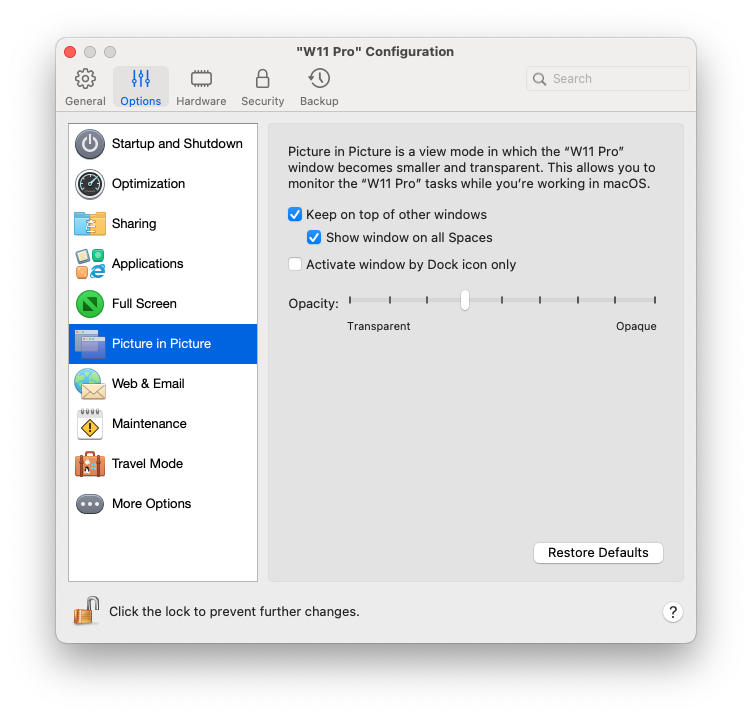
ピクチャ・イン・ピクチャ設定を使用すると、ピクチャ・イン・ピクチャモードで実行中の仮想マシンの外観や動作を構成できます。ピクチャ・イン・ピクチャモードでは、仮想マシンのウィンドウのサイズを変更して、これを Mac のアプリケーションと並べて配置できます。ピクチャ・イン・ピクチャウィンドウはサイズを自由に変更できるだけでなく、そのコンテンツをアクティブに保つことができます。これにより、Mac で作業を続けながら、仮想マシンで実行中のタスクを監視できるようになります。
これらの設定を編集するには、次の操作を実行します。
1. メニューバーの Parallels Desktop アイコンをクリックし、**\[構成]** を選択します。または、Parallels Desktop のメニューバーが画面上部にある場合は、**\[仮想マシン]** > **\[構成]** を選択します。
2. **\[仮想マシン構成]** ウィンドウで **\[オプション]** をクリックし、サイドバーで設定名を選択します。
仮想マシンが実行中でも、このペインの設定を構成できます。
ピクチャ・イン・ピクチャモードでは、仮想マシンのウィンドウはデフォルトで透明になります。**\[透明]** と **\[不透明]** の間でスライダーをドラッグして、**\[不透明度]** フィールドで可視性のレベルを指定できます。実行している仮想マシンがピクチャ・イン・ピクチャモードの場合、仮想マシンの透明度を変更できます。
ピクチャ・イン・ピクチャモードでの仮想マシンのウィンドウの動作を管理するには、デフォルトで選択されている次のオプションを使用します。
* **常に他のウィンドウの前面に表示する**: 仮想マシンがピクチャ・イン・ピクチャモードの場合に、この他の開かれているすべてのウィンドウの前面にこの仮想マシンが表示されないようにするには、このオプションをオフにします。
* **すべての操作スペースにウィンドウを表示**: 仮想マシンのウィンドウをすべてのスペースに表示しないようにするには、このオプションをオフにします。
* **Dock アイコンのみでウィンドウをアクティベート**: 仮想マシンのウィンドウを非アクティブにするには、このオプションを選択します。選択したら、ウィンドウをクリック「スルー」します。ウィンドウを再度アクティブにしてマウスまたはキーボードによる入力をキャプチャするには、Dock 内の仮想マシンのアイコンをクリックします。
---
# Agent Instructions
This documentation is published with GitBook. GitBook is the documentation platform designed so that both humans and AI agents can read, navigate, and reason over technical content effectively. Learn more at gitbook.com.
## Querying This Documentation
If you need additional information that is not directly available in this page, you can query the documentation dynamically by asking a question.
Perform an HTTP GET request on the following URL with the `ask` and `goal` query parameters:
```
GET https://docs.parallels.com/landing/pdfm-ug/v26-ja-jp/parallels-desktop-for-mac-26-yzzugaido/na/pikuchainpikuchamdo.md?ask=&goal=
```
`ask` is the immediate question: it should be specific, self-contained, and written in natural language.
`goal` is what the user is ultimately trying to achieve, the reason they need the answer. Sharing it helps GitBook give you a better, more relevant answer. A goal is most helpful when it describes the outcome the user wants rather than restating the question. For example, with `ask=how do I create an API token`, a goal like `build a script that syncs our docs to a CMS` lets GitBook tailor the answer to that use case.
The response will contain a direct answer to the question and relevant excerpts and sources from the documentation.
Use this mechanism when the answer is not explicitly present in the current page, you need clarification or additional context, or you want to retrieve related documentation sections.