> For the complete documentation index, see [llms.txt](https://docs.parallels.com/landing/llms.txt). Markdown versions of documentation pages are available by appending `.md` to page URLs; this page is available as [Markdown](https://docs.parallels.com/landing/pdfm-ug/v26-zh-tw/parallels-desktop-for-mac-26-shi-yong-zhi-nan/jin-jie-zhu-ti/zai-mac-shang-shi-yong-qi-ta-zuo-ye-xi-tong/shi-yong-macos-zuo-wei-ke-ti-zuo-ye-xi-tong.md).
# 使用 macOS 作為客體作業系統
您可以在虛擬機器中安裝一個 macOS 副本並用作虛擬機器作業系統。這在一些情況下有幫助,例如,您想要在不用登入與登出主要帳戶的情況下在另一個 macOS 版本中測試軟體。
{% hint style="warning" %}
**注意**:在 App Store 版本的 Parallels Desktop 上建立及執行 macOS 虛擬機器,需更新至 1.26.1 或更新版本。如需 App Store Edition 的詳細資訊,請前往此[連結](https://kb.parallels.com/123796)。
{% endhint %}
要在虛擬機器中安裝 macOS:
1. 開啟 Parallels Desktop 並選擇「**檔案**」>「**新增**」或使用「**控制中心**」右上角的「**+**」按鈕。
2. Intel Mac 和 Apple silicon Mac 的此步驟不同:\
\
**注意**:Parallels Tools for Mac 需要手動安裝。[在此閱讀更多資訊。](/landing/pdfm-ug/v26-zh-tw/parallels-desktop-for-mac-26-shi-yong-zhi-nan/jin-jie-zhu-ti/an-zhuang-huo-geng-xin-parallels-tools/mac-zhuan-yong-de-parallels-tools.md)
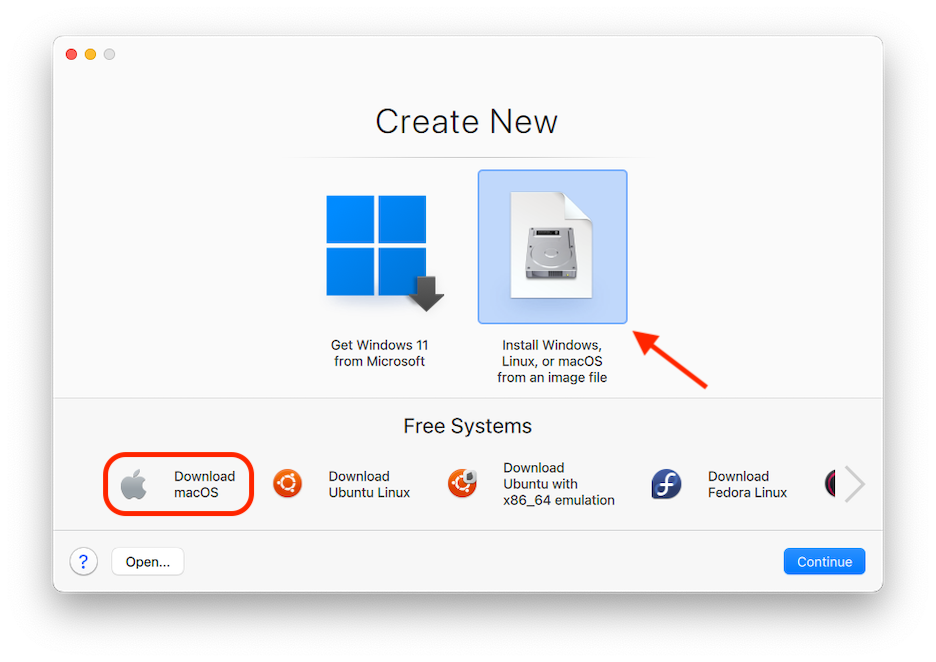
* 針對 Apple silicon Mac:在「**免費系統**」下,選取「**下載 macOS**」,按一下「**繼續**」,並根據螢幕說明操作。此步驟安裝的 macOS 版本與您 Mac 的 macOS 版本一致。
* 適用於 Intel Mac:在**「免費系統」**下,水平捲動選擇**「使用修復磁碟分割安裝 \」**,按一下**「繼續」**,並依照螢幕上的指示操作。此方法會使用 Mac 硬碟上系統復原磁碟分割的內容安裝指定版本的 macOS。
3. 如果您想安裝其他版本的 macOS,請使用「**從映像檔安裝 Windows、Linux 或 macOS**」選項,並根據螢幕說明操作。此方法也支援拖放功能。\
\
**注意**:當您要安裝的 macOS 版本與 Mac 正在執行的版本不同時,此選項可能會很有用,例如,在執行 macOS Sequoia 15 的 Mac 上安裝 macOS Sonoma 14 虛擬機器。\
\
但是,若要在執行舊版 macOS 的 Mac 上的虛擬機器中安裝新版的 macOS,您首先需要將 Mac 上的 Xcode 函式庫更新為與您希望作為虛擬機器執行的新版 macOS 相對應的版本。例如,若要嘗試在執行 macOS Sequoia 15 的 Mac 上建立 macOS Tahoe 26 虛擬機器,您必須先將 Xcode 更新至版本 26。
{% hint style="info" %}
**附註**:自 Parallels Desktop 版本 19 起,您可在採用 Apple silicon 的 Macs 上使用 `.ipsw` 檔案來設定 macOS 虛擬機器。\
\
若要從 `.ipsw` 檔案進行安裝,請在該檔案上連按兩下,選擇您的新虛擬機器名稱,然後按一下**「建立」**。\
\
如需使用命令列介面建立 macOS 機器的資訊,請參閱 Parallels Desktop 開發人員指南的[相應部分](https://docs.parallels.com/parallels-desktop-developers-guide/command-line-interface-utility/manage-virtual-machines-from-cli/general-virtual-machine-management/create-a-virtual-machine#creating-a-macos-virtual-machine)。
{% endhint %}
macOS 虛擬機器仍存在一些限制,其中一些限制特定於 CPU 架構。例如,任何 macOS 虛擬機器都不支援[融合 (Coherence) 模式](/landing/pdfm-ug/v26-zh-tw/parallels-desktop-for-mac-26-shi-yong-zhi-nan/zai-mac-shang-shi-yong-windows/she-ding-windows-ru-he-shi-yong-macos/he-bing-windows-he-macos.md)。
您還可以在主機與客體 macOS 之間複製和貼上文字以及拖放檔,就如使用 Windows 作為客體作業系統一樣 (但僅限於 Intel 型 Mac)。
{% hint style="danger" %}
**警告**:由於 Apple 本身的虛擬化架構的限制,執行 macOS Sonoma 或更早版本的 Apple silicon Mac 不支援使用 Apple 帳號 登入或將 macOS 虛擬機器連線至 iCloud 進行備份、同步或遠端管理 (**系統設定** -> **Apple ID**)。
{% endhint %}
如需在 Apple silicon Mac 上執行 macOS 虛擬機器的最新限制,請查看此[知識庫文章](https://kb.parallels.com/128867)。
您可[設定功能鍵與其他系統快速鍵是否觸發主機與客體版本的 macOS 中的功能](/landing/pdfm-ug/v26-zh-tw/parallels-desktop-for-mac-26-shi-yong-zhi-nan/zai-mac-shang-shi-yong-windows/hua-shu-chu-kong-shi-gui-ji-ban-yu-jian-pan/zi-ding-jian-pan-kuai-su-jian.md)。
---
# Agent Instructions
This documentation is published with GitBook. GitBook is the documentation platform designed so that both humans and AI agents can read, navigate, and reason over technical content effectively. Learn more at gitbook.com.
## Querying This Documentation
If you need additional information that is not directly available in this page, you can query the documentation by asking a question.
Perform an HTTP GET request on the following URL with the `ask` and `goal` query parameters:
```
GET https://docs.parallels.com/landing/pdfm-ug/v26-zh-tw/parallels-desktop-for-mac-26-shi-yong-zhi-nan/jin-jie-zhu-ti/zai-mac-shang-shi-yong-qi-ta-zuo-ye-xi-tong/shi-yong-macos-zuo-wei-ke-ti-zuo-ye-xi-tong.md?ask=&goal=
```
`ask` is the immediate question: it should be specific, self-contained, and written in natural language.
`goal` is what the user is ultimately trying to achieve, the reason they need the answer. Sharing it helps GitBook give you a better, more relevant answer. A goal is most helpful when it describes the outcome the user wants rather than restating the question. For example, with `ask=how do I create an API token`, a goal like `automate deployments from our CI pipeline` lets GitBook tailor the answer to that use case.
The response will contain a direct answer to the question and relevant excerpts and sources from the documentation.
Use this mechanism when the answer is not explicitly present in the current page, you need clarification or additional context, or you want to retrieve related documentation sections.